SmartTaskOps Support
How to Create a Customer
To start the customer creation flow correctly, the first action is to sign in to SmartTaskOps and open the POS module. This makes sure you are in the right workspace before creating the customer profile, linking an order, and continuing tickets without losing context.
Step 1
After login, click the POS tab
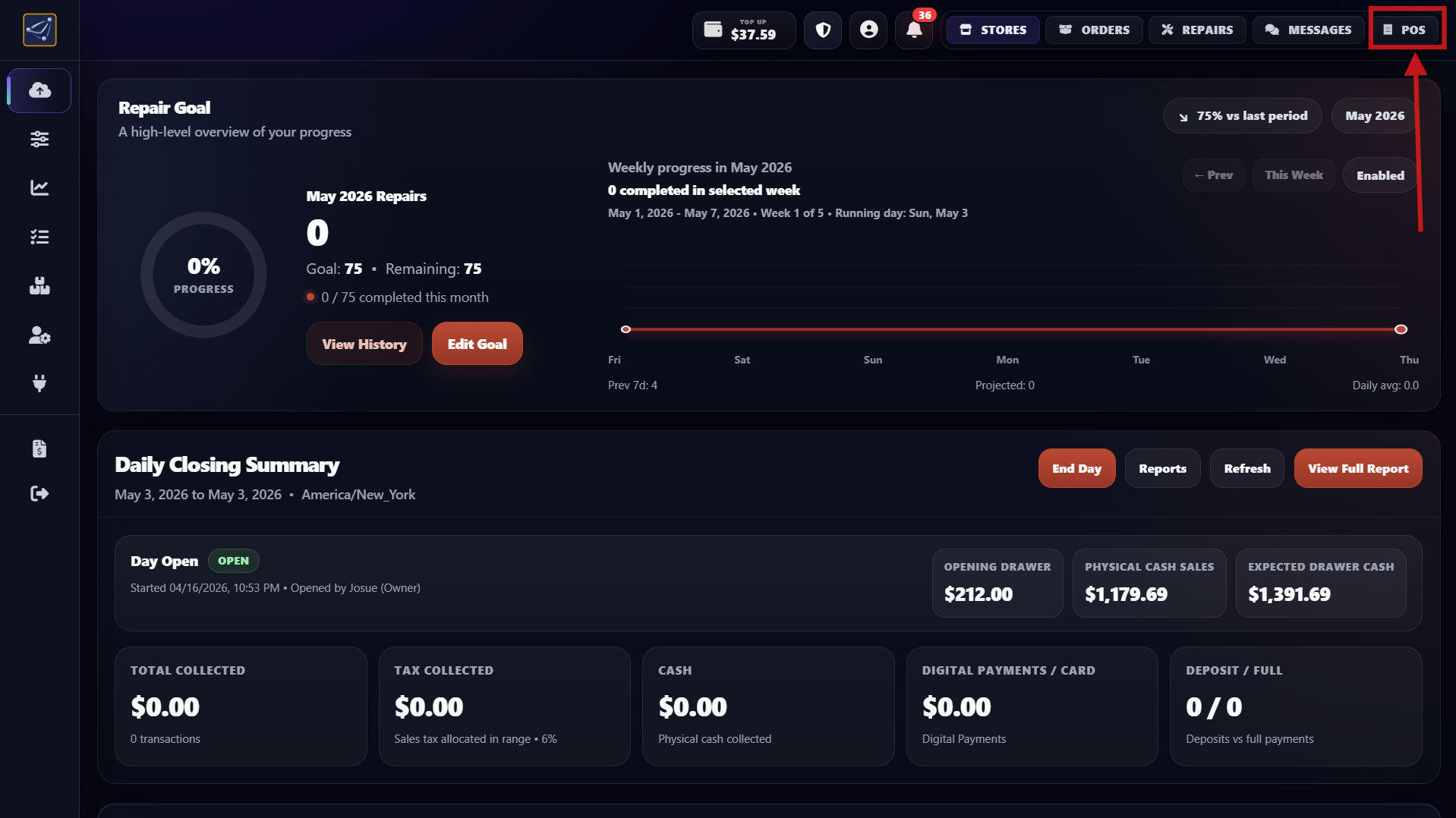
- Sign in using your owner account or an authorized staff account.
- In the top navigation bar, locate the POS tab.
- Click POS to open the point-of-sale workspace and customer creation area.
- Confirm you are inside the POS module before moving to the next customer setup step.
Step 2
Click the blue plus (+) to open the add-customer modal
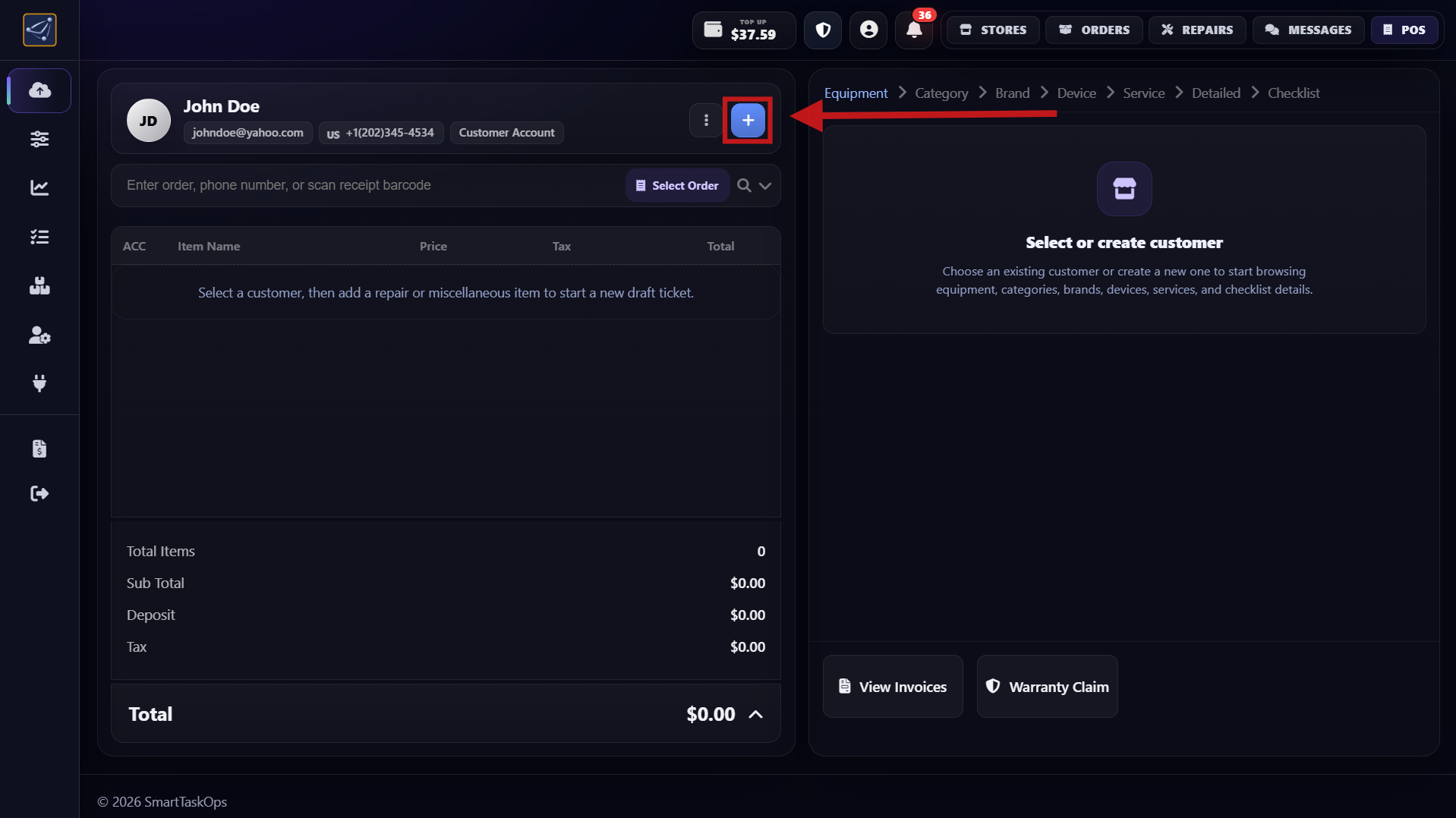
- Stay inside the POS workspace after completing Step 1.
- Locate the blue plus (+) icon used to create a new customer.
- Click the icon once to open the customer creation modal.
- Wait for the modal to fully load before entering customer details in the next step.
Step 3
Enter customer name and phone, then create the customer
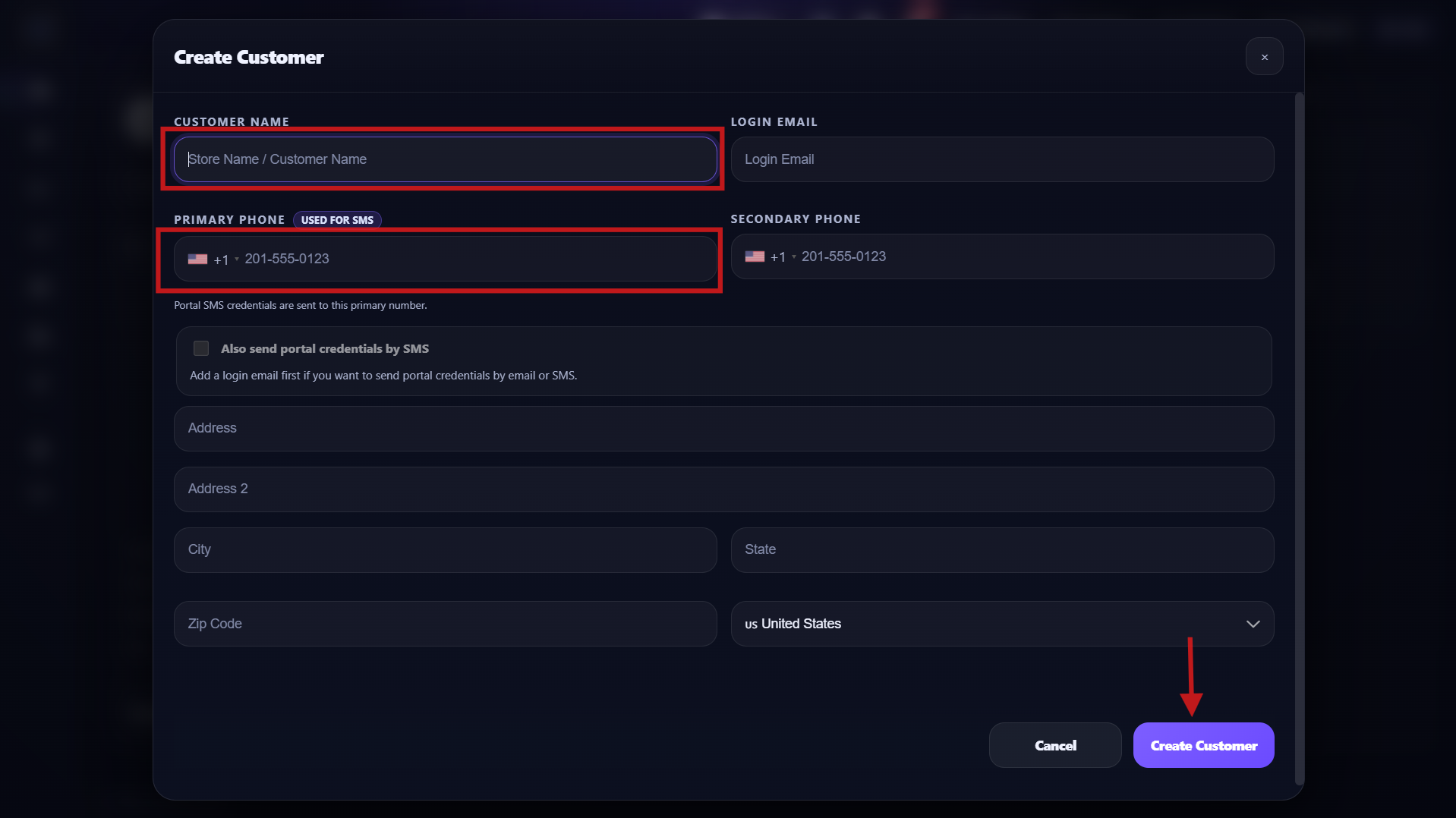
- After clicking the blue plus (+), the add-customer modal opens.
- Type the customer name and phone number.
- These two fields are enough to create a new customer profile quickly.
- Confirm and save to create the customer, then continue with the order flow.
Step 4
After Create Customer, the customer is saved and ready for repairs/products
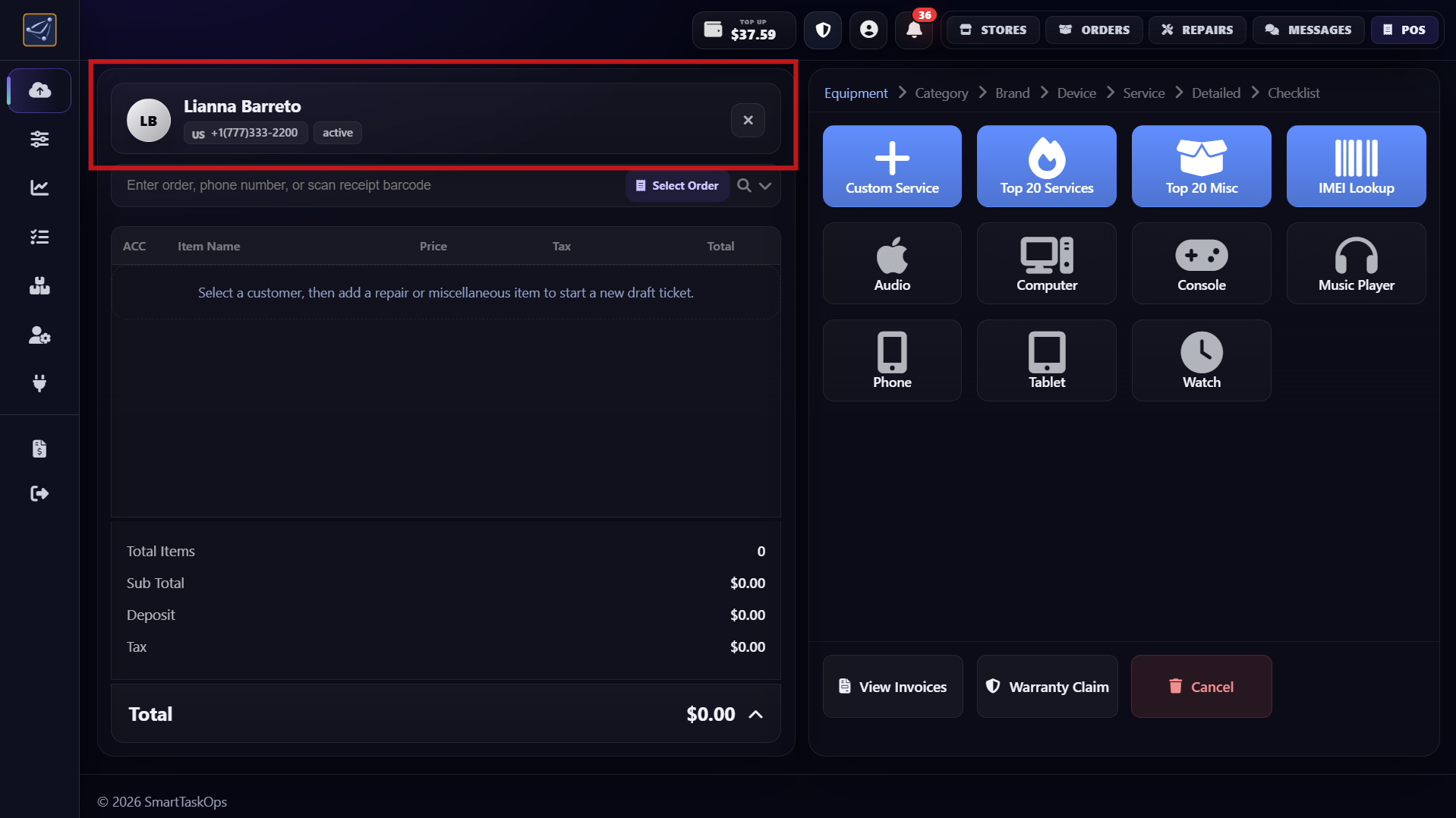
- After entering name and phone, click Create Customer.
- The customer is saved immediately in the database.
- Now the profile is ready for repairs and miscellaneous items.
- You can also add products and continue the order flow.
Step 5
Watch the full customer creation video
- Watch this Bunny.net video to see the full customer creation flow from Step 1 to Step 4.
- The video demonstrates POS access, opening the blue plus (+), and entering customer details.
- Use this walkthrough when training new staff or reviewing the complete process.
- Pause and replay any section to follow each action step by step.
How to Edit a Customer
Use this guide to start editing an existing customer profile in SmartTaskOps.
Step 1
Press the 3 dots to open the customer list
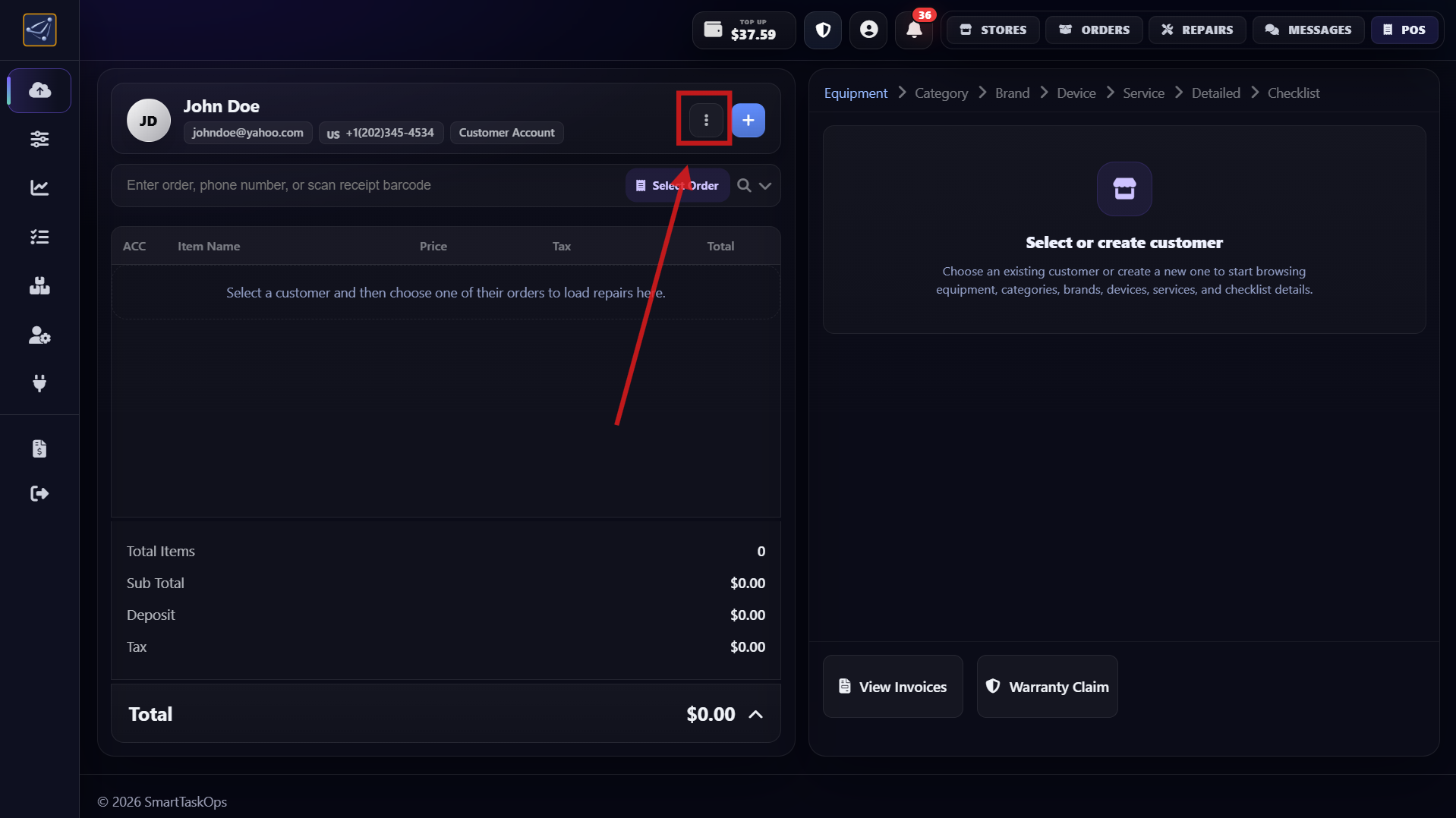
- Press the 3 dots and this opens the section where all customers are listed.
Step 2
Press the pencil icon to edit the customer
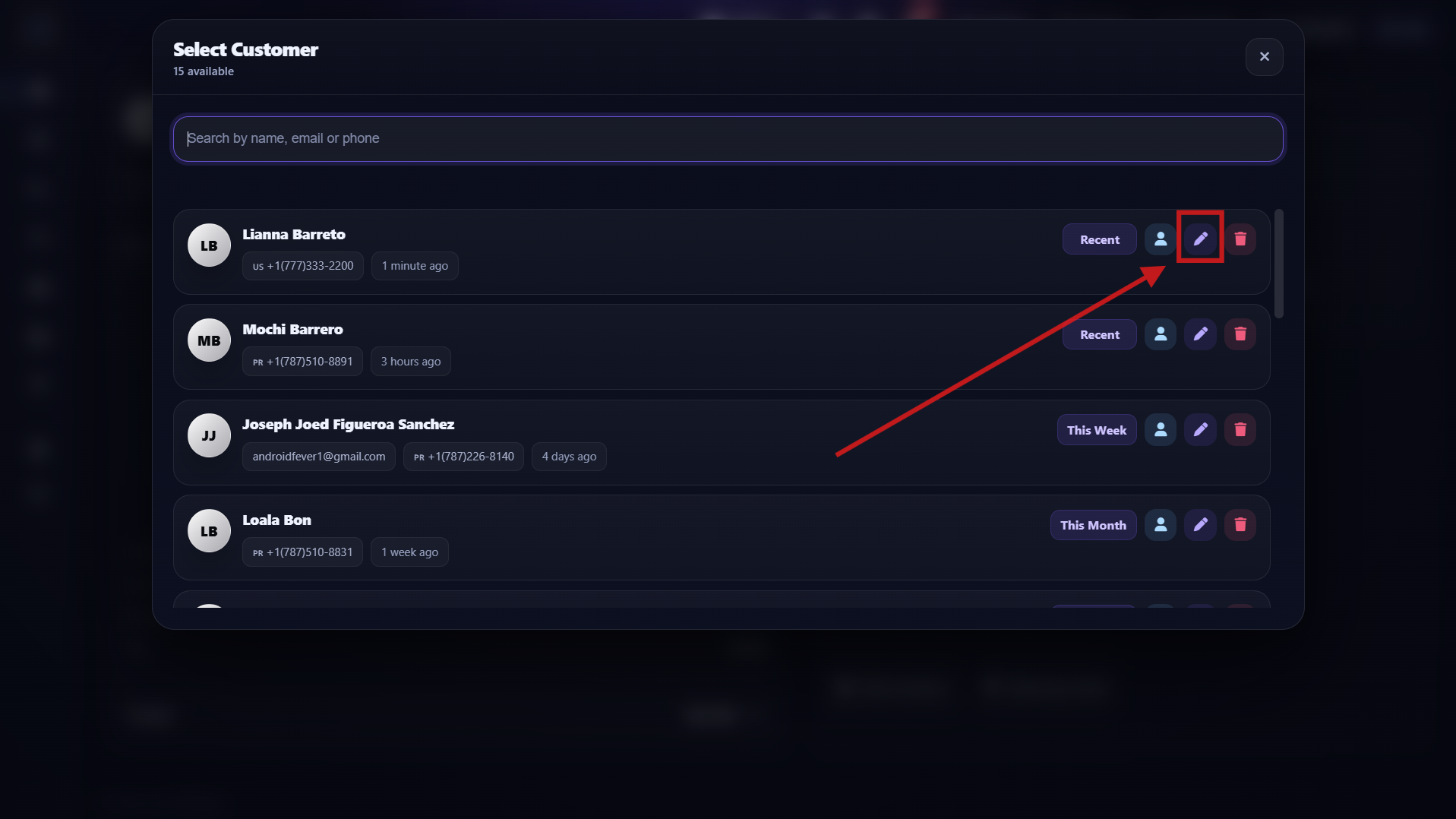
- Once the modal is open and you can see all customers, press the pencil icon to edit customer information. This will open the edit customer panel.
Step 3
Edit the customer and confirm the success message
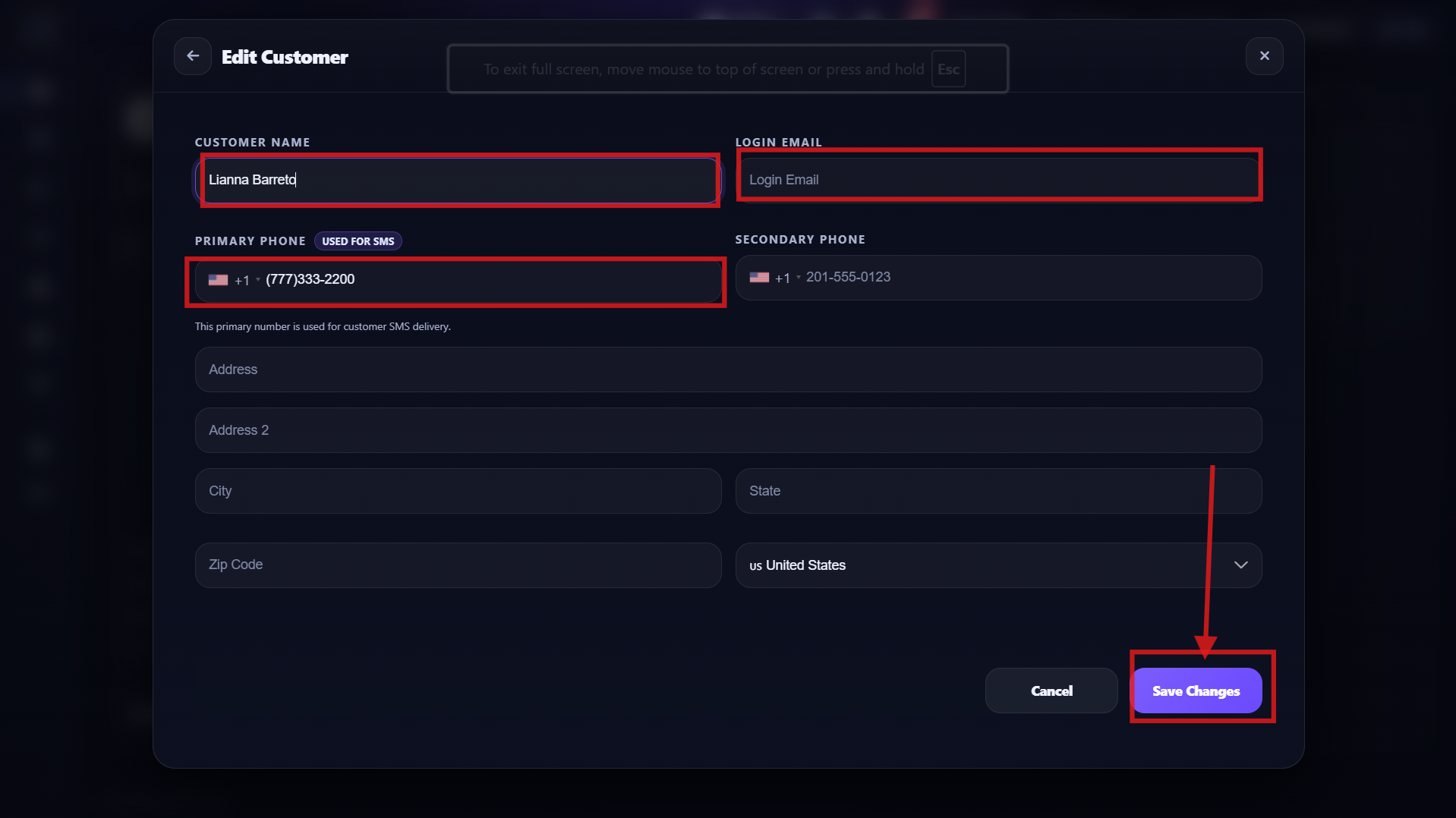
- After pressing the pencil icon, you will see the customer edit area. Once you finish editing and save, a message appears confirming the customer was edited successfully.
Step 4
Press back and confirm the updated customer
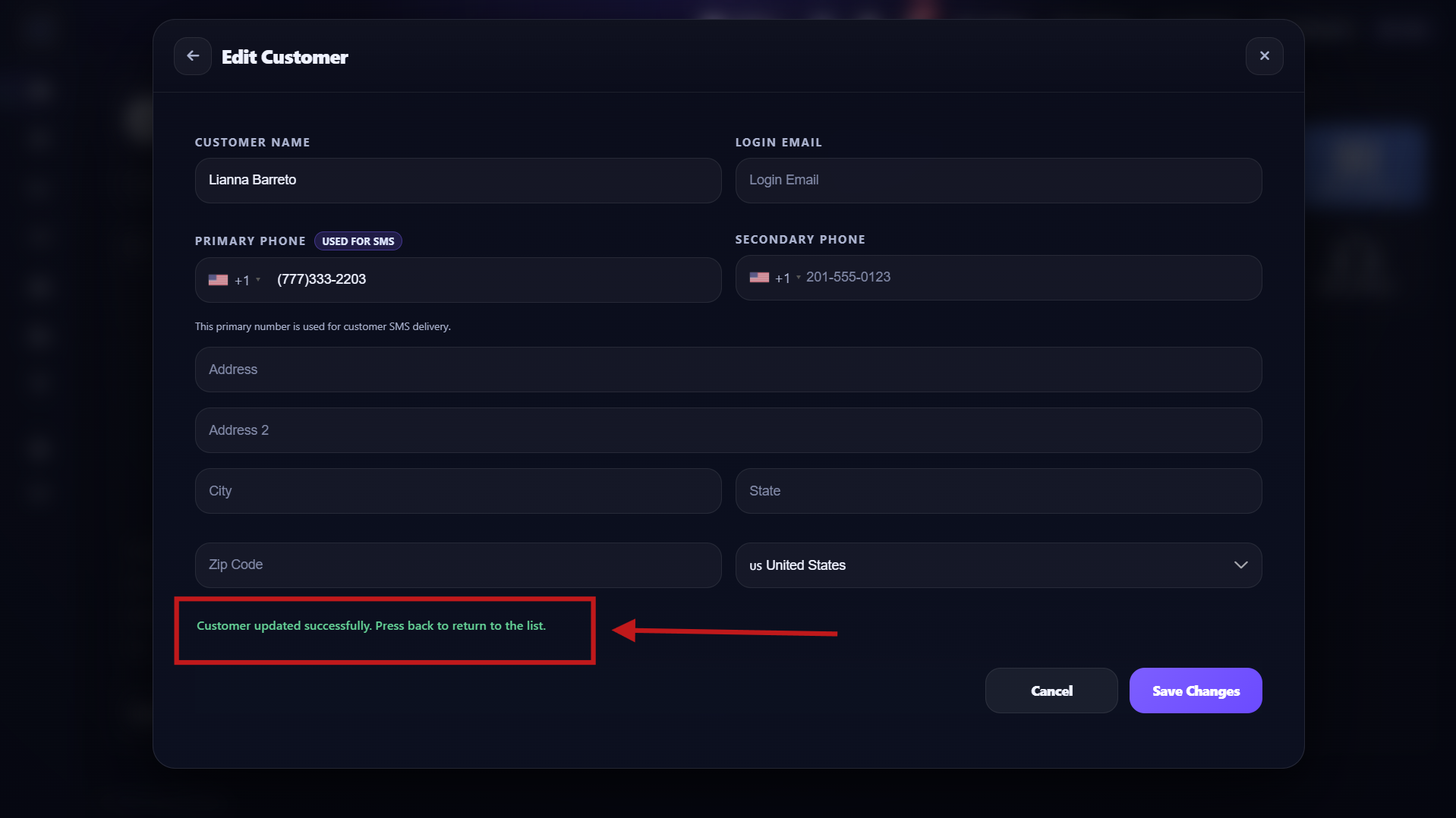
- After editing and pressing back, you can see the customer updated and this message: Customer updated successfully. Press back to return to the list.
Step 5
Press the back button after successful save
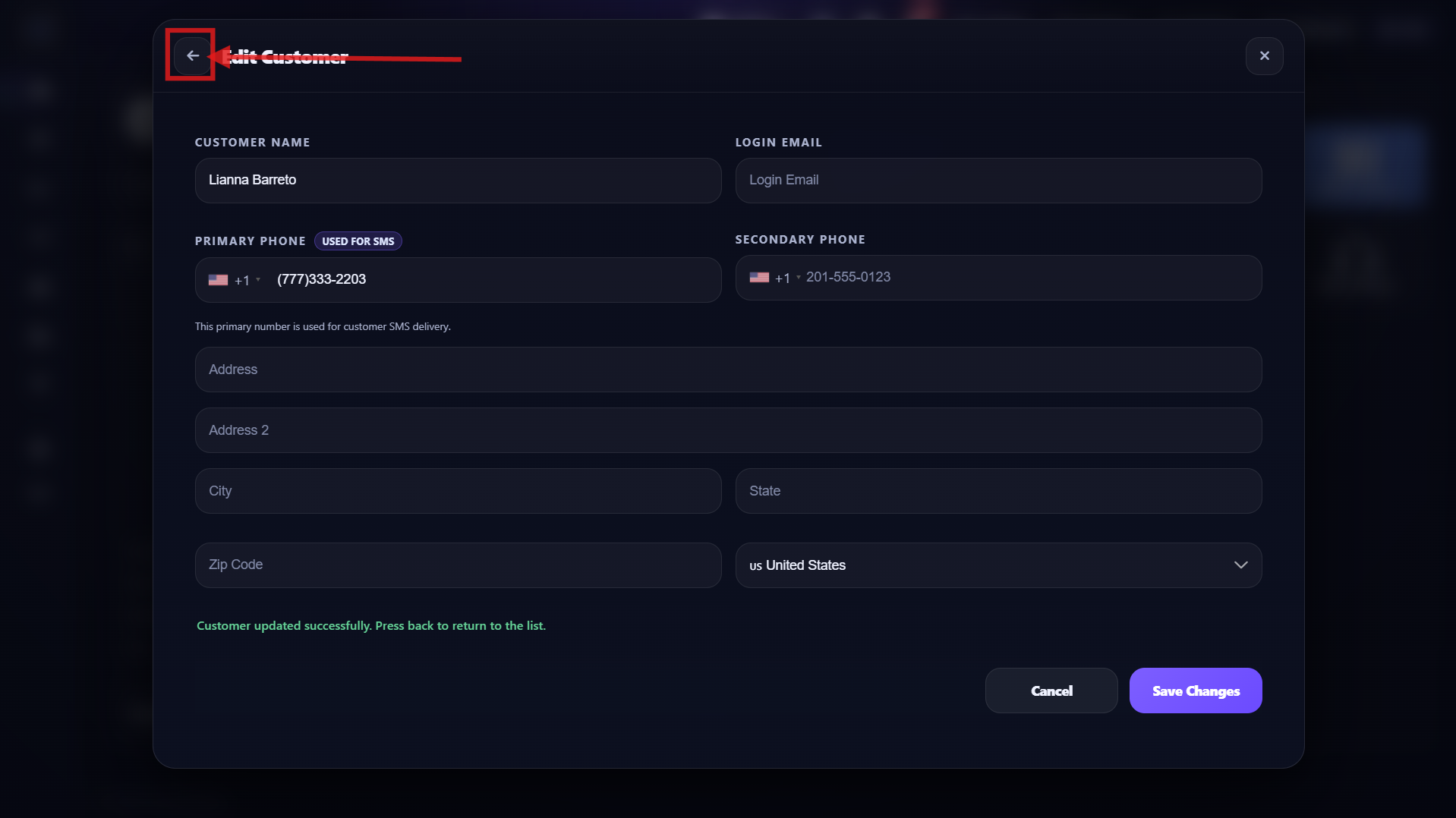
- After editing the customer and confirming it was saved successfully, you can press the back button.
Step 6
Confirm the updated customer is ready to select
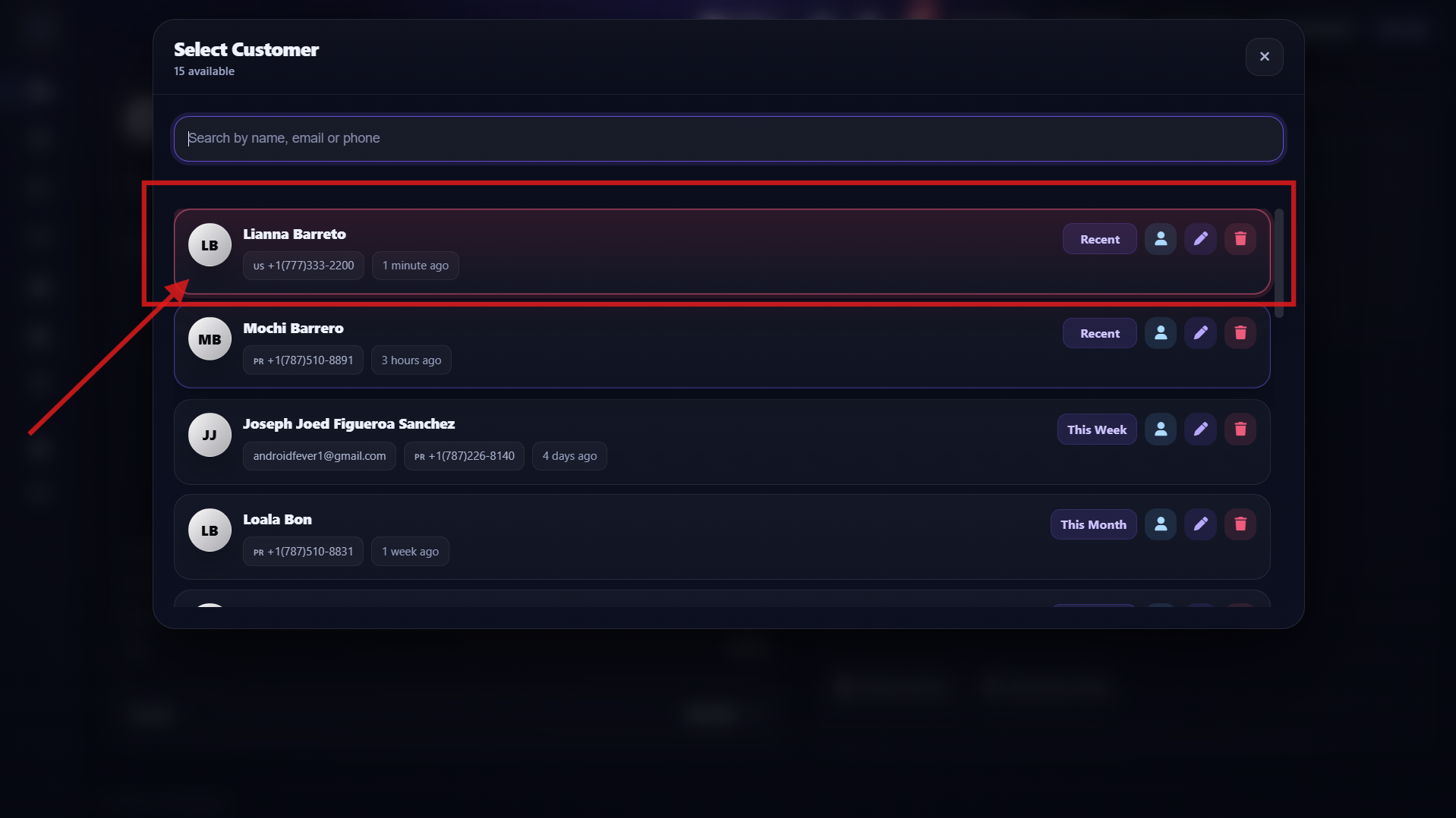
- After pressing back, you can see the customer updated and ready to select. You will see it with red borders, showing the customer was edited and is ready to select.
Step 7
Select the customer and continue with repairs/orders
- After editing the customer information, you can select the customer and continue adding repairs, miscellaneous items, or orders.
How to Select a Customer
Use this guide to select an existing customer before adding repairs, miscellaneous items, or orders.
Step 1
Press the 3 dots to open the customer list panel
- Before creating an order, press the 3 dots to open the panel where all customers are listed.
Step 2
Tap the customer you need and continue with repairs or orders
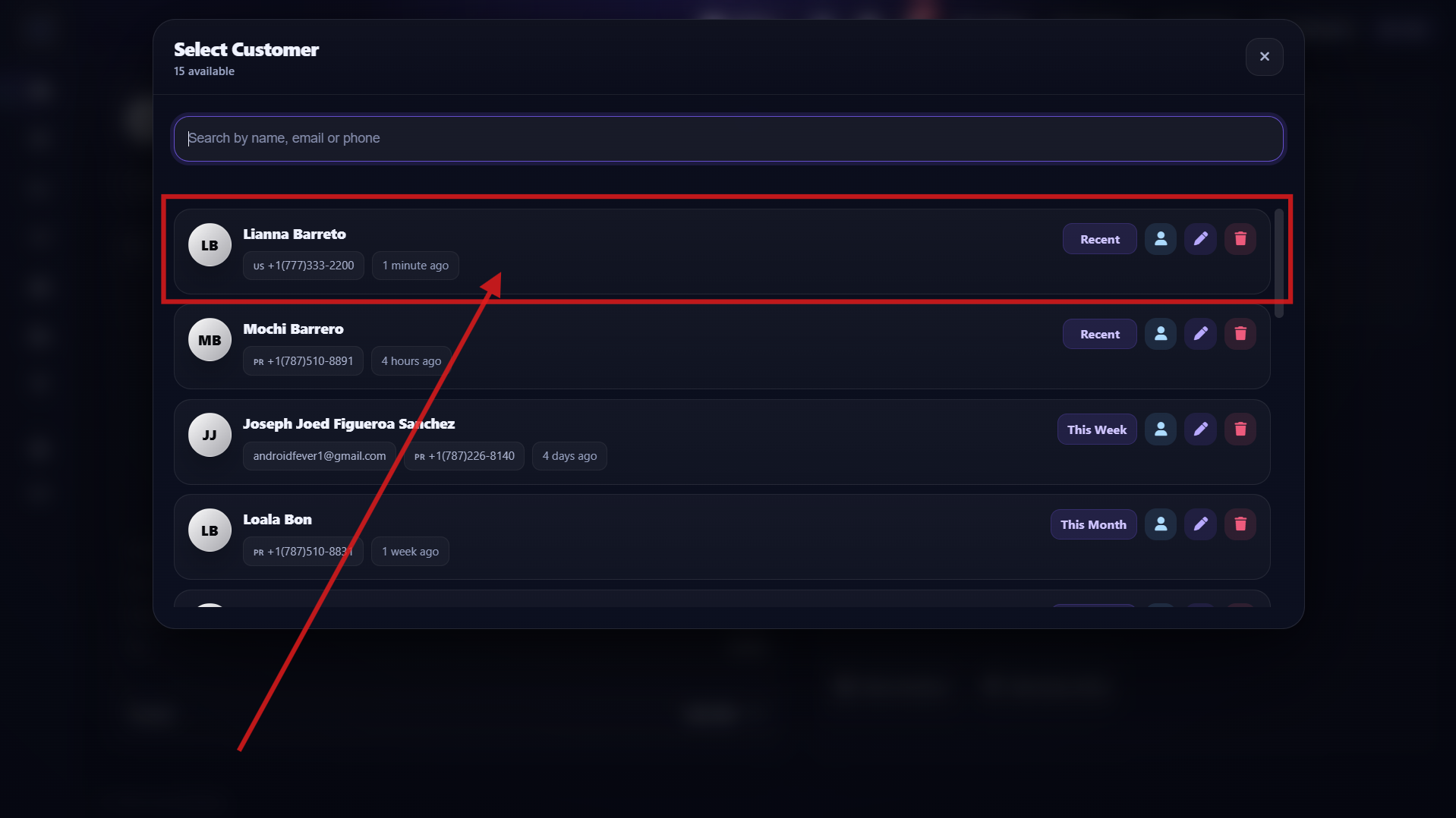
- Tap the customer you are looking for, and the system will automatically select that customer so you can continue adding repairs or orders. You can search by phone number, first name, or last name.
Step 3
Customer selected and ready to add repairs, orders, or miscellaneous items
- After selecting the customer, everything is ready to continue and add repairs, orders, or miscellaneous items.
How to Create an Order
After selecting or creating a customer, use the right-side panel to add services, miscellaneous items, or parts to the repair.
Step 1
Use the right-side panel to add services, miscellaneous items, or parts
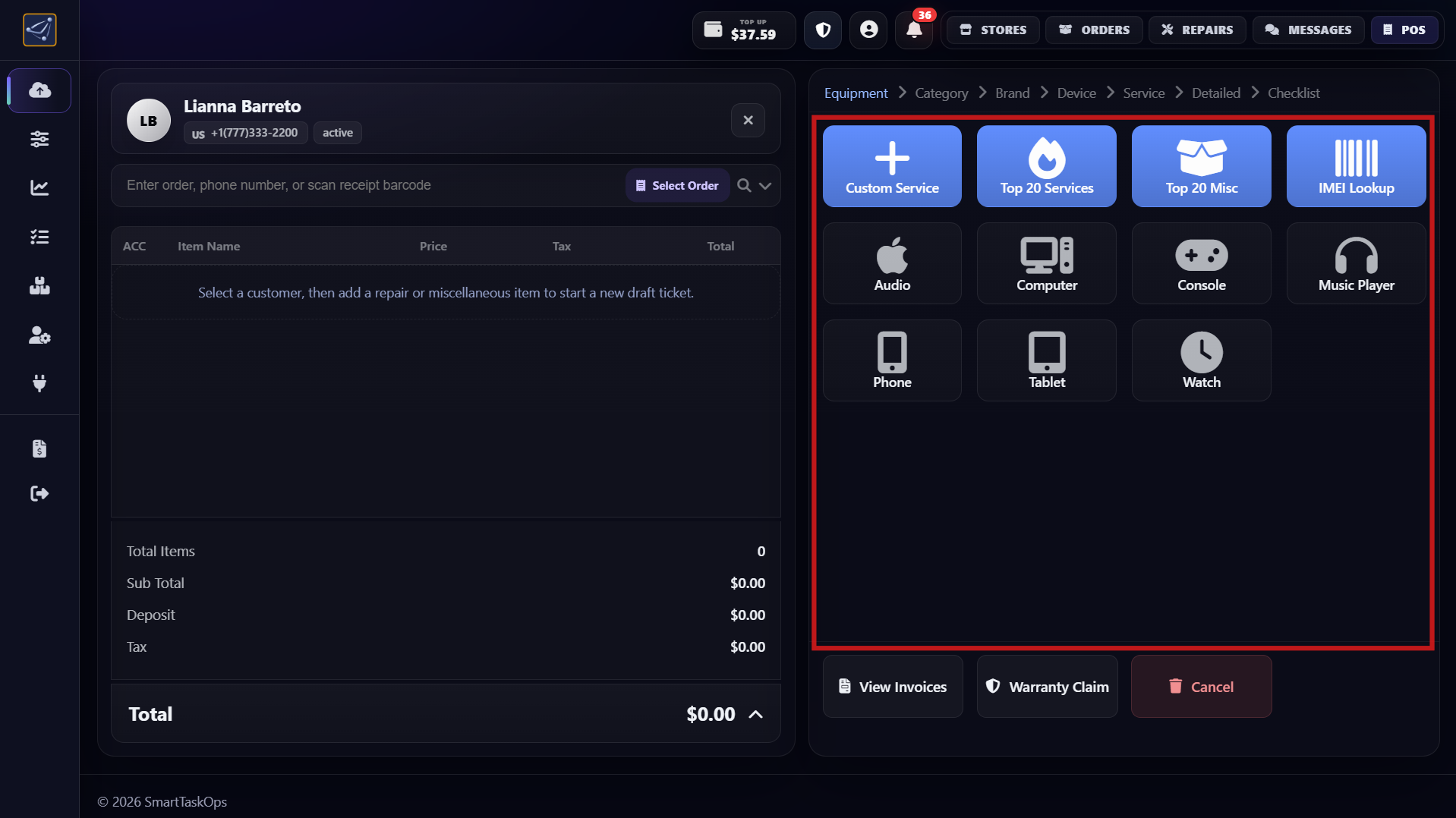
- After selecting or creating the customer, go to the panel on the right side.
- In this panel you can add services, miscellaneous items, or parts to the selected repair.
- This panel is fully customizable from Service Management, where you can create custom services or use pre-built ones.
Step 2
Select Apple, then choose Service instead of Miscellaneous
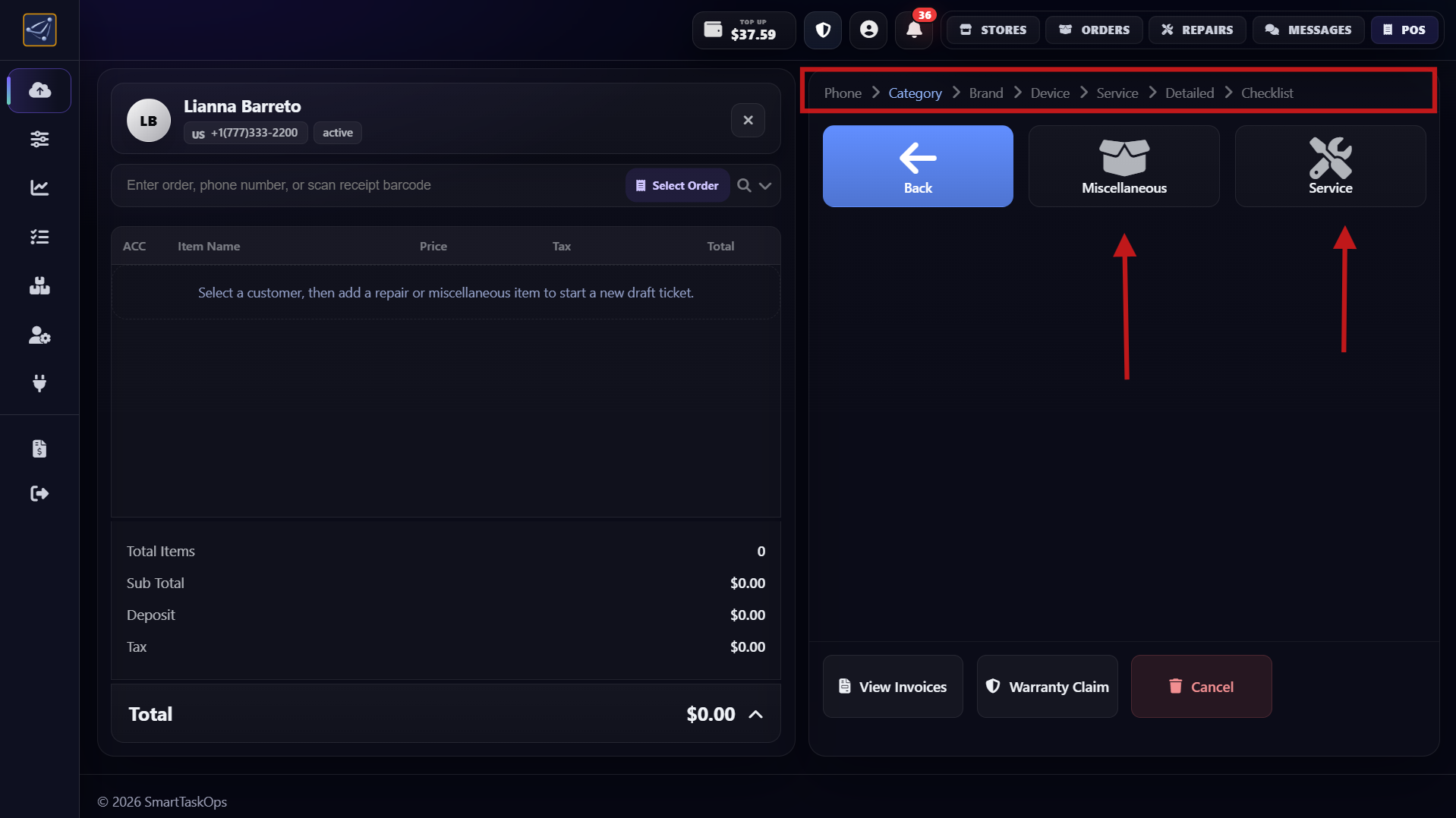
- In this section, first select an Apple device.
- After selecting the brand, choose between Miscellaneous or Service.
- For this flow, select Service to continue creating the order.
Step 3
Choose Service from the mobile device options
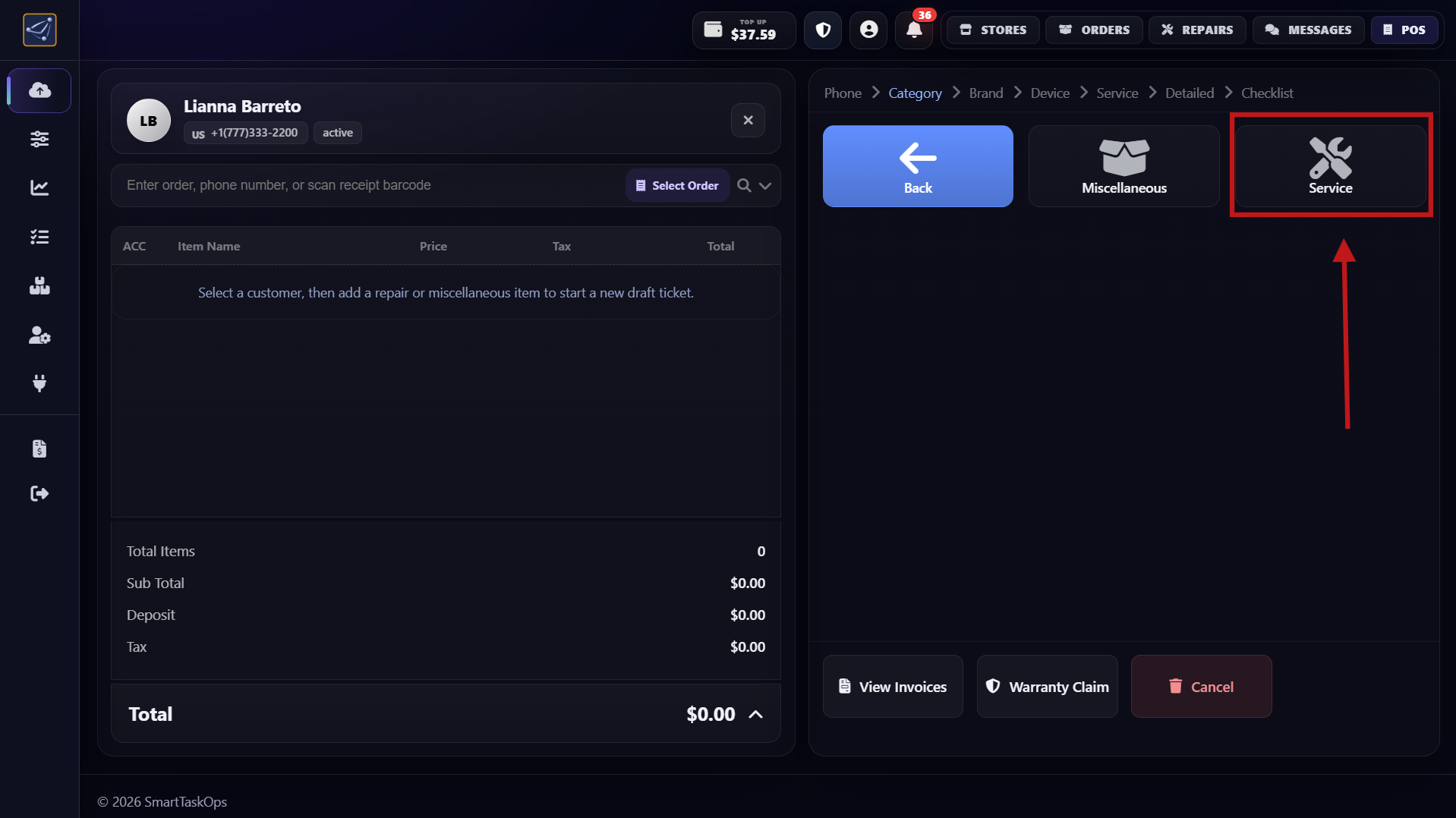
- After this step, you can choose Services or Miscellaneous for mobile devices.
- For this guide, we continue by selecting Service now.
- This keeps the order flow focused on service-based repairs.
Step 4
Press Service and select the brand (Apple)
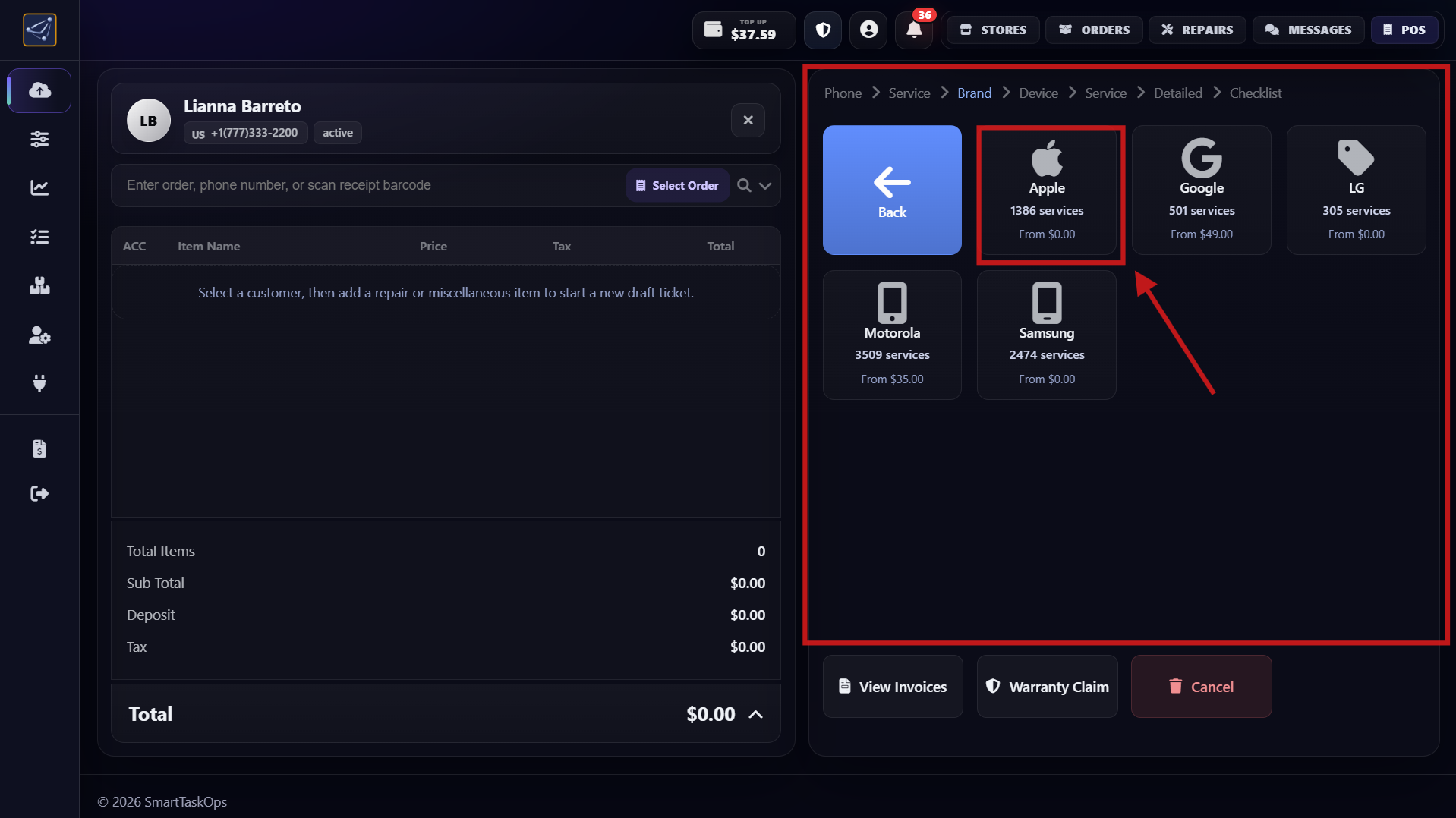
- After pressing Service, you will see phone brands like Samsung, Google, LG, Apple, and more.
- We keep adding new services constantly, and we already have more than 11,000 pre-built services.
- In this step, select the brand Apple.
Step 5
View iPhone models and find the exact model faster
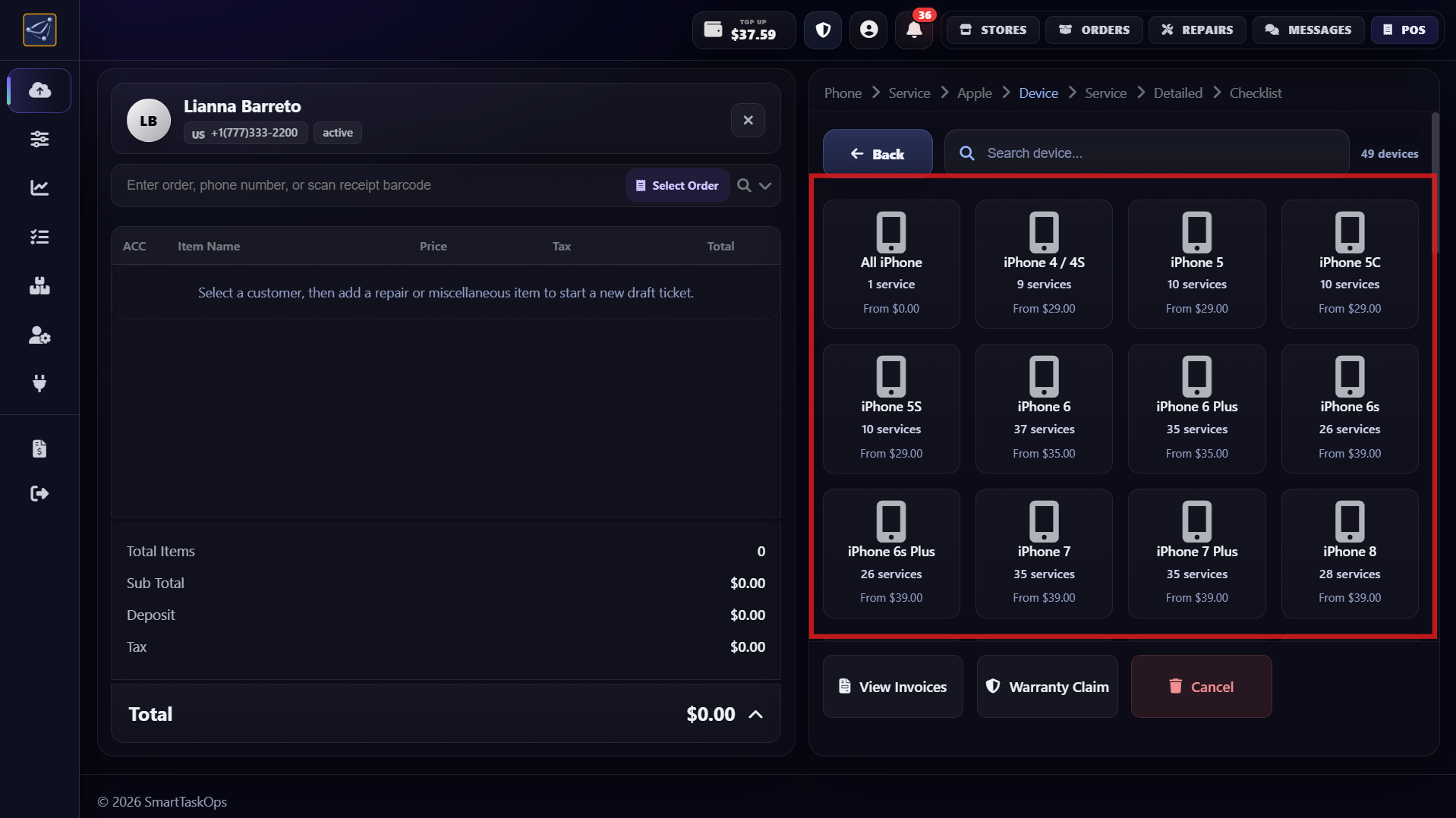
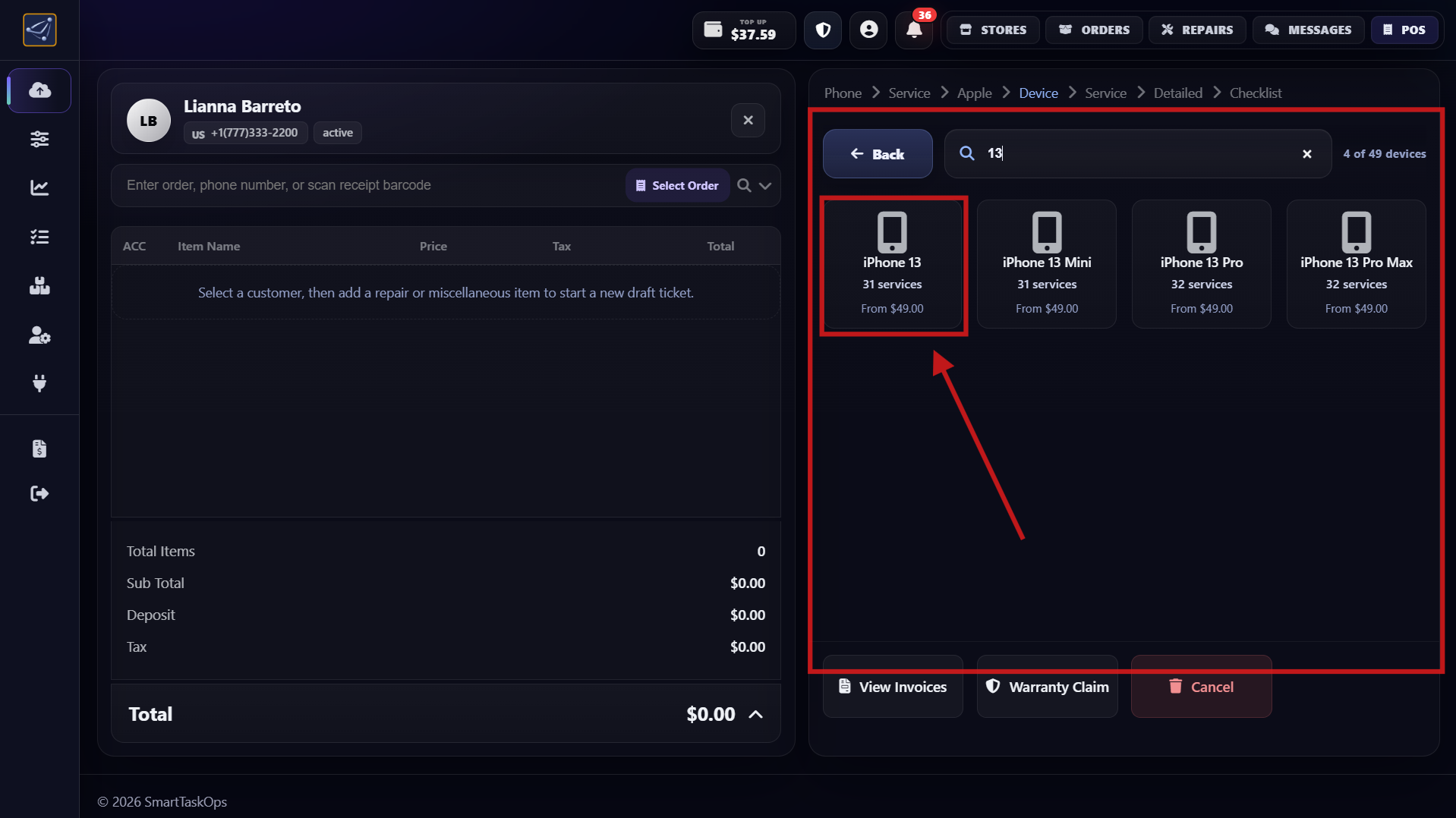
- After pressing the Apple brand, you can see all available iPhone models.
- You can select any iPhone model from the list.
- To find the exact model faster, use the device filter and then select the matching iPhone model.
Step 6
Filter by problem and select Screen Repair service
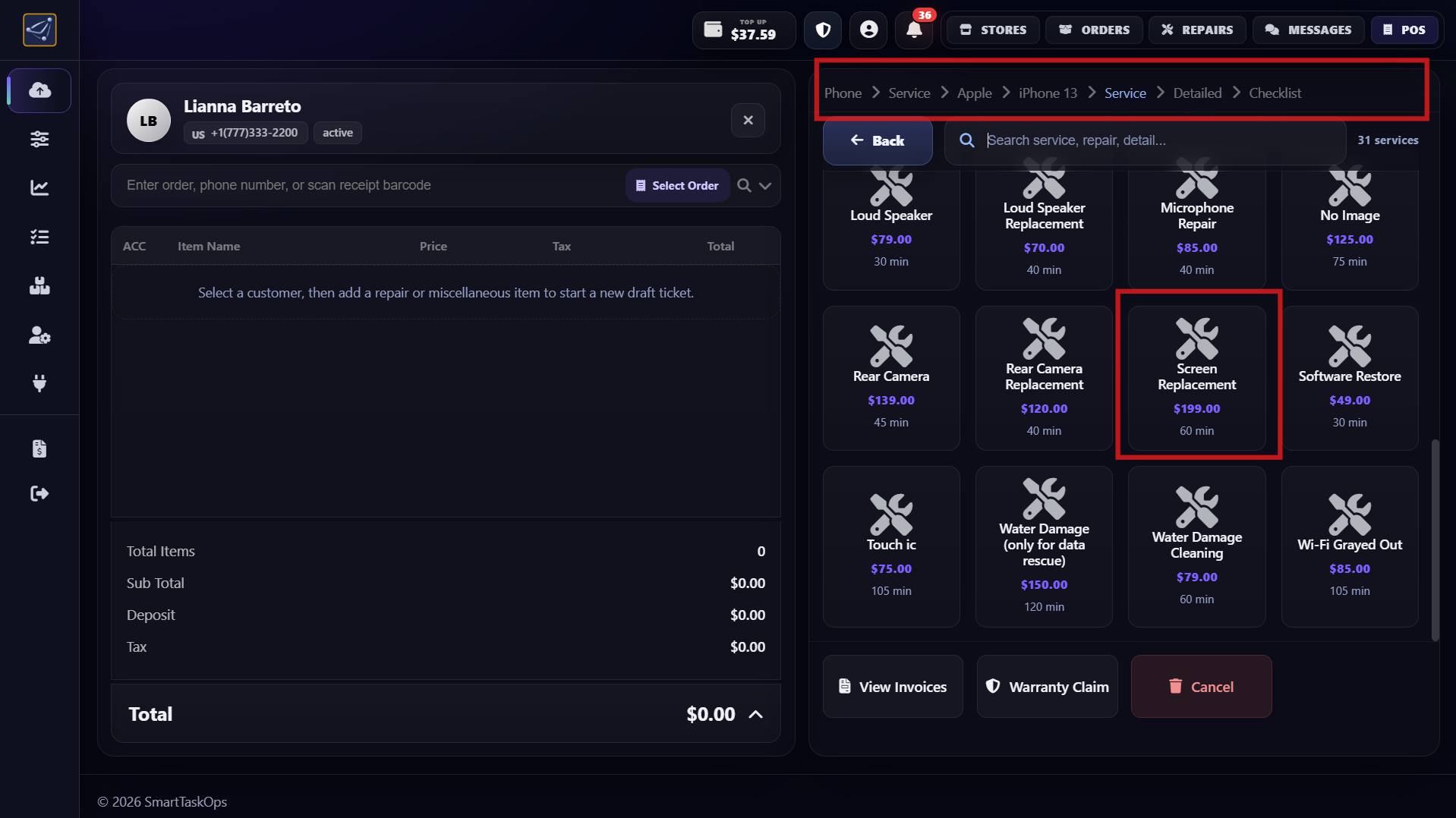
- After choosing the exact model, continue by filtering services by the device problem.
- One of the most popular options is Screen Repair.
- In this example, we selected iPhone 13 and then selected a Screen Repair service.
Step 7
MobileSentrix pricing, IMEI check, and special-order part flow
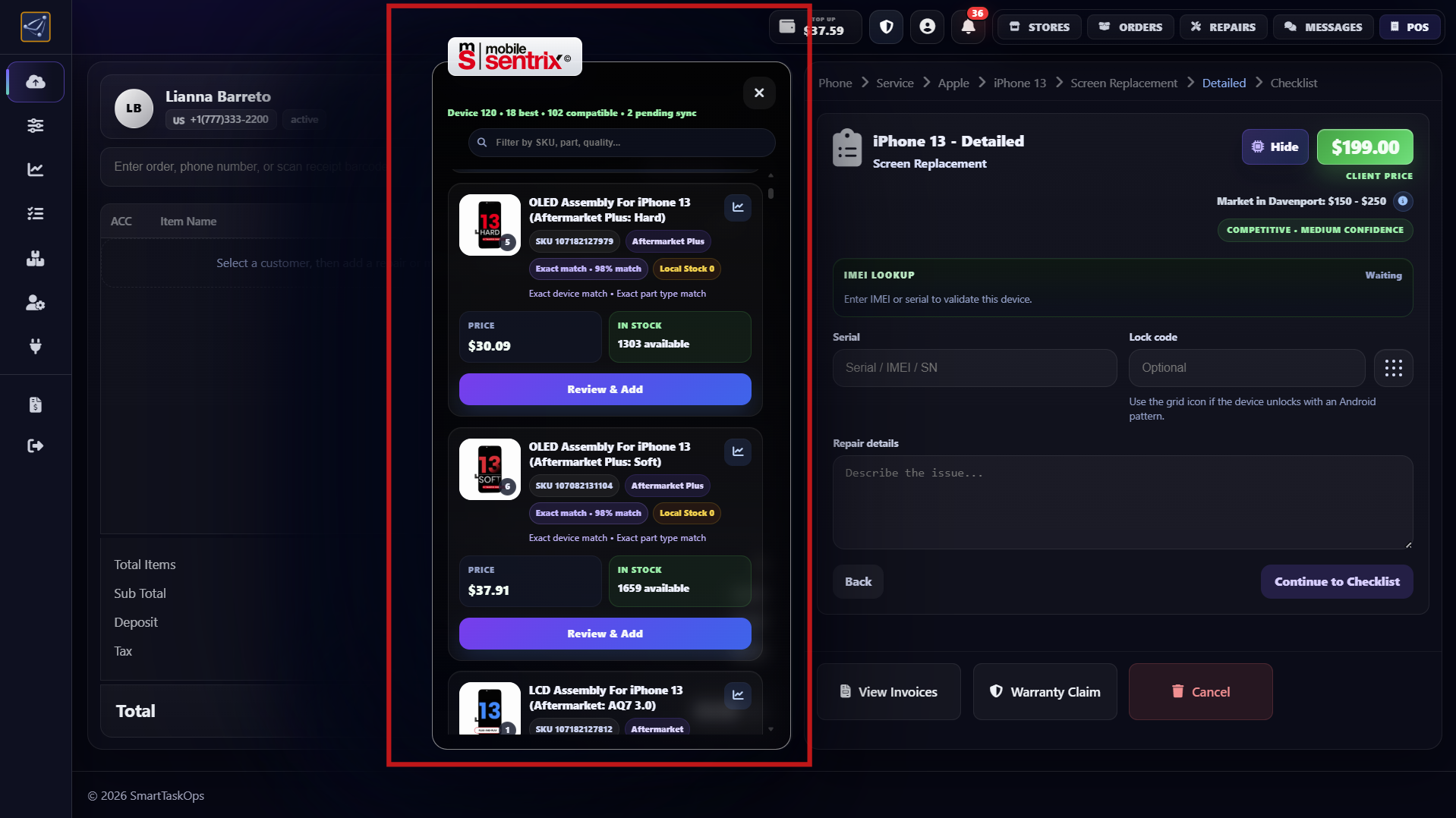
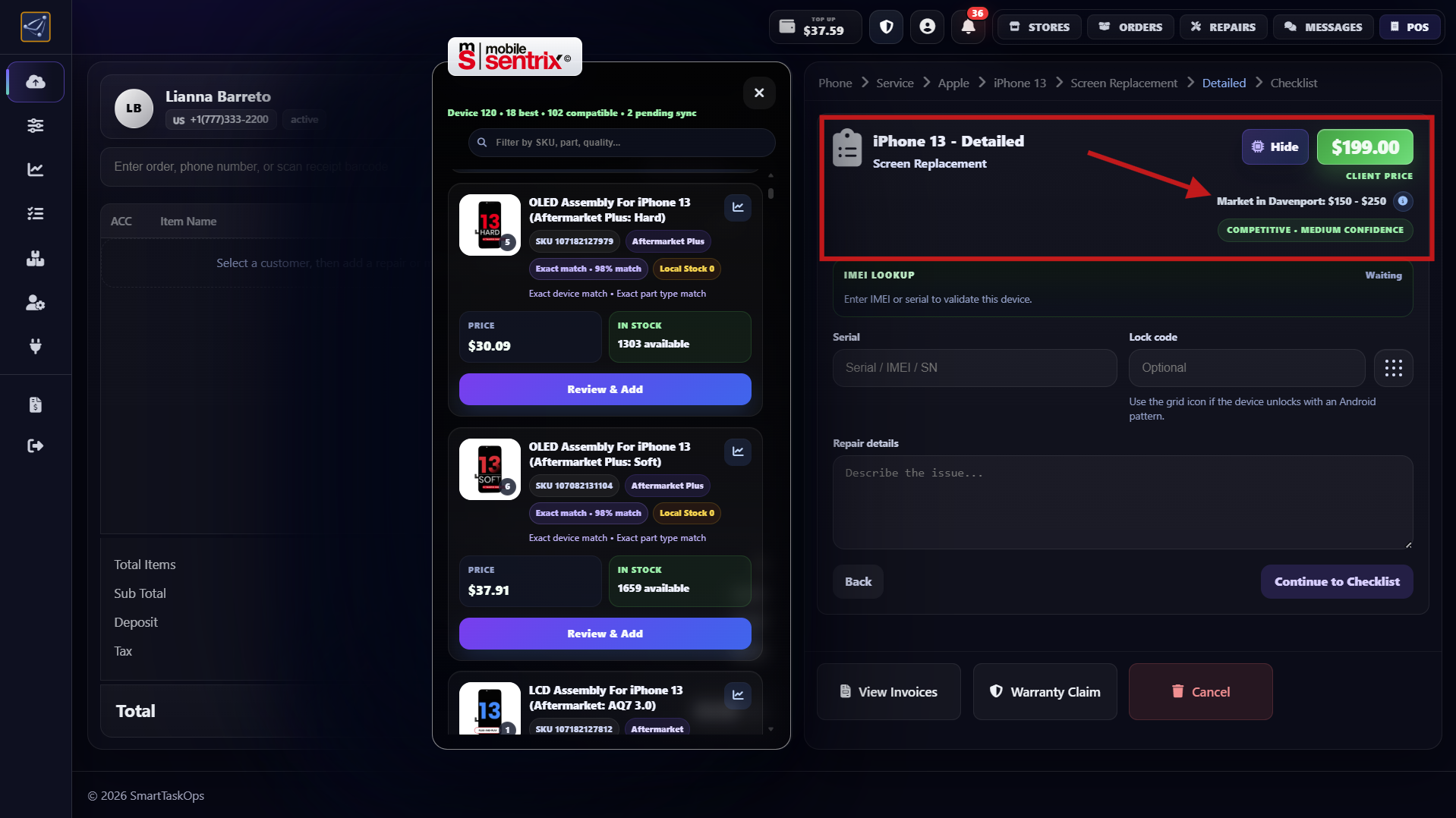
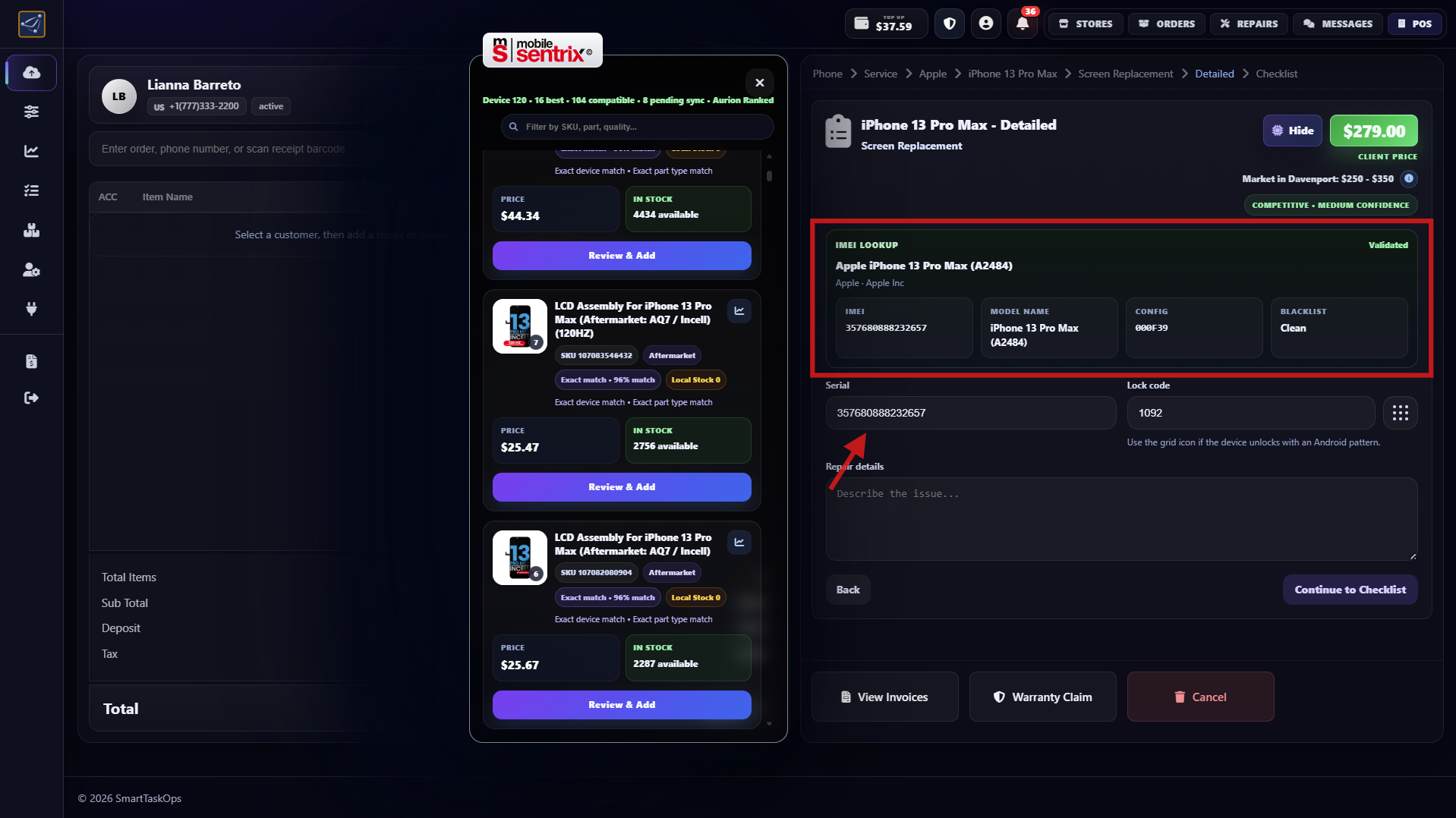
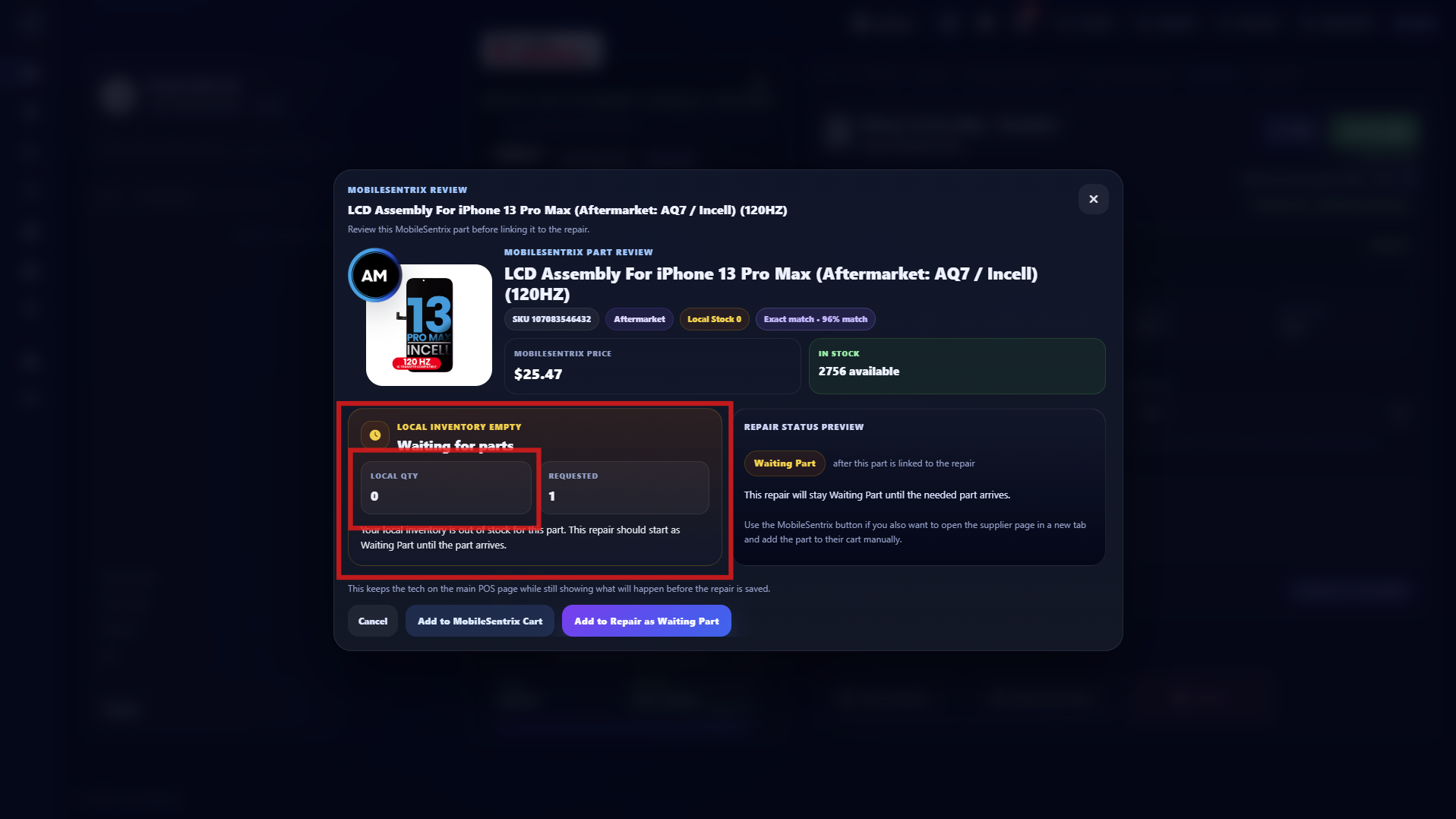
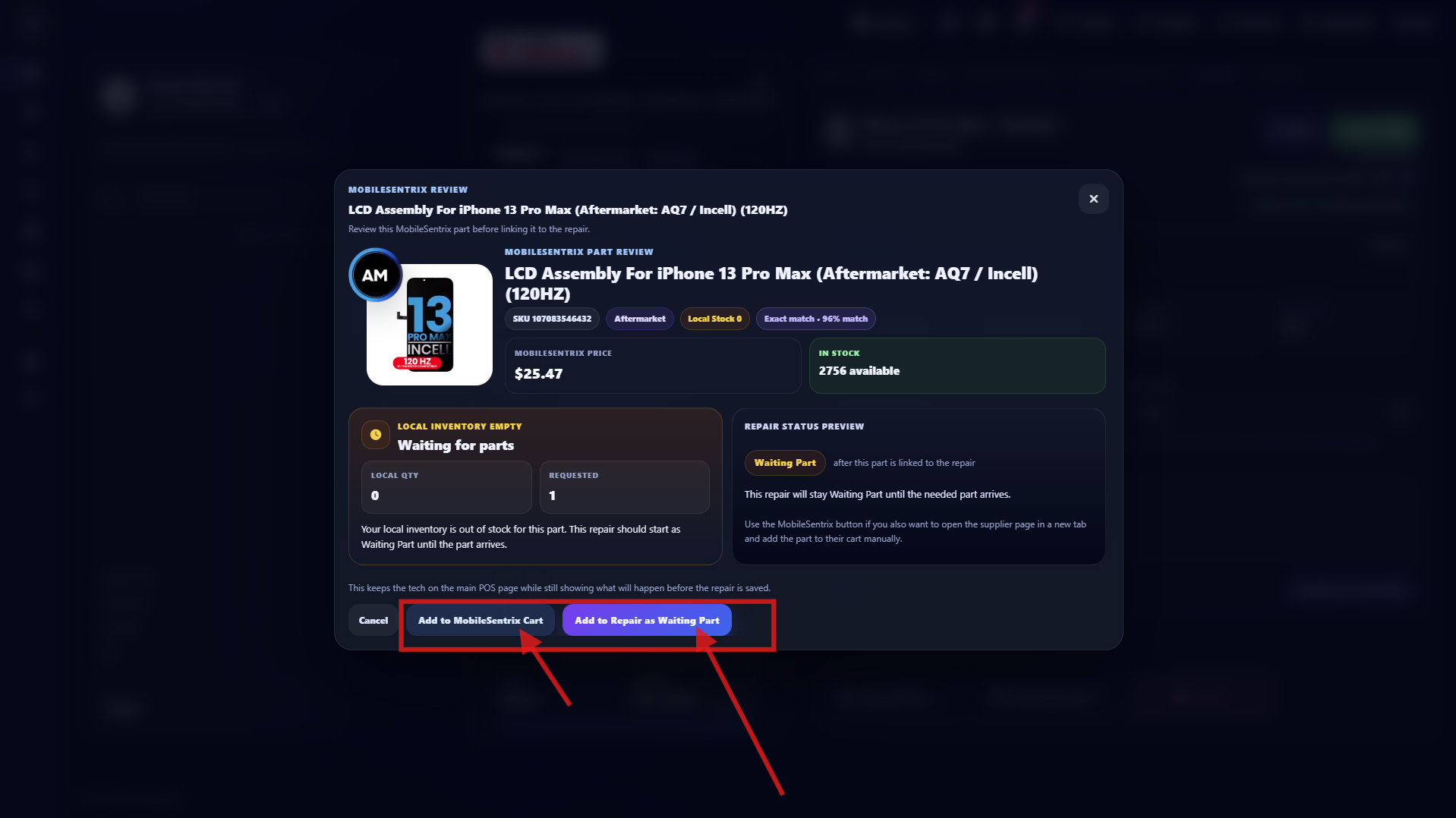
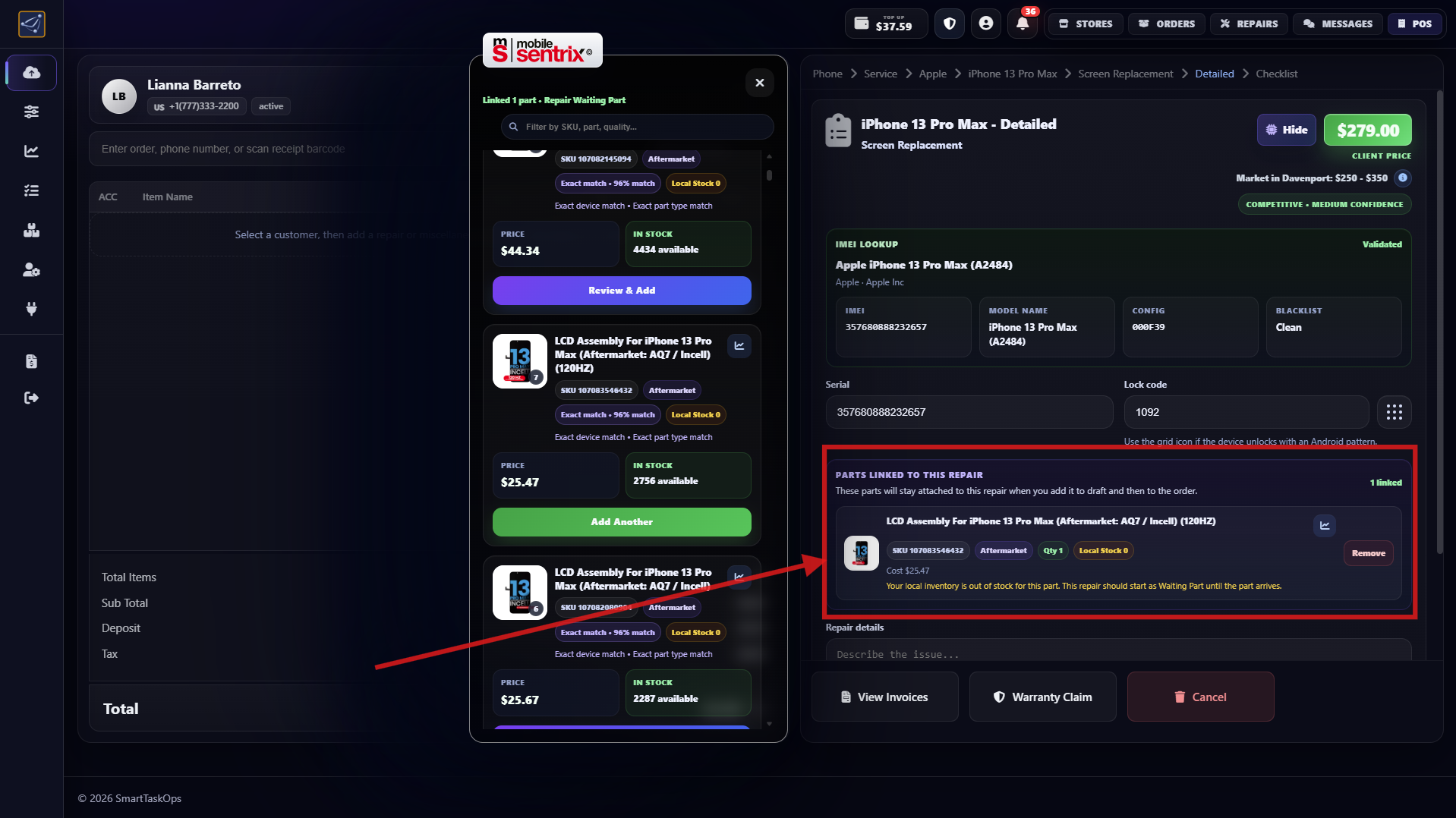
- After selecting Screen Repair, the authorized vendor dialog from MobileSentrix opens with part options for this phone model.
- Review current MobileSentrix prices and local repair prices based on your location, then choose the option that works best for you.
- You can verify IMEI to confirm the exact iPhone model and check if it is blacklisted with any carrier.
- If a part is out of local stock, add it from MobileSentrix inventory as a special order and it will stay pending automatically.
Step 8
Complete the checklist before continuing
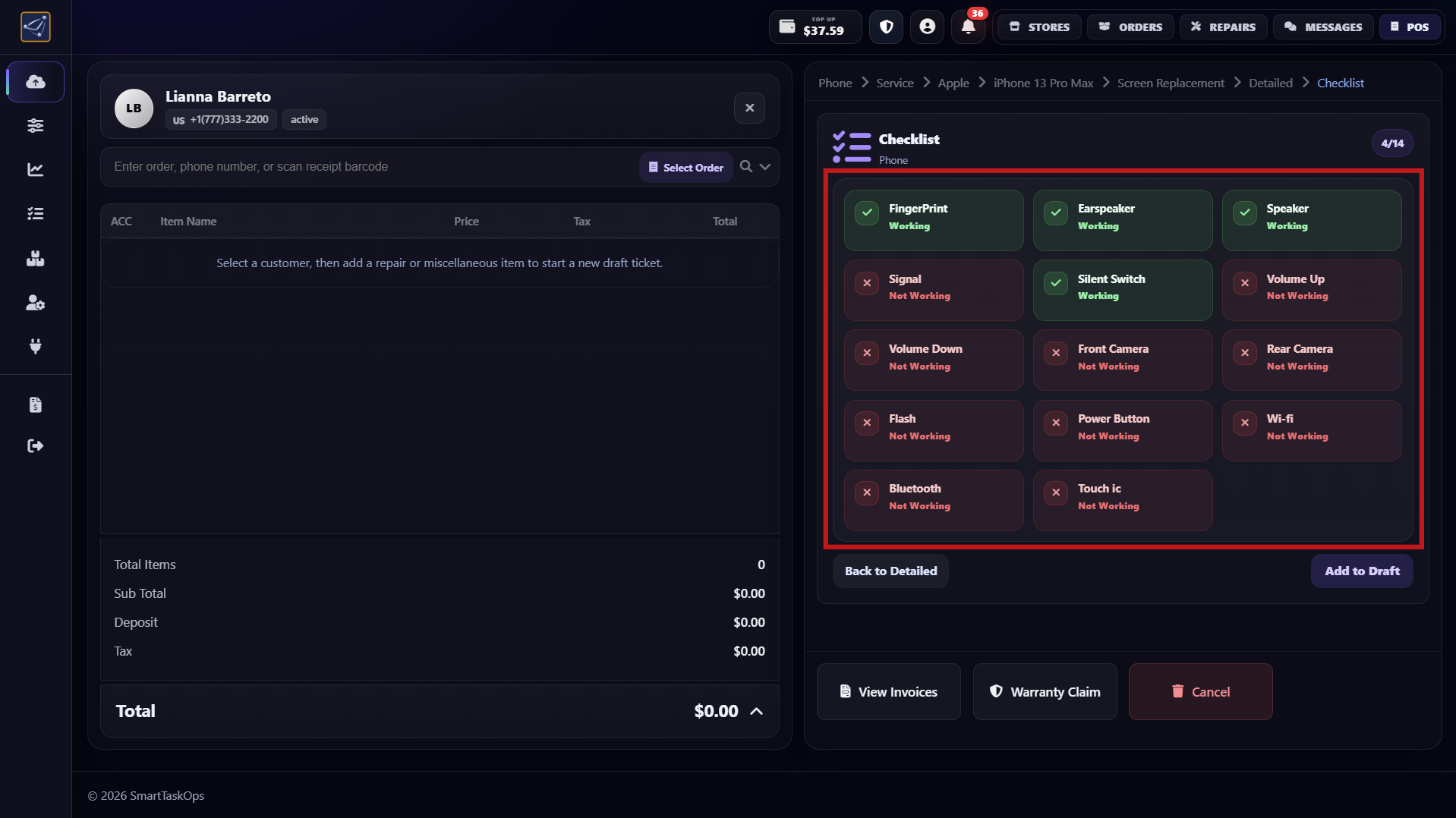
- Fill the checklist to mark what device functions are working and not working.
- This checklist is fully customizable from Checklist Manager.
Step 9
Keep repair in Draft and adjust details
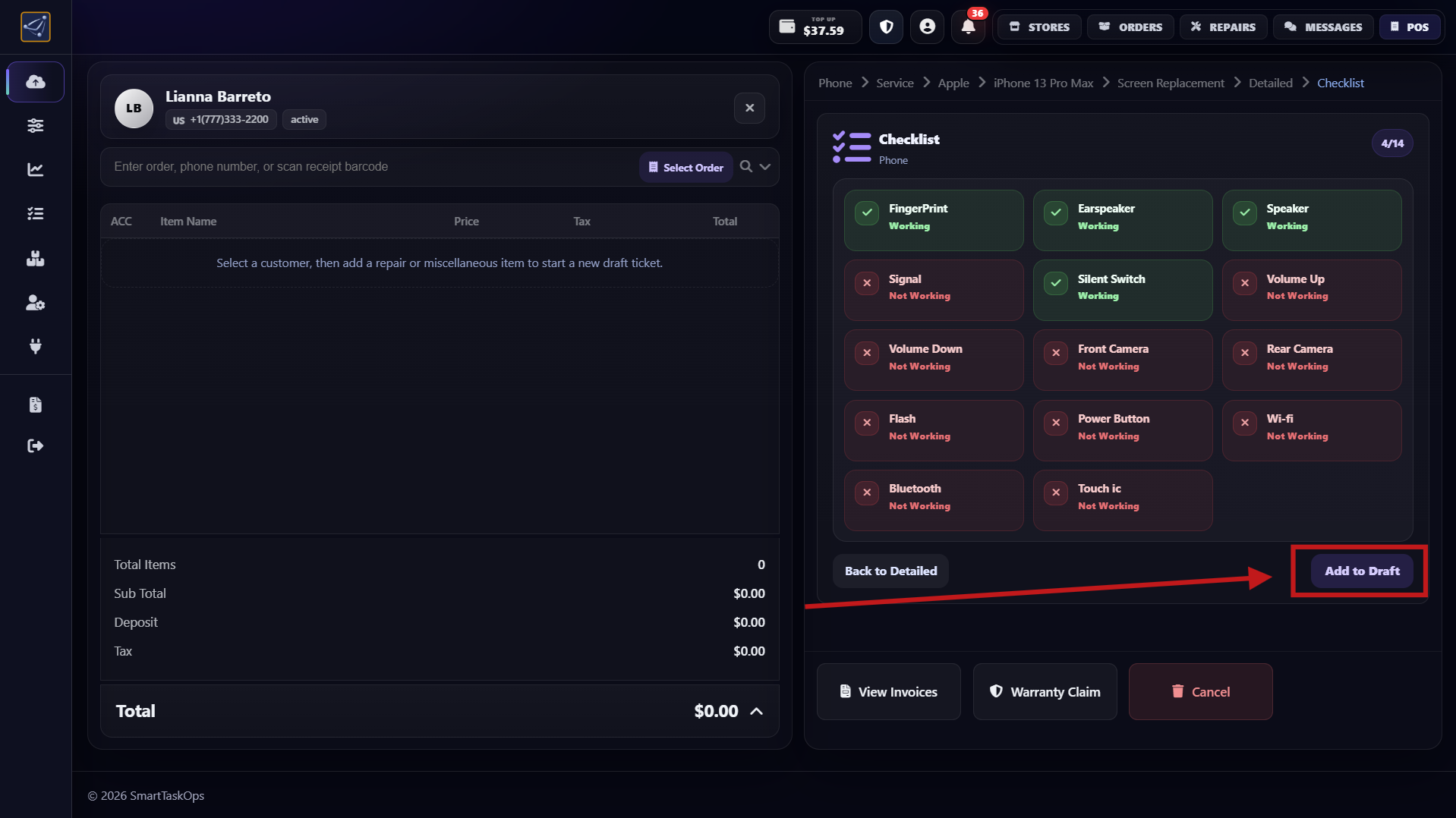
- In draft mode, you can still add more details before final order creation.
- You can also adjust pricing and deposits before confirming everything.
Step 10
Add miscellaneous stock items and create order
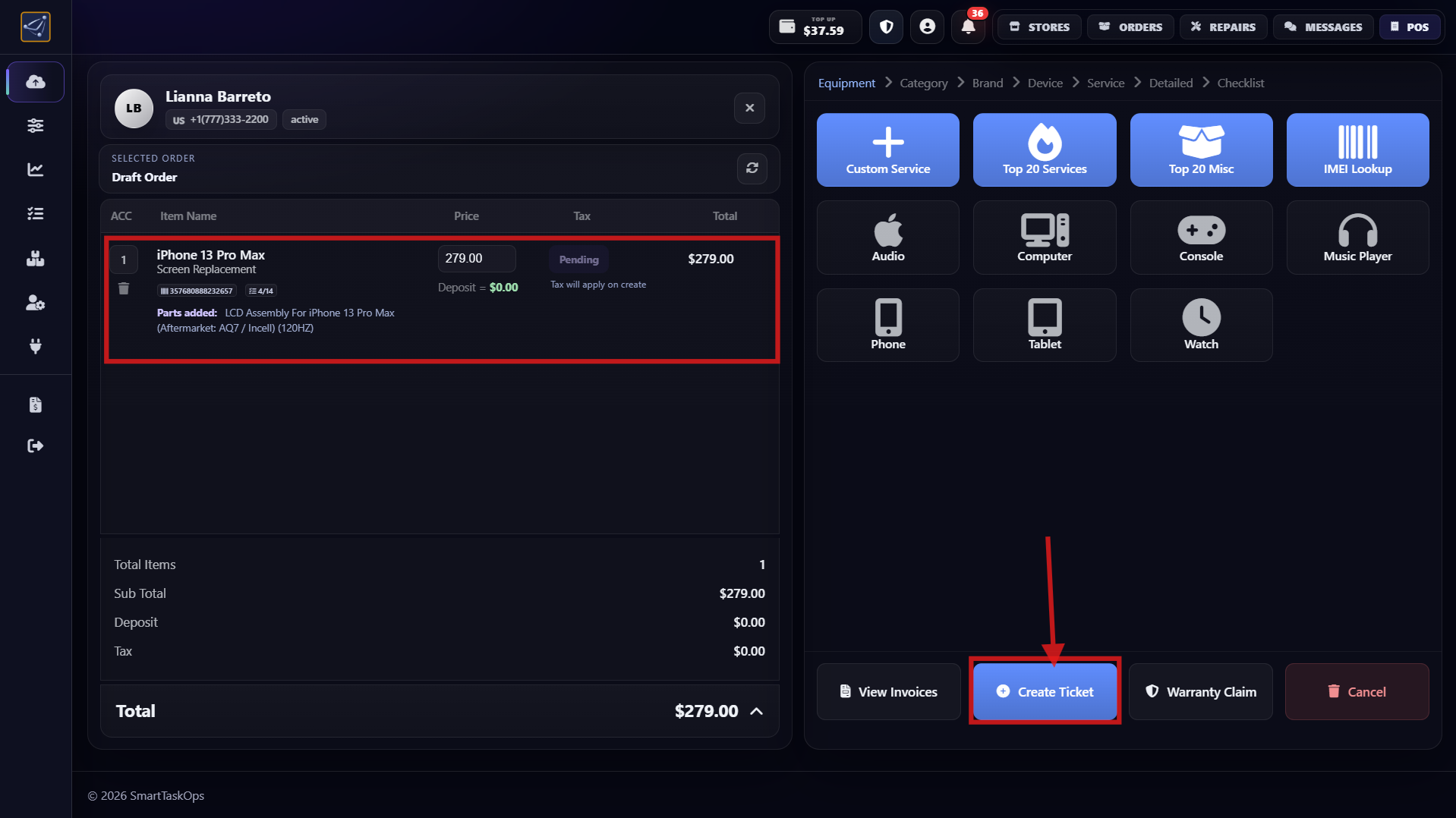
- Add miscellaneous items like tempered glass or cover from your stock.
- If no more draft changes are needed, press the blue Create Order button.
Step 11
Edit price after creation and use ticket tracking
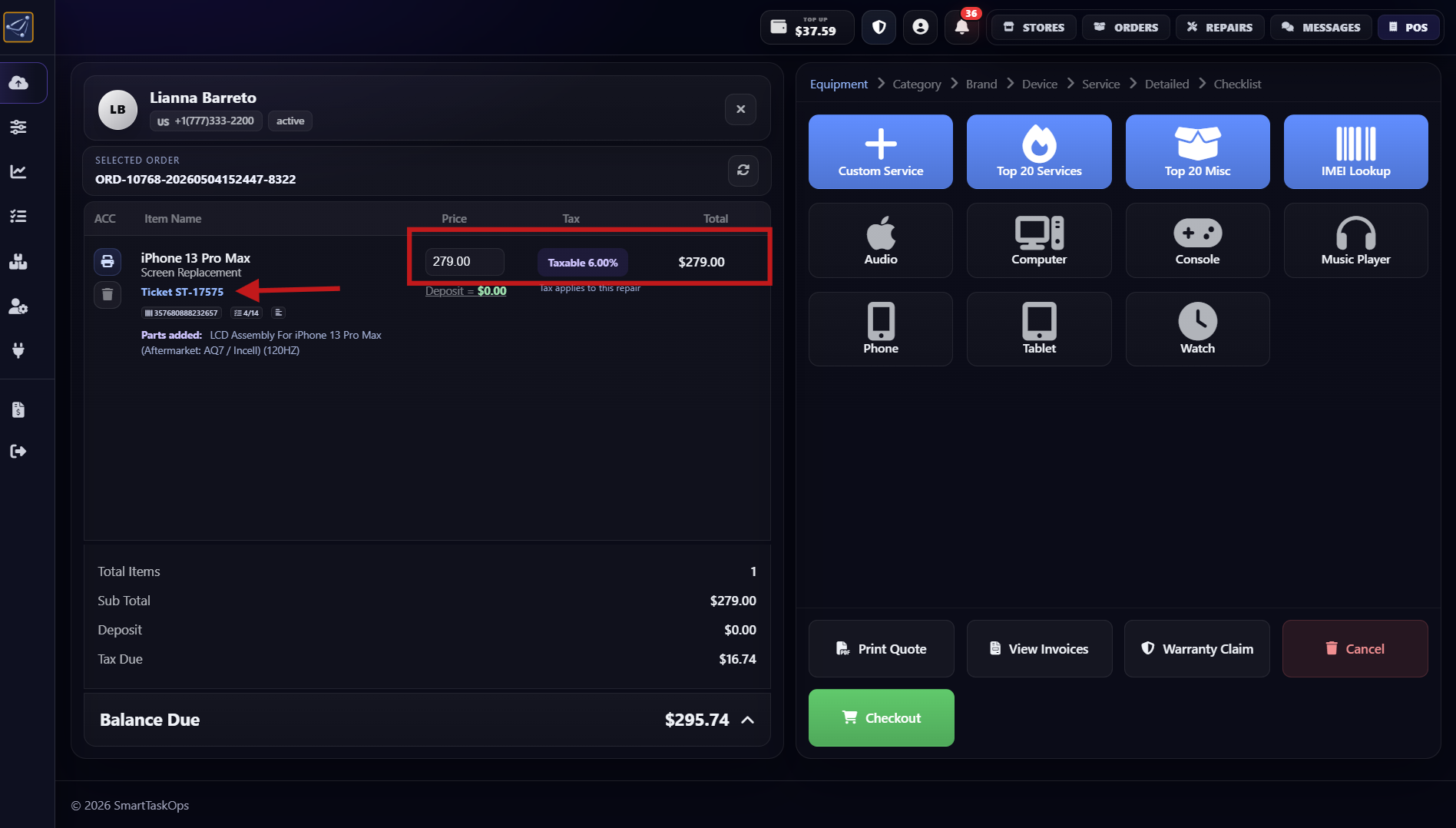
- After order creation, you can still edit prices. For diagnostic-only work, you can leave price at 0 like a quote.
- Once created, the system generates a ticket number to monitor repair status with the customer.
Step 12
Print device label for repair tracking
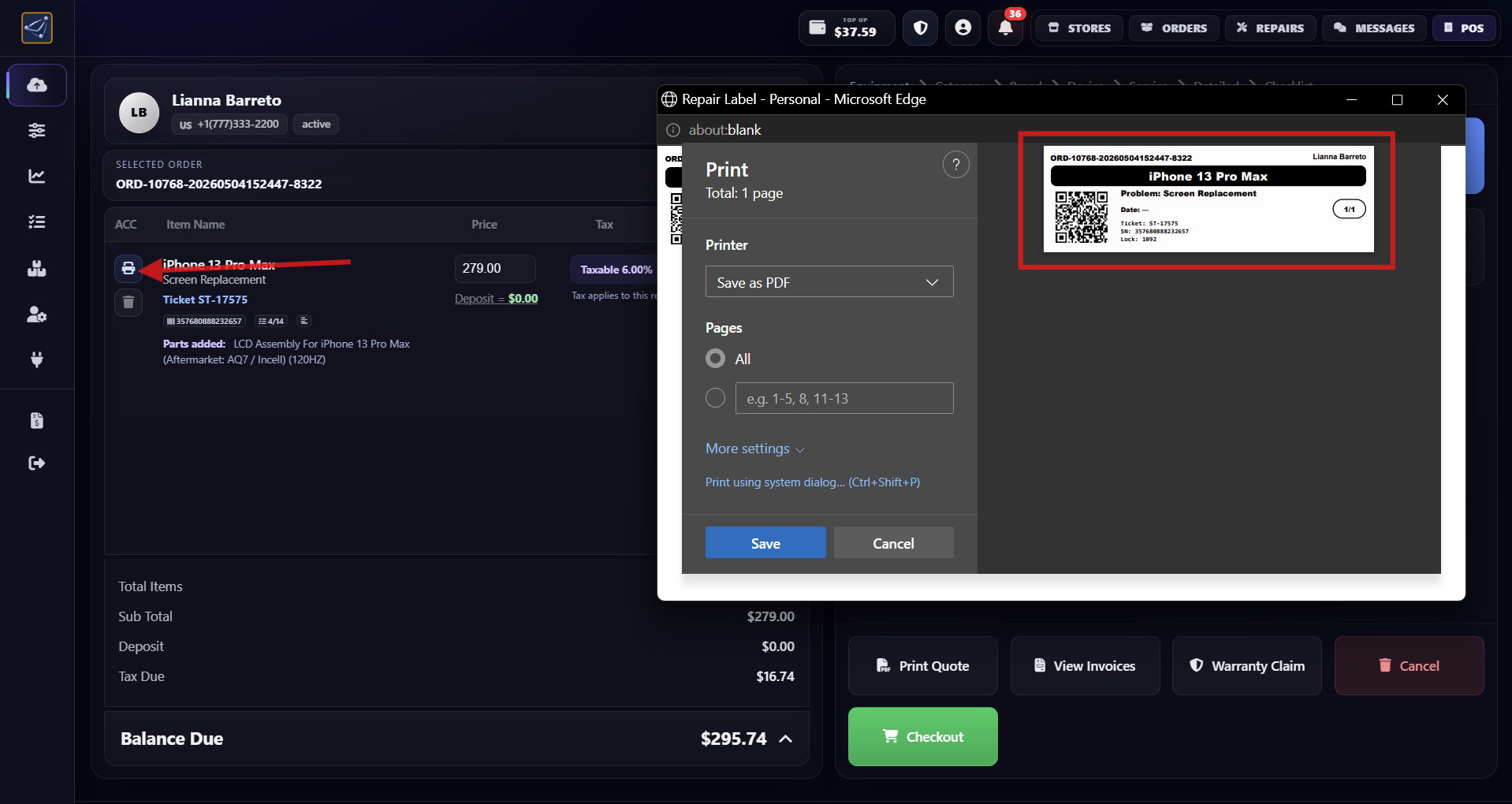
- Print the label for the device so it stays identified and always linked to the correct customer record.
- Place the printed label on the device immediately to avoid mix-ups while multiple repairs are in progress.
Step 13
Open customer receipt from Quote or Invoice
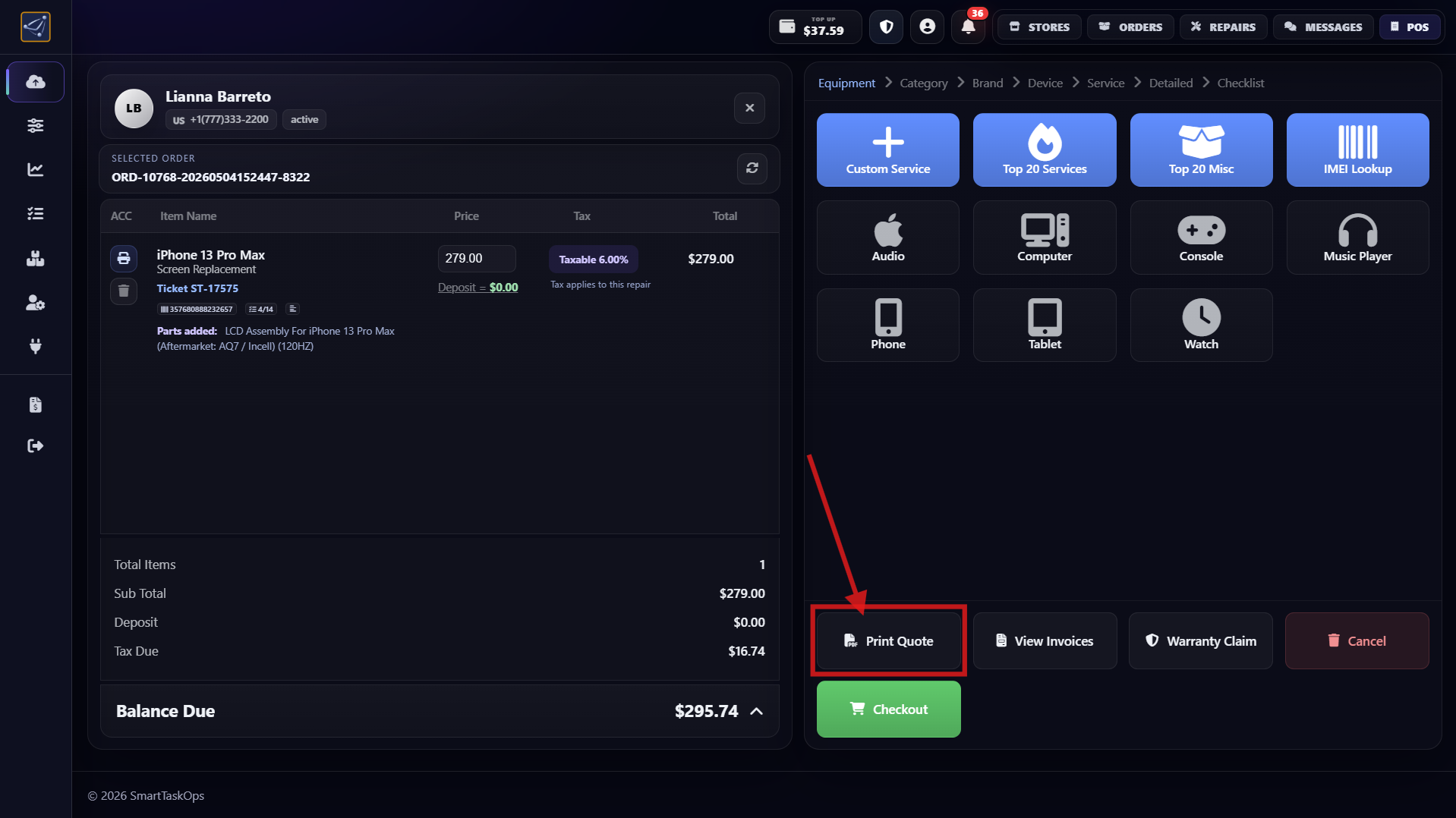
- If customer has not paid yet, use the Quote button to print the receipt.
- If the customer paid a deposit, open receipt from the Invoice button.
Step 14
Preview receipt and choose delivery method
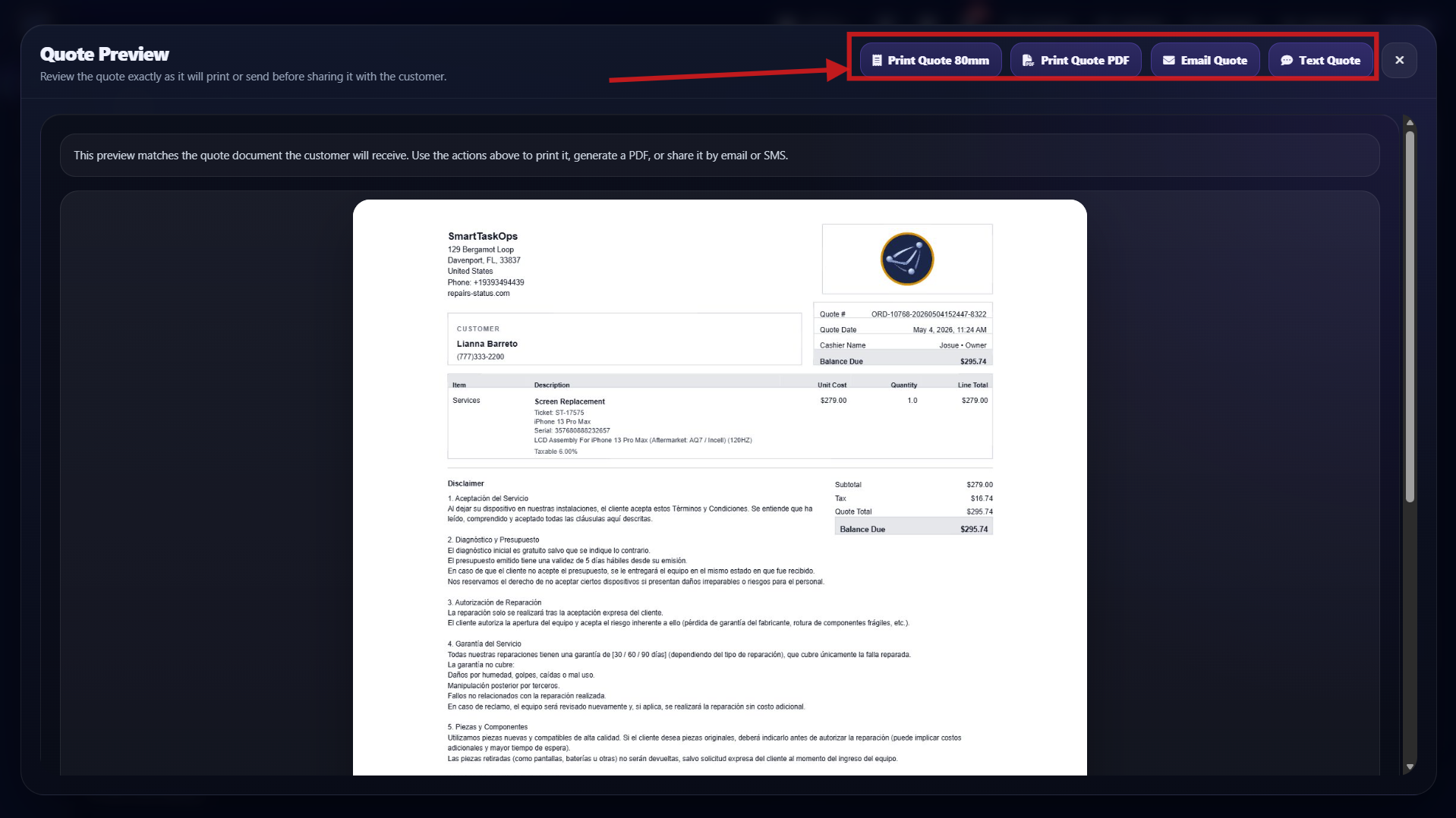
- Preview receipt and send it by 80mm printer, SMS, Email, or PDF.
- Choose the method the customer prefers so they leave with a clear proof of the quote or payment details.
Step 15
Add deposit and review checkout summary
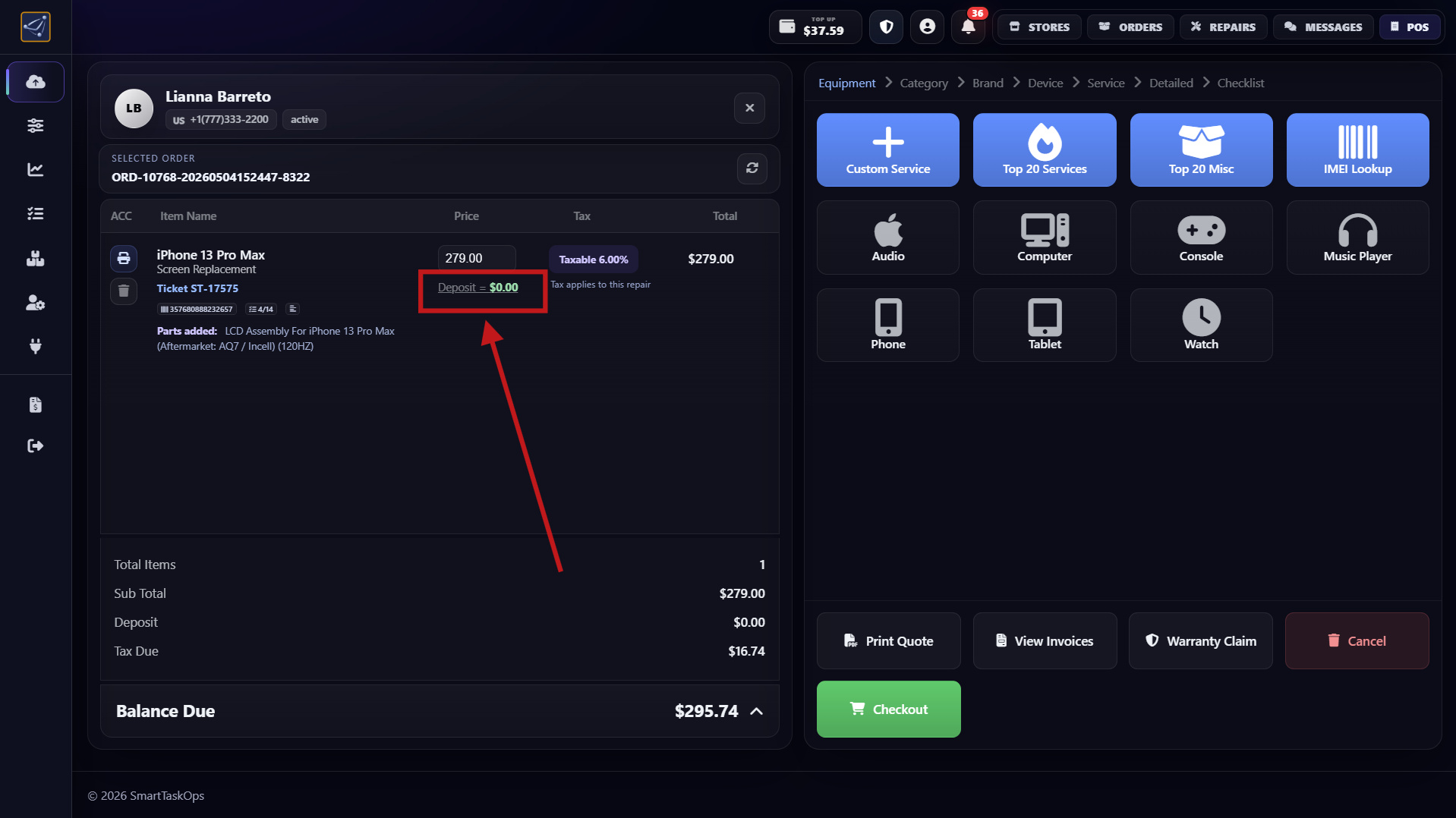
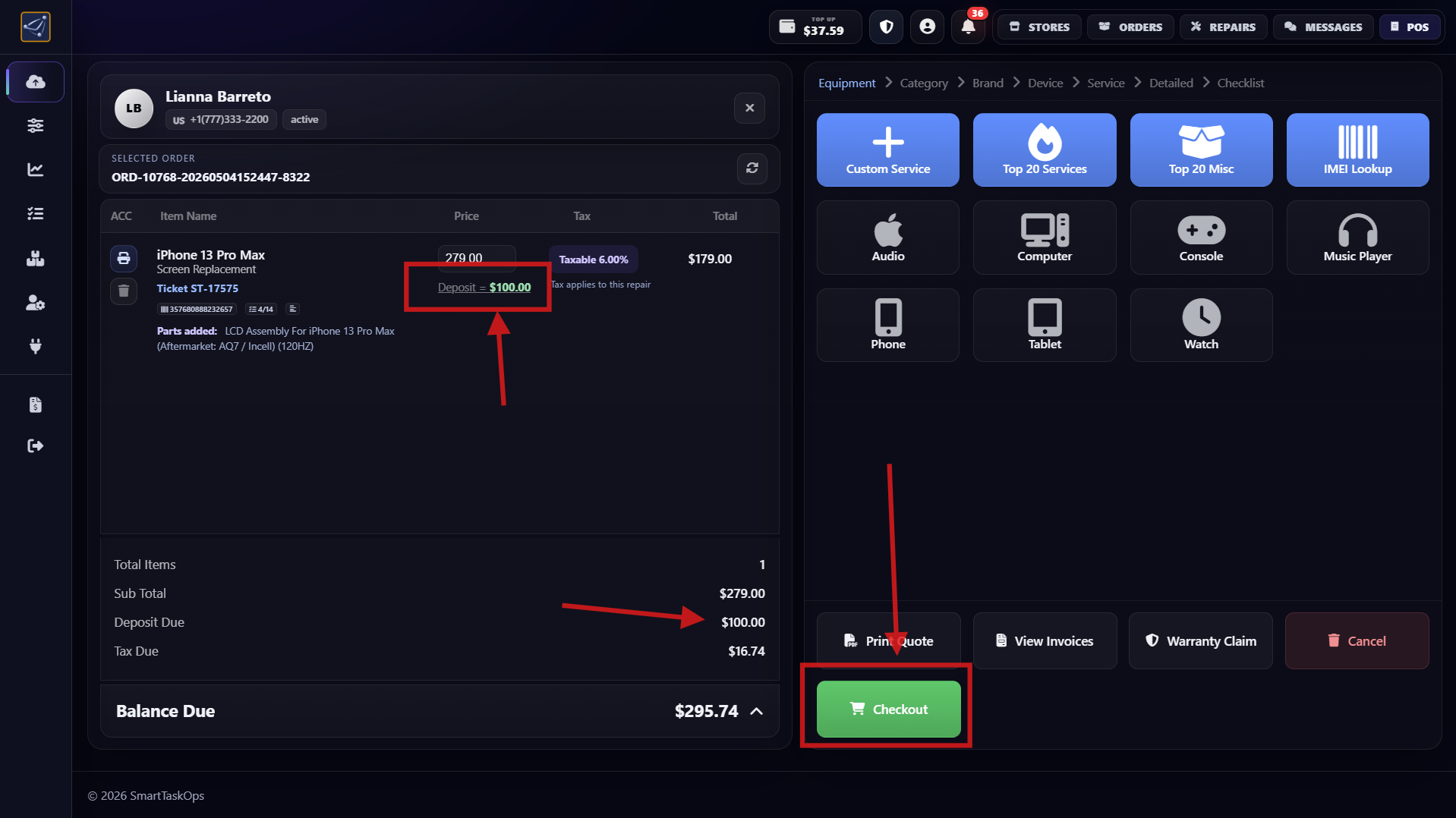
- Press Deposit and enter the amount, for example $100.00.
- After adding the deposit, review updated checkout details for this repair.
Step 16
Collect deposit from checkout modal
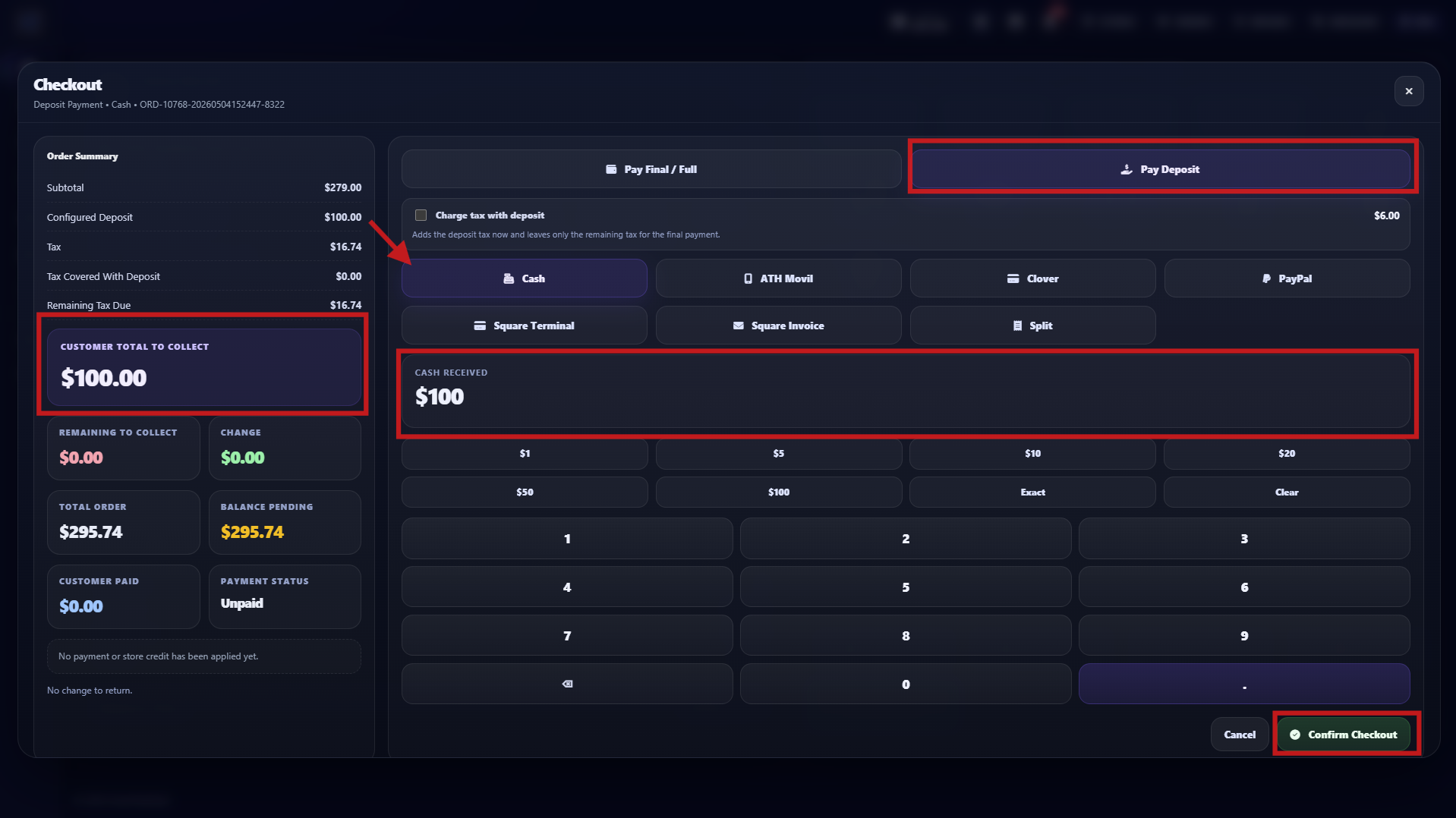
- Open checkout modal, choose Collect Deposit, then select payment method.
- In this example, customer pays cash $100 and you confirm checkout.
Step 17
Confirm checkout and issue payment receipt
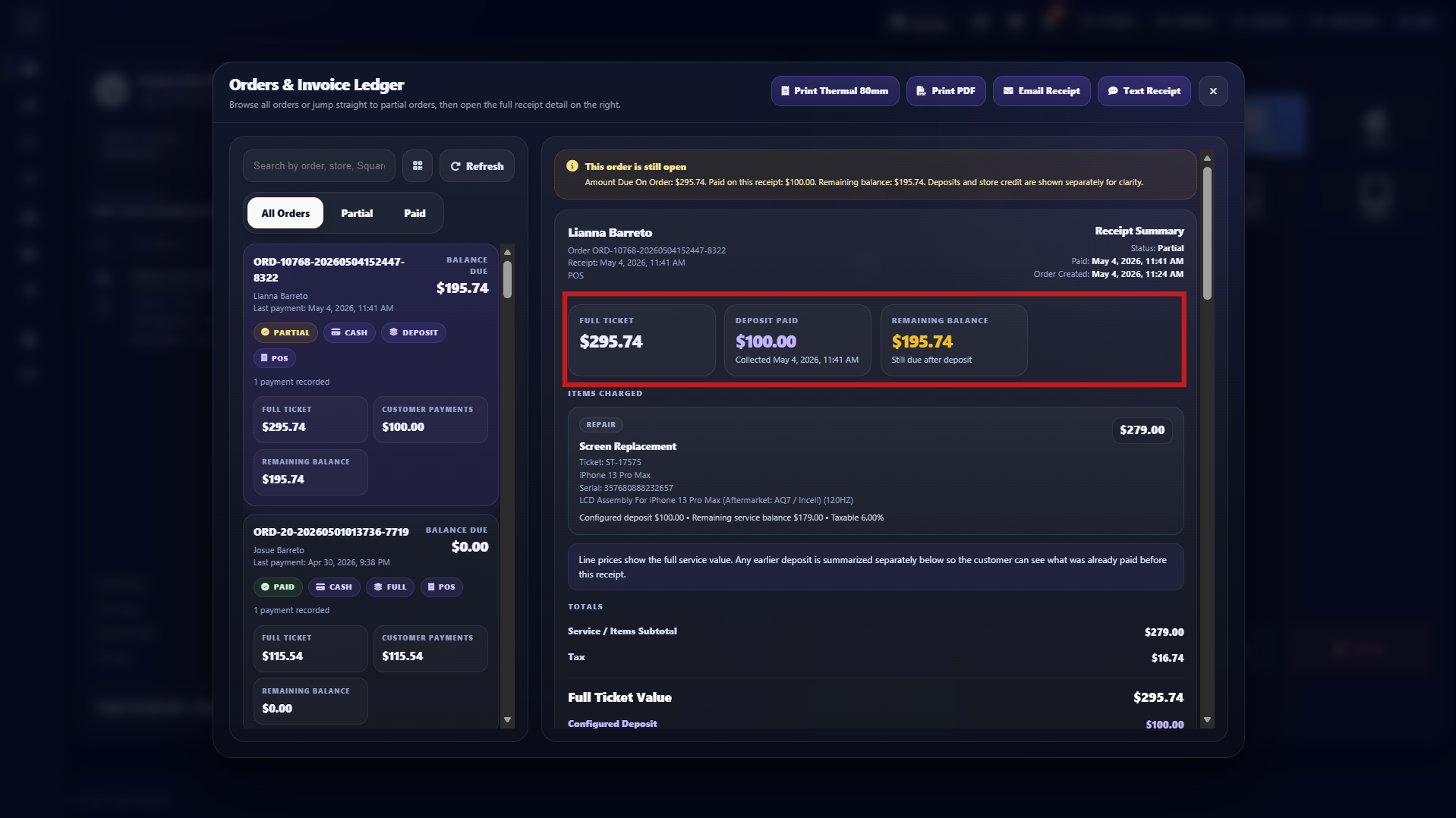
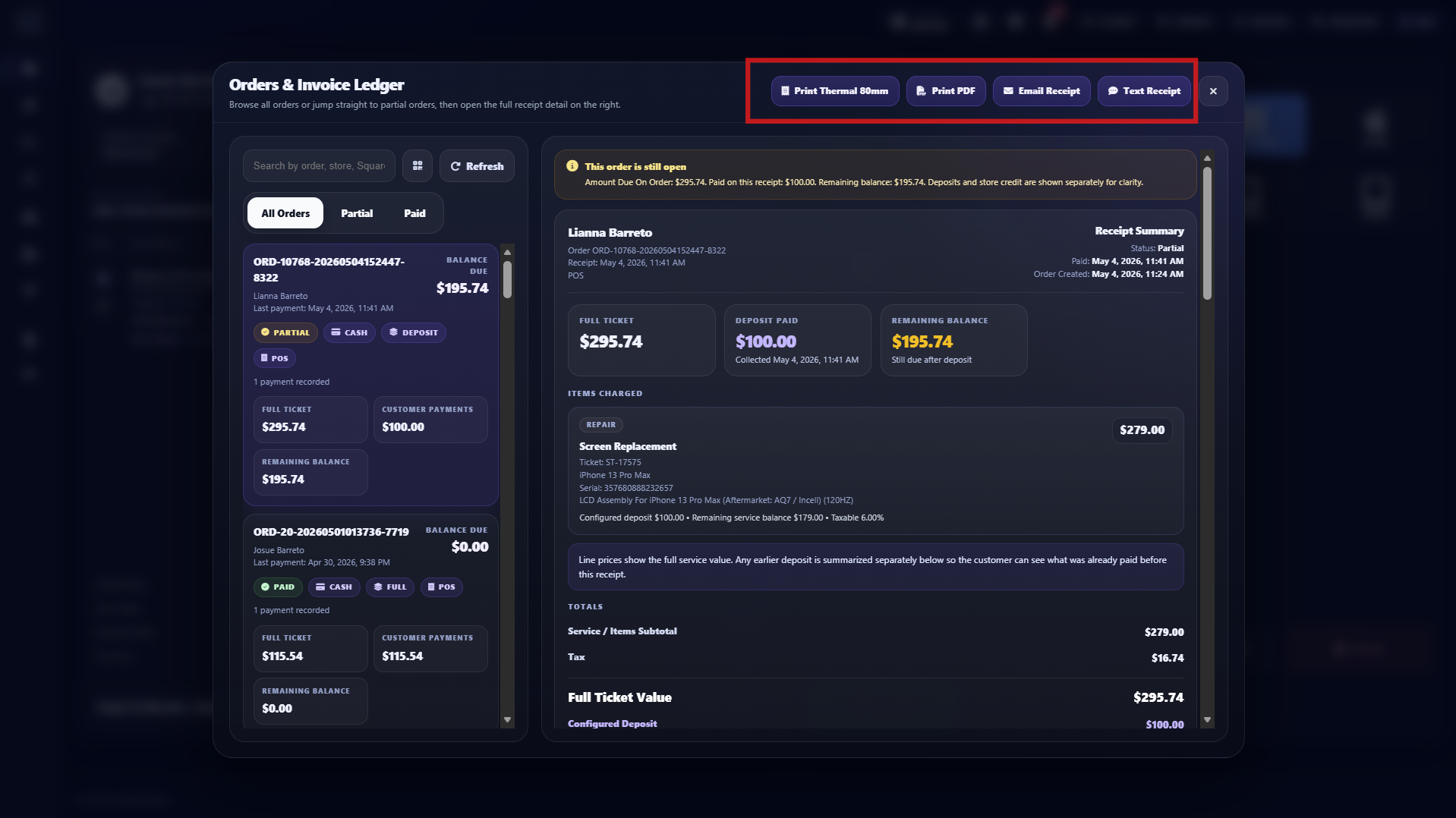
- After confirming checkout, the receipt panel opens with deposit, remaining balance, tax, and final totals.
- From this panel, you can print or send proof of payment by SMS, 80mm, PDF, or Email.
Step 18
Order ready, clear POS panel for next customer
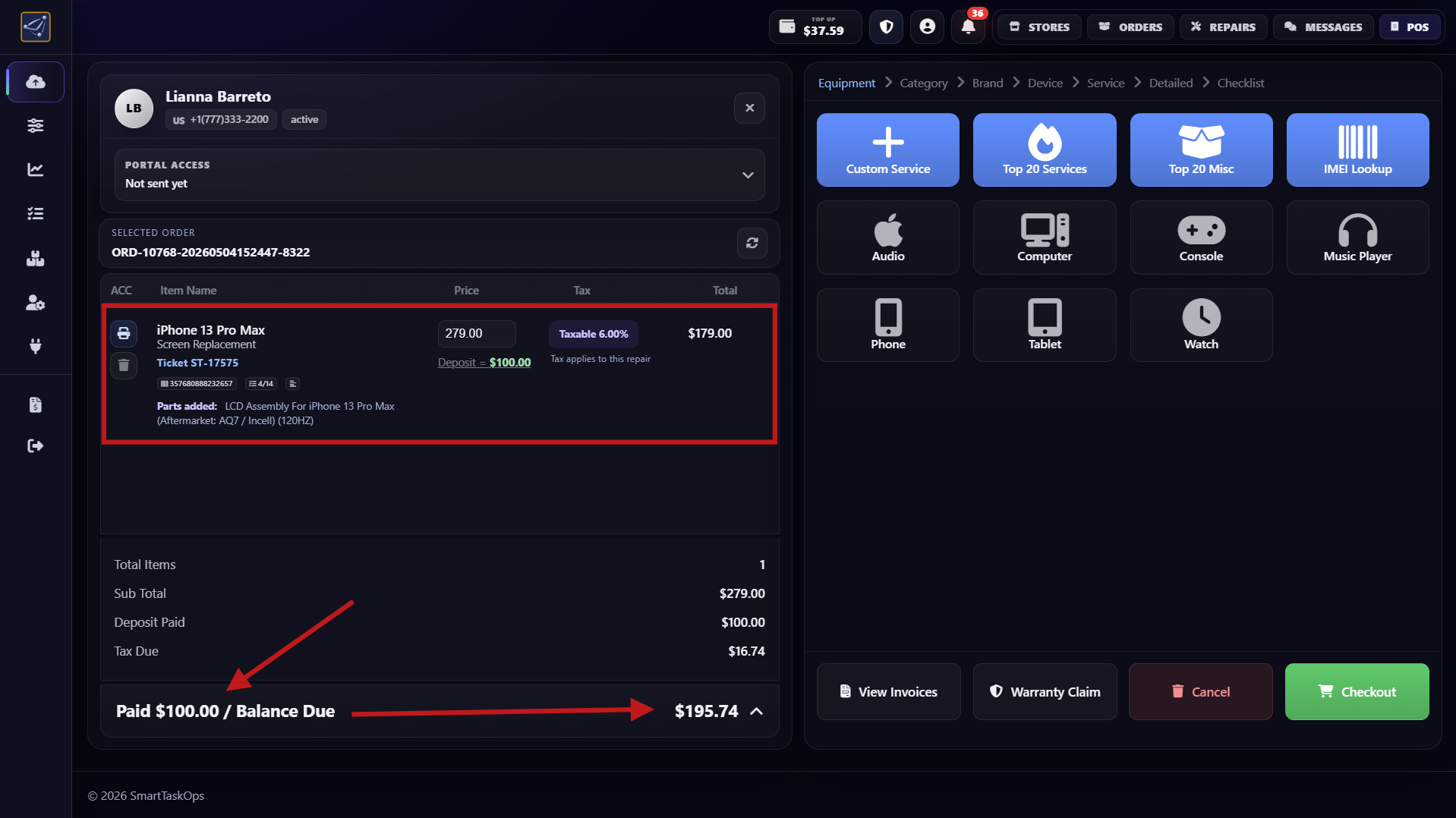
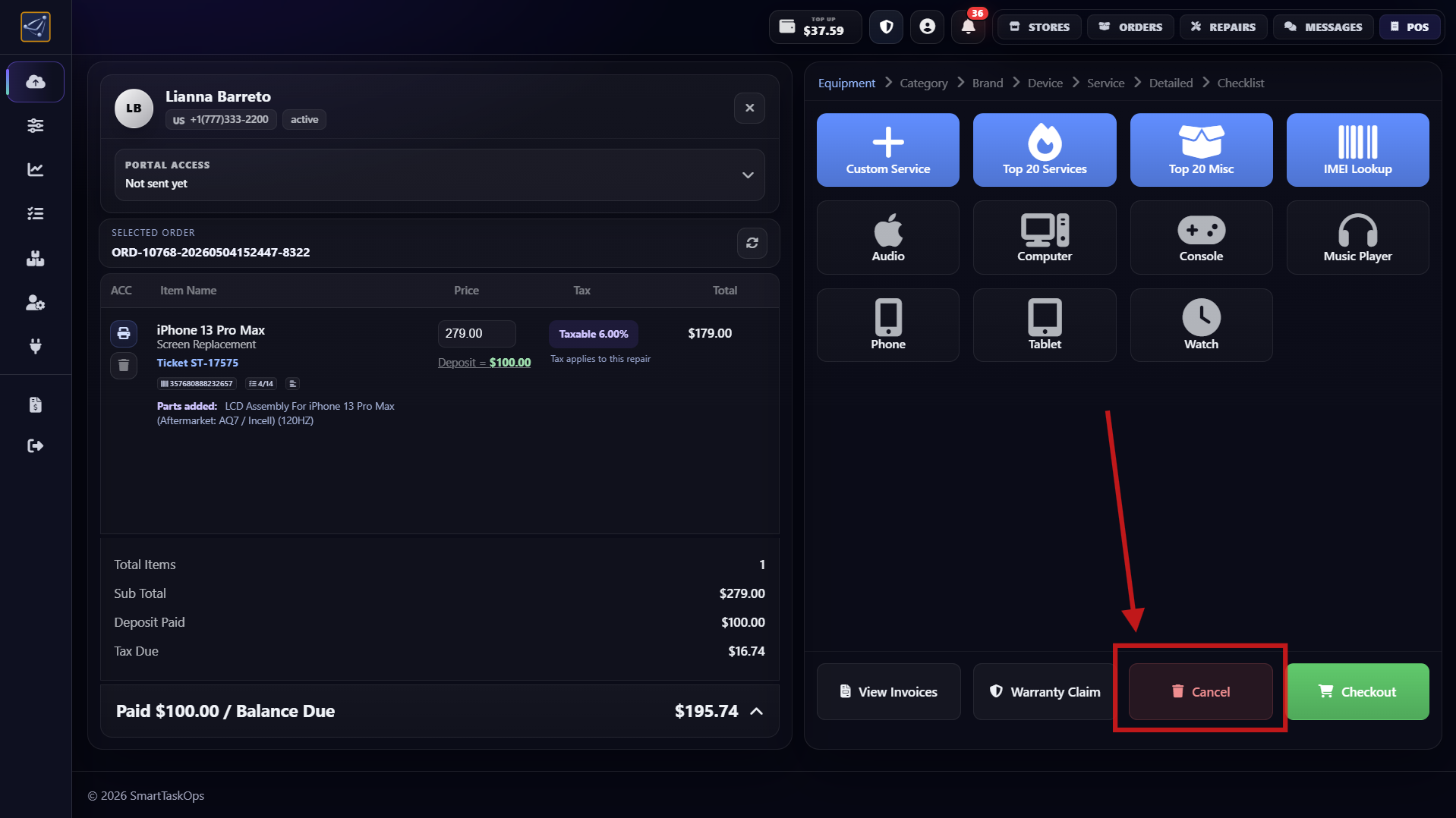
- After payment, you see paid balance, pending balance, ticket number, and order number.
- Press Cancel to clear the POS panel only. It does not cancel the order.
Step 19
Watch the complete order workflow video
- This full Bunny.net video shows the entire order process from selecting the customer to completing checkout.
- Use it as a complete training walkthrough to review every order step in one continuous flow.
Purchase Orders
Use Purchase Orders to buy parts, let Aurion queue restock needs from sold inventory, scan supplier receipts with AI, track shipments, and receive stock into inventory.
Step 1
Open Inventory, then Purchase Orders
- In the left menu, open Inventory Manager and select Purchase Orders.
- The page opens in Build PO, where you can create a draft, search parts, scan barcodes, or review existing draft orders.
- Owners, managers, and authorized front desk users can manage this workflow.
Step 2
Understand Aurion auto restock
- When Auto Restock is enabled, a supported stocked part with a saved vendor can be added to a draft PO when it is consumed from inventory during a repair sale.
- Aurion looks for an editable draft PO for the same vendor and restock group. If the part is already there, the quantity increases instead of creating a duplicate row.
- If no matching draft exists, SmartTaskOps creates an Auto Restock draft for that vendor. If the battery split option is enabled, batteries can be grouped separately from standard parts.
- If the inventory usage is released before the PO is ordered, SmartTaskOps reduces the queued quantity or removes the auto-restock row from the draft.
Step 3
Build or edit the draft PO
- Use Purchase Order to start a new draft, or open an existing draft from History.
- Set the Vendor, optional Supplier Ref, Buy By date, Priority, and internal notes.
- The summary updates item count, units, total, shipping, and average cost while you build the order.
- Press Save when you want to keep the draft without moving it to review.
Step 4
Add existing parts or create a new part
- Use Scan or Add Parts to scan a SKU/barcode, type a search term, or use the camera button for barcode capture.
- Select an existing inventory part to add it to the PO with its SKU, name, vendor, location, cost, and quantity.
- Use New Part when the part is not in inventory yet. Enter SKU/barcode, category, part name, vendor, location, cost, and PO quantity.
- When you paste a supported supplier product link or SKU, SmartTaskOps can look up vendor details so the PO row starts with cleaner data.
Step 5
Scan supplier receipts with AI
- Press Scan receipts to upload supplier receipts as PDF, PNG, JPG, or WebP files.
- AI reads SKUs, part names, quantities, unit costs, shipping, and totals, then shows a review table before anything is added to the PO.
- Review highlighted rows, correct names, SKUs, categories, quantities, or costs, and leave unchecked any line you do not want to import.
- Only the selected rows are added to the purchase order after you confirm.
Step 6
Review the PO and mark it ordered
- Use Review PO after at least one part has been added. This moves the draft into review so the team can confirm every line before buying.
- Check quantity, unit cost, vendor, stock status, image, and linked repair demand before placing the supplier order.
- After the supplier order is placed, select Mark Ordered. Ordered POs can then be tracked and received.
- You can cancel only draft or review POs. Once ordered, the flow moves forward through receiving.
Step 7
Track shipping and waiting parts
- Add the tracking number and carrier in Shipping Tracking, then save it to the PO.
- Use Track to refresh shipment status, ETA, carrier details, and tracking errors when available.
- Use linked repair demand and Waiting Parts to understand which repairs are waiting for items from the PO.
- Keep the supplier reference and tracking updated so managers can audit where every ordered part is.
Step 8
Receive stock and close the loop
- Open Receive Stock when parts arrive. Scan or select each PO item and count the received quantity.
- If your settings require it, add receiving photos and employee PIN verification before finalizing.
- Receiving updates the PO received quantity and adds the stock back into inventory for the matching part.
- When every expected item is received, SmartTaskOps can close the PO and keep history, evidence, and repair links for later review.
How to run an Inventory Count
Count physical stock, compare it with expected inventory, review every variance, and reconcile only the products your team actually counted.
Step 1
Open Inventory Count and read the dashboard
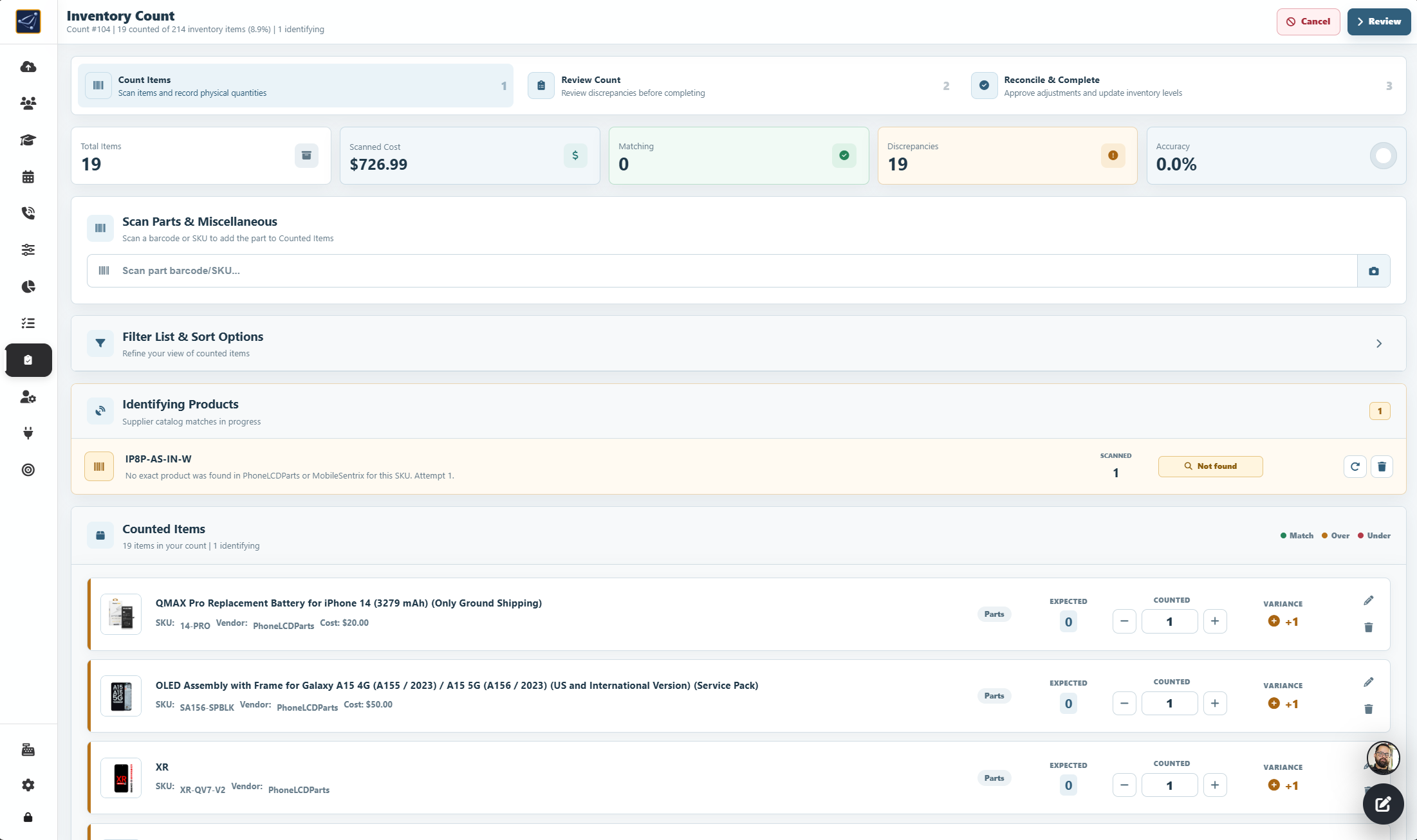
- Open Inventory in the owner sidebar and select Inventory Count. Owners, managers, and authorized front desk users can use this workspace.
- Before a count starts, the dashboard shows completed-count trends for scanned cost and discrepancy value plus the full Count History.
- Search history by count number, item, or employee; filter by person, status, or date; then sort by newest, amount, discrepancies, or accuracy.
Step 2
Start a count and understand its three stages
- Select Start Counting. If another unfinished count has counted items, confirm that it should be archived before starting the new session.
- When employee verification is enabled, enter the employee checkout PIN with 4 or 6 digits so the history records who started the count.
- Follow the three stages shown at the top: Count Items, Review Count, and Reconcile & Complete. The header shows the count number and progress against the inventory catalog.
- Cancel requires two confirmations and abandons the count without updating inventory; use it only when the session must be discarded.
Step 3
Scan each physical product
- Place the cursor in Scan part barcode/SKU, scan or type the code, and press Enter. A matching store item is added to Counted Items.
- Scanning the same product again increases its counted quantity, so repeated units can be counted rapidly without searching for the row.
- Select the camera button to scan with the rear camera. Hold the device steady inside the frame; the item is added once when recognized.
- If live camera scanning is unavailable, use Take Photo and retry the barcode from an image.
Step 4
Resolve products that are not yet identified
- If a scanned code is not found in store inventory, SmartTaskOps checks supported supplier catalogs and places the code in Identifying Products. You can continue scanning while that lookup runs.
- When more than one supplier source is possible, choose the correct PhoneLCDParts or MobileSentrix result. Use retry when a lookup fails or returns no match.
- Remove a pending scan if the code is invalid or should not be part of the count.
- Every pending scan must be identified or removed before the count can be completed.
Step 5
Compare expected stock with the physical count
- Use Total Items, Scanned Cost, Matching, Discrepancies, and Accuracy to monitor the session while the team counts.
- Each row shows Expected, Counted, and Variance. Match means equal quantities, Over means more physical units, and Under means fewer.
- Use plus or minus for quick corrections, type an exact nonnegative quantity, select the pencil to edit, or use the trash action to remove a mistakenly added item.
- Expand Filter List & Sort Options to search rows, show only Match, Over, or Under, sort by newest, largest variance, name, or SKU, and page through long counts.
Step 6
Move the session to Review
- After scanning the intended area, select Review to move the session from Count Items to Review Count.
- Inspect every orange and red discrepancy, verify the expected quantity, and correct the counted quantity when a unit was missed or scanned twice.
- Confirm that no product remains in Identifying Products. The top action changes from Review to Complete when the session is ready for reconciliation.
Step 7
Reconcile and complete safely
- Select Complete. A count cannot finish with zero counted items or while unidentified scans remain.
- Read the confirmation carefully: products included in the count are updated to their counted quantity, while inventory products that were not counted remain unchanged.
- SmartTaskOps saves the discrepancy and inventory-adjustment records. If employee verification is enabled, enter the reconciler’s 4- or 6-digit checkout PIN before approval.
- After completion, the count returns to the dashboard and SmartTaskOps attempts to email the completed-count PDF to the owner.
Step 8
Audit history and print the count PDF
- Use Count History to review the count number, status, date, starter, reconciler, item count, discrepancies, accuracy, value, and total units.
- Combine search with person, status, and date filters to find pending, discrepant, clean, or low-accuracy counts, then reset filters when needed.
- Select the print action on a completed count to open its PDF preview, then print or save the report for an inventory audit.
- Use the scanned-cost and discrepancy-value trend to compare completed counts over time and investigate repeated variances.
How to manage RMA & BuyBack
Build a traceable vendor return, identify every part and serialized unit, preserve photo evidence, ship it, and close the record with the approved credit.
Step 1
Open RMA & BuyBack and read the dashboard
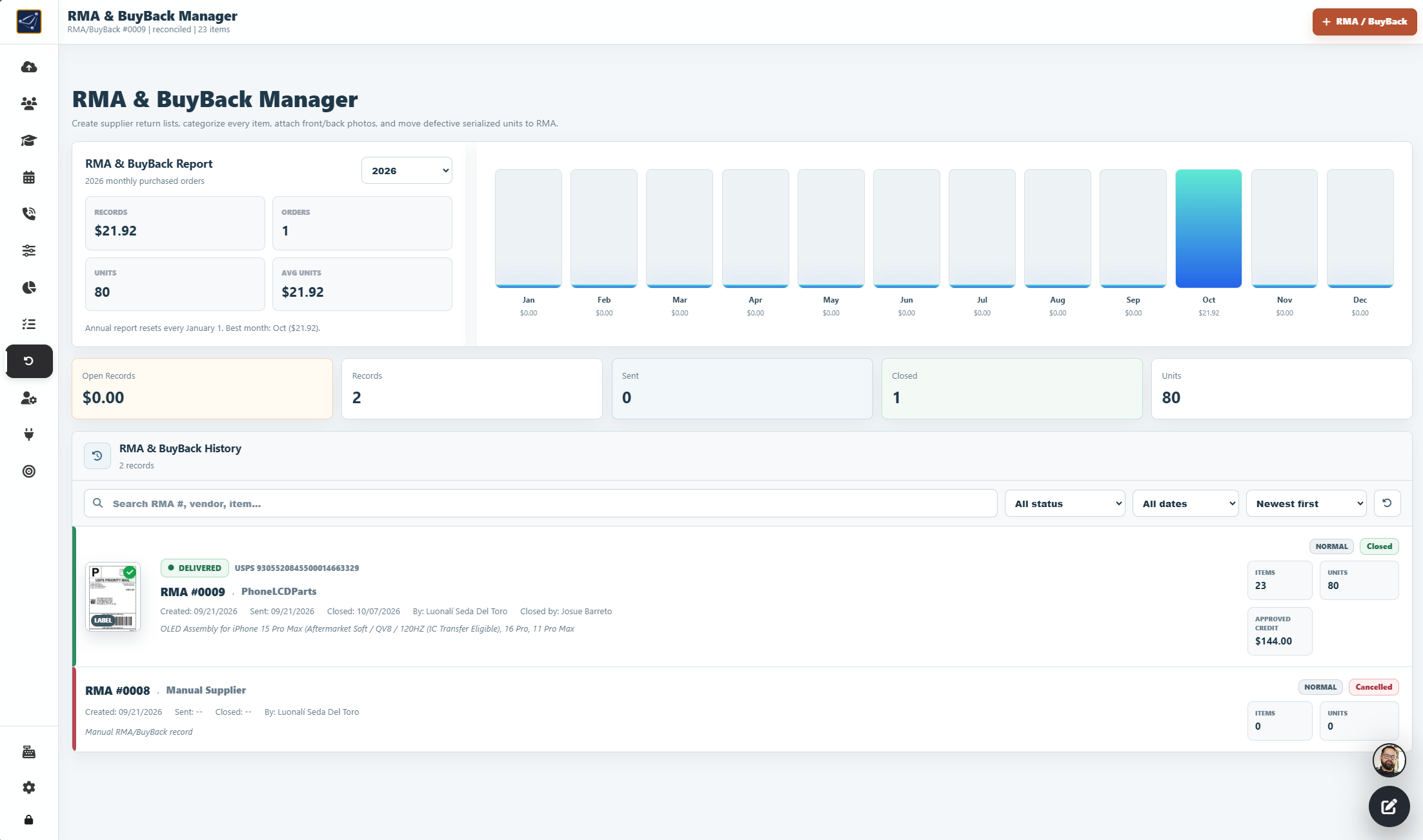
- Open Inventory in the owner sidebar and select RMA & BuyBack. Store owners, managers, and front desk employees can access this workspace.
- The dashboard summarizes open records, total records, sent, closed, and total units. Use History to reopen any record.
- Search by RMA number, vendor, or item; filter by Draft, Review, Sent, Closed, or Cancelled and by date; then sort by newest, items, or vendor.
Step 2
Create the return record and enter its details
- Select RMA / BuyBack to start a draft. Enter the vendor first because a vendor is required before parts can be added.
- Add the optional supplier RMA/reference number, the Send By date, priority (Normal, Today, Weekly, or Rush), and internal notes.
- The four stages at the top are Build List, Review, Sent, and Closed. Details and items remain editable only while the record is open.
- For PhoneLCDParts, use the displayed return-address card and Copy action to prepare the package correctly.
Step 3
Scan, search, or create each part
- In Scan / Add Parts, scan a barcode, type a SKU, or search by part name and select the correct inventory result.
- Scanning the same non-serialized part again increases its quantity; otherwise adjust the line quantity with the row controls.
- If the product is not in inventory, select New Part and enter its SKU/barcode, category, name, vendor, location, and quantity. RMA/BuyBack does not use part cost.
- Review Items and Units in the Summary. Cost, subtotal, and inventory-receiving totals are intentionally excluded from this return workflow.
Step 4
Classify the line and connect the originating repair
- Set each line’s Type to RMA for a defective return or BuyBack for a supplier buyback/credit program.
- If a part already came from a repair as BuyBack, its type is locked so it cannot be changed incorrectly to RMA.
- Use Attach Repair, search by ticket, customer, device, or serial, and select the originating repair. The line shows linked tickets and the quantity attached.
- A line can only attach its available units; this preserves the chain from the customer repair to the vendor return.
Step 5
Select the exact serialized unit
- For tracked parts, open Exact Serial and select the physical unit being returned. Confirm only after comparing the serial or barcode on the part.
- The selected unit is immediately moved to RMA or BuyBack, marked defective, and locked to quantity 1. If it was in stock, available inventory is reduced by one; a previously sold unit is not deducted twice.
- The serial cannot be swapped on an attached line. Remove the line and add it again when a different unit must be selected.
- This inventory movement happens when the serial is confirmed—not when the record is finally closed—so verify the selection before continuing.
Step 6
Capture front and back photo evidence
- On each line, open the photo control showing Front / Back 0/2 and start its secure mobile upload link.
- Scan the QR code with a phone, photograph the front and back of the exact part, and upload both images. The desktop record updates as the photos arrive.
- Use Open or Copy Link when the phone cannot scan the QR code, and put the link to sleep after uploading to prevent additional submissions.
- Open the saved images and confirm that the condition, labels, and serial are readable before the item is packed.
Step 7
Review the list and mark the return Sent
- A draft needs at least one part. Select Review, recheck vendor details, type, quantity, repair links, exact serials, and photos, then select Sent.
- SmartTaskOps records who marked the package sent and when. A record must be Sent before it can be closed.
- Cancel is available only in Draft or Review. It closes the workflow without reconciliation; because confirming an exact serial can already change inventory, correct or remove that line first and verify stock after cancelling.
Step 8
Create the return label and track the shipment
- Select Create Label, verify the From and To addresses, choose a package preset or enter custom dimensions and weight, then load carrier rates.
- Select the preferred service and price, choose Buy Label, and use View / Print Label to print it. Reprint Label remains available on the record.
- For an external label, paste its tracking number and choose the carrier or leave Auto selected, then Save Tracking.
- Select Track to refresh carrier events. The return record keeps the tracking status and history with the shipment.
Step 9
Close with the approved credit and audit the record
- After the vendor processes a Sent return, select Close and enter the approved credit amount with no more than two decimal places; enter zero only when the vendor approved no credit.
- If employee verification is enabled, the closer must enter a 4- or 6-digit employee checkout PIN.
- Closing stores the approved credit, closer, time, item totals, evidence, and tracking status. It does not add returned parts back into inventory.
- The completed record shows Approved Credit in Summary, remains searchable in History, and SmartTaskOps attempts to email the reconciliation evidence to the owner.
Domain Website
Build everything a modern repair website needs—and more—from one place: Home, online repair intake, a customer portal for repair tickets and status, product sales powered by your inventory, Contact Us with the store address, and About Us. General-commerce platforms such as Shopify focus on storefronts; SmartTaskOps is designed around the complete repair-center workflow. Your inventory becomes sales power, and this guide shows the full setup step by step.

Step 1
Confirm the Professional plan and domain requirements
- Domain Website and custom-domain access require the Professional plan.
- Use a domain or subdomain you control, such as shop.yourbusiness.com, and be ready to update its DNS records.
- The domain must finish verification and secure HTTPS provisioning before it can become the public address for the site, checkout returns, receipts, and customer links.
Step 2
Connect the domain and publish the website
- Open Integrations > Domain Website, connect the verified custom domain, and open the website editor.
- Use Publish to control whether the site is live, then choose which pages appear in the header: Home, Shop, About, and Contact.
- Changes remain editable before and after launch, so the business can update content without rebuilding the website.
Step 3
Build dynamic repair and business pages
- Configure Home, About, and Contact with the store identity, calls to action, hours, phone, address, map, and social links.
- Use the integrated online repair intake on Home so customers can choose a device and service, review configured pricing, submit a repair, and book an appointment directly from the website.
- The customer login keeps orders, receipts, repair status, pickup or delivery details, and business communication in the same branded experience.

Step 4
Apply the store brand and footer
- In Design, upload the logo and favicon, adjust their size, choose whether the logo has a border, and set colors and typography.
- Control the header, buttons, surfaces, footer logo, contact information, and navigation so desktop and mobile use one consistent identity.
- Enable the compact payment marks you accept, including Visa, Mastercard, Afterpay, Klarna, and ATH Móvil.
Step 5
Publish local and supplier products in Shop
- Turn on Shop visible and publish local store items or supported PhoneLCDParts supplier products.
- Use PhoneLCDParts catalog information, including product images, prices, and compatible models, to present a large selection while your branded storefront keeps the supplier source private from customers.
- Set the retail margin, product limit, section text, and categories, then synchronize when needed. If a catalog item matches an SKU already in your database, SmartTaskOps updates the existing product instead of creating a duplicate and can notify the customer when it is ready in stock, keeping the website easy to maintain.
- The published Shop becomes a complete online storefront and is fully compatible with Stripe Checkout for secure online payments.

Step 6
Use the product gallery, cart, and sharing tools
- Selecting a product opens an elegant detail sheet with a high-resolution gallery, full-image view, SKU, name, price, quantity controls, and Add to Cart.
- Product sharing creates a direct link that reopens the same product and its category so the recipient can compare related options.
- The browser keeps the cart and checkout context, allowing a customer who returns from Stripe or continues shopping to resume without starting over.
Step 7
Configure tax, shipping, pickup, and purchase schedules
- Enable Shop tax to use the business tax settings. Puerto Rico stores can show the configured state and municipal portions while preserving the combined total.
- Configure mail shipping on or off, the shipping charge and any additional fees, free-shipping quantity, local store pickup, and earliest or latest arrival windows.
- For supplier items not in local stock, choose PhoneLCDParts purchase days, the Eastern Time cutoff, and supplier transit days so estimated shipping and pickup dates reflect when the store actually buys.
Step 8
Collect customer details and accept Stripe Checkout
- Connect Stripe Connect and enable online checkout in the Shop settings before offering card payment.
- Checkout collects full name, email, primary phone, and a shipping address when Shipping is selected; pickup hides the address fields.
- Next creates or updates the customer and an unpaid online draft for follow-up. The order becomes completed only after Stripe confirms payment through the secure webhook.
Step 9
Recover carts and manage online orders
- If payment is canceled, the same browser can relink the saved draft, customer information, delivery choice, and cart for another attempt.
- Mailgun email or SMS recovery can send a private checkout link and a four-digit verification code so the customer can securely reopen the cart on another device.
- Use Store Owner Orders to review draft and paid web orders, product photos, taxes, shipping, balance, and customer details, then use recovery campaigns to follow up on unpaid carts.
Messenger AI
Configure a branded AI sales assistant that answers customer questions, quotes verified services, books real appointments, works with your store team, and continues the conversation from a shareable link or your Domain Website.

Step 1
Confirm access and open Messenger AI
- Messenger AI is available only to account owners on the Professional plan; other plans do not display its Settings tab.
- Configure and verify the account’s custom domain, then open Settings > Messenger AI.
- The public chat remains unavailable until the Professional membership, custom domain, and Customer access are active.
Step 2
Configure the agent identity and language
- Set the agent name, welcome message, and store-specific instructions. The name starts with the one configured for AI Agent and the customer sees Sofia’s official portrait.
- Choose Automatic, Spanish, or English. Automatic follows the customer’s conversation while still allowing natural language changes.
- Use instructions for business rules and exceptions; exact-price, safety, and verified-calendar protections always take priority.
Step 3
Publish and track customer chat links
- Turn on Customer access, copy the short branded /chat/ link, and place it in Facebook automatic replies, Instagram, WhatsApp, SMS, or another campaign.
- Use each channel’s tracked link when possible. New conversations are attributed to Facebook, WhatsApp, Instagram, SMS, Website, or Direct / Other.
- Replace link immediately revokes the previous public address. Use it if a link was shared incorrectly or should no longer accept new customers.
Step 4
Answer service and price questions from live inventory
- Enable Give service prices so the agent reads the services configured for this exact business, including linked-part pricing.
- The agent understands phones, computers, tablets, and video-game consoles such as Nintendo Switch, PlayStation, and Xbox, including common spelling mistakes.
- It gives only verified catalog prices. When a requested repair or price is not confirmed, it asks for useful device details or uses the store-team help workflow instead of inventing an answer.
Step 5
Book confirmed appointments in the real calendar
- Enable Book appointments in chat. The agent collects the device, service or problem, preferred date, customer name, and phone; email remains optional.
- Messenger AI checks live availability, offers valid openings, shows a final summary, and requires a separate Yes / Sí before creating the appointment.
- The confirmed event appears in the SmartTaskOps appointment calendar and connected Google Calendar. Confirmation SMS and the 24-hour and 1-hour reminder flow can include the store’s Google Maps location link.
Step 6
Ask the correct store team for help
- Enable Ask the store team directly when the AI should request an unknown service answer or unverified price from an online employee.
- The internal question includes the customer’s repair context and stays inside the same store location. Puerto Rico employee questions are sent in Spanish.
- The employee’s reply returns to the correct customer conversation; customers and replies from different owner accounts or locations are never mixed.
Step 7
Allow a live employee to take over safely
- Enable Allow live human takeover if customers may request a person. Messenger AI collects the customer name and phone before transferring.
- Transfer occurs only during configured business hours when an employee from that exact location is online. The employee joins with their own name and profile photo.
- If the store is closed, no employee is available, or the team stops responding, the AI resumes immediately so the customer is not left waiting.
Step 8
Add the secure assistant to Domain Website
- Publish Domain Website, turn on Customer access, and enable Show Messenger AI on Domain Website.
- The black-and-white floating assistant opens a mobile-friendly chat with quick actions, a 16-pixel input that prevents iPhone Safari zoom, and a draggable horizontal action row on desktop.
- Signed expiring sessions, same-origin checks, iframe restrictions, rate limits, and anti-bot signals protect the public website chat.
Step 9
Preserve conversations, reminders, and results
- The same browser securely restores its conversation after a reload, while each visitor remains isolated from every other customer.
- After an appointment is confirmed, the customer may opt in to supported browser push reminders; SMS reminders continue through the existing appointment notification flow.
- Review 30-day conversation and message totals plus acquisition by Facebook, WhatsApp, Instagram, SMS, Website, and Direct / Other. Save Settings after changing any capability.
Courtesy SMS for repair status follow-up
Automatically reassure customers when a repair remains in the same status, while keeping every message short, relevant, cost-conscious, and fully auditable.
Step 1
Understand why Courtesy SMS matters
- Courtesy SMS reassures customers when a repair is still active but has not changed status for several days.
- It reduces “What is happening with my device?” calls without claiming that work has advanced when it has not.
- Each repair receives at most one message during one continuous stay in a status. Leaving and later returning to that status begins a new cycle.
- Only the account owner can configure this automation. Messages use the store’s existing SMS Top Up balance.
Step 2
Choose when the automation should send
- Sign in as the owner, open Settings, and select Courtesy SMS.
- Set Send after from 1 to 365 days. SmartTaskOps counts complete 24-hour periods from the latest change into the current status.
- Select the standard and custom board statuses worth monitoring. Avoid statuses where an automatic follow-up would not help the customer.
- Review the count of currently eligible repairs before enabling the automation; those repairs may send during the next delivery window after you save.
Step 3
Write a clear reusable base message
- Write a calm update that confirms the store is still working on the device without promising an unverified completion date.
- Insert {customer_name}, {ticket}, {device}, {status}, {days}, {agent_name}, and {store_name} where useful.
- Customer, ticket, and configured agent values are filled locally at send time. Check both previews and keep the store name concise.
- A factual update may use up to three Twilio SMS segments when the repair context needs the extra detail.
Step 4
Use Auto Language for the right customer
- With Auto Language on, 787 and 939 phone numbers receive professionally proofread Latin American Spanish; other area codes receive English.
- SmartTaskOps prepares the Spanish version while preserving the approved variables and inserts customer data afterward.
- Review the Spanish preview after changing the base message so wording, accents, and store identity remain natural.
- Turn Auto Language off when every recipient should receive the English base version.
Step 5
Use repair context and control SMS cost
- With Smart Context Message on, SmartTaskOps reads the current status, customer-safe activity, special orders, purchase orders, and carrier tracking for that repair.
- The context engine writes the real situation locally and identifies itself with the agent name configured in Settings.
- It never calls a waiting repair “in progress” and mentions customs, transit, delays, or delivery only when stored tracking evidence supports it.
- Turn it off when the saved template should remain consistent; every final message is still protected by a three-segment limit.
Step 6
Save, monitor, and audit every message
- Turn the main switch on and press Save Settings. SmartTaskOps checks eligible repairs automatically; staff do not need to trigger each message.
- Open a repair and select Activity in either ticket workspace to see the Courtesy SMS event.
- The audit records the exact message, send time, recipient, language, segment count, message mode, repair status and age, attempt, delivery IDs, Twilio status, cost estimate, and any error.
- Use delivery and failure updates as the source of truth. Disable the automation or correct the customer phone before the next cycle when follow-up should stop.
SmartTaskOps Print
Connect your Windows printers to SmartTaskOps for receipts and labels. SmartTaskOps Print is an included printing option; no separate PrintNode subscription is required.
Step 1
Overview
- SmartTaskOps Print uses the SmartTaskOps Print Connector for Windows to reach printers already installed on your computer.
- Send thermal receipts, full-size PDF receipts, inventory labels and device labels to their assigned printers without choosing a printer in the browser each time.
- Your printer still uses its manufacturer’s Windows driver. SmartTaskOps Print does not replace Epson, Brother, DYMO or Zebra drivers.
- PrintNode remains a supported, separate third-party integration with its own account and service terms. SmartTaskOps Print does not require a PrintNode membership.
Step 2
Requirements
- Use Windows 10 or Windows 11, 64-bit, with internet access and an authorized SmartTaskOps account. The current Open Beta does not support macOS, Linux or ChromeOS.
- Install the printer in Windows, including the manufacturer’s driver when required. Confirm it can print from Windows before connecting it to SmartTaskOps.
- Keep the printer powered on and the connected computer awake with SmartTaskOps Print running.
- The software cannot fix a printer that already fails to print from Windows.
Step 3
Install & connect
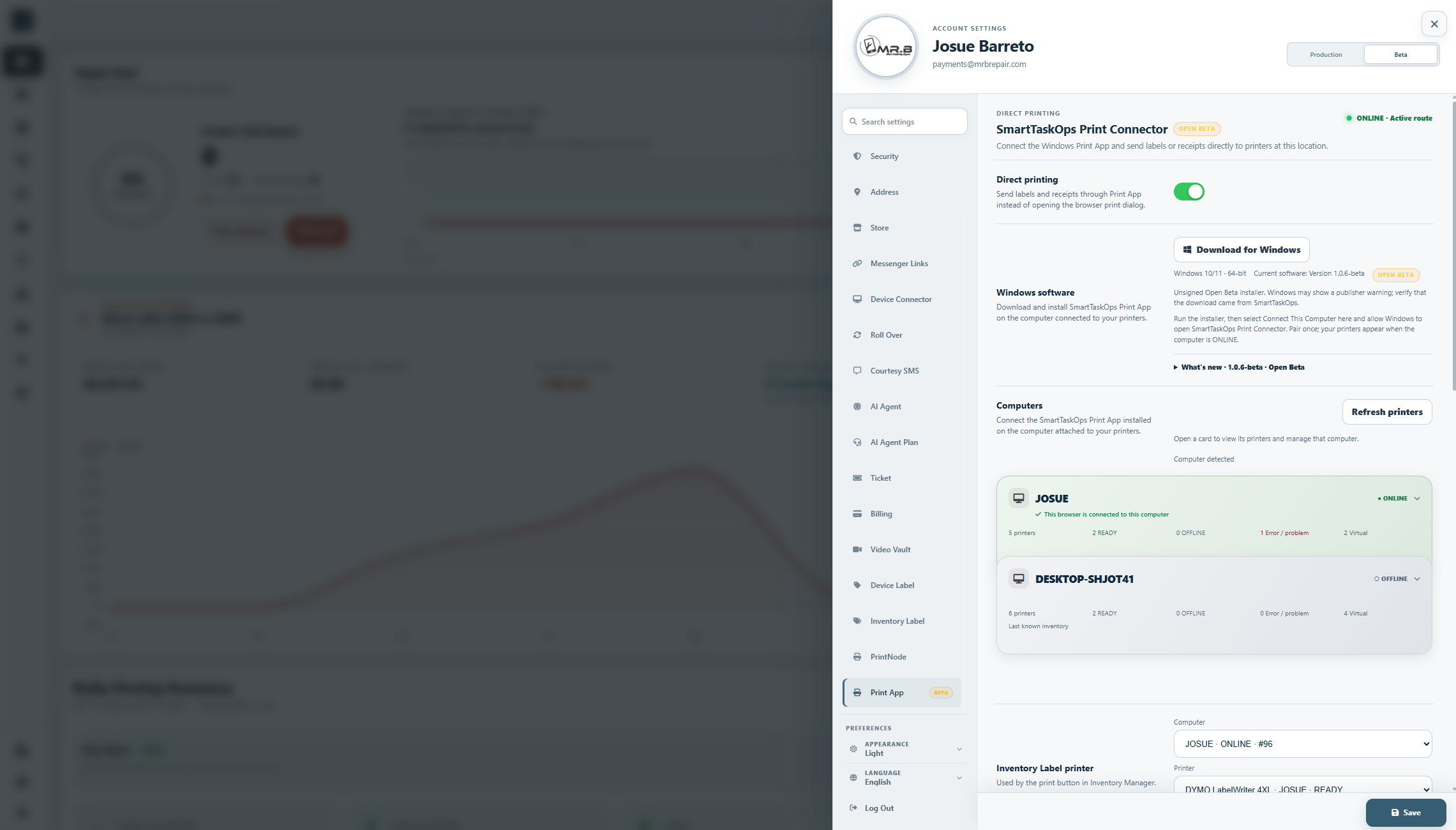
For security, download SmartTaskOps Print only from Settings → Print App inside your signed-in SmartTaskOps account.
- Sign in to your SmartTaskOps account on the Windows computer attached to your printers.
- Open Settings → Print App and select Download for Windows. Software downloads are available only inside your authenticated account, not from this guide.
- Run the installer, then return to Settings → Print App.
- Select Connect This Computer and allow the browser or Windows prompt to open SmartTaskOps Print.
- Wait for the computer to appear ONLINE. Supported Windows printers are discovered automatically.
- This first connection securely associates the computer with your account and business location. Pair once; normal reconnection does not require pairing again.
Step 4
Printers & live status
- Open a computer card in Settings → Print App to see its printers. Status refreshes automatically; use Refresh printers if needed.
- READY: Windows reports the printer ready. This is not a guarantee of physical reachability; status accuracy depends on the printer and its driver.
- OFFLINE: Windows reports offline. ERROR: a printer problem. PAUSED: the queue is paused.
- PRINTING: Windows reports printing. PAPER_PROBLEM: paper needs attention. UNKNOWN: a reliable status is unavailable.
- Virtual printers such as Microsoft Print to PDF and OneNote are shown for information, not for production printer assignments. A PDF receipt role still uses a physical printer.
Step 5
Printer assignments
- For each role, choose the Computer first, then a Printer from that computer and select Save.
- Inventory Label: labels from Inventory Manager. Device Label: repair device labels.
- Thermal Receipt: 80mm receipts. PDF Receipt: full-size receipts. Configure only the roles your store needs.
- New assignments require a READY physical printer on an ONLINE computer. Match label stock and size to Inventory Label or Device Label settings and the Windows printer paper settings.
- If a computer goes offline or a printer is removed or unavailable, its existing assignment is preserved. The system does not automatically switch to another computer or printer.
Step 6
Multiple computers
- Each computer has its own printers. For example: Front Desk for receipts, Technician Bench for labels, and Office for full-size printing.
- Give computer cards friendly names and check the computer shown with each printer assignment. Two computers can have identical printer names; choose the exact computer and printer together.
- When secure local identification succeeds, your computer appears first with the green message This browser is connected to this computer. The add-another-computer option is hidden for that browser. Other online computers are not assumed to be local.
- Detection also supports your store’s authorized, registered custom SmartTaskOps domain. Use the account and business location intended for those printers.
Step 7
Automatic & manual printing
- Enable Direct printing in Settings → Print App, select the printers and save. Supported print buttons then send to SmartTaskOps Print instead of opening the browser print dialog.
- Enable Automatic receipt to send the saved receipt after a supported checkout/payment and employee PIN confirmation, without another print click.
- Choose thermal 80mm, PDF receipt, or both; assign the corresponding physical printers.
- Enable Automatic Label to print one device label per device after Create Ticket. Save Draft does not print labels.
- When direct printing is disabled, use the existing browser or other configured printing workflow. Browser fallback can open the normal print dialog in supported flows when direct printing is unavailable; check the queue before retrying to avoid duplicates.
Step 8
Status & reconnection
- Computer ONLINE means SmartTaskOps Print is communicating with SmartTaskOps; it does not mean every attached printer is ready.
- Computer OFFLINE means there is no current communication. Printers may show last-known inventory or status, not live availability.
- After Windows restart, login, sleep/wake or a temporary internet interruption, the connected computer normally reconnects automatically. Allow time for it to resume.
- Do not disconnect and pair again for a normal interruption. Existing printer assignments stay in place while the computer is offline.
Step 9
Troubleshooting
- Computer offline: check power, Windows login and internet. Confirm SmartTaskOps Print is installed and running, then allow automatic reconnection.
- Printer missing: confirm it is installed, powered on and prints from Windows. Return to Print App and wait for automatic refresh or use Refresh printers.
- Printer offline/error: check power, cable or network, paper, error indicators and the Windows print queue. Resolve the Windows problem before printing again.
- New computer: install from Settings → Print App and use Connect This Computer once.
- Print not confirmed: inspect the printer and Windows queue before sending another copy. A command sent is not proof that paper has printed.
- Disconnect is for intentionally removing a computer, not normal troubleshooting. It revokes that computer’s connection; it must be connected again to use it.
Step 10
Open Beta & updates
- OPEN BETA: functional and available for real-world use. Compatibility and performance are still being monitored across Windows computers, printer drivers and models; results can vary.
- Feedback about your Windows version, printer model and the problem helps improve compatibility. Do not include private customer or account information.
- The unsigned Beta installer may show a publisher or reputation warning. Verify the download came from Settings → Print App inside your account.
- Do not disable Defender, SmartScreen, antivirus or browser security. If security software reports malware, stop and contact SmartTaskOps support.
- Updates are currently manual. Settings → Print App displays the current Open Beta version and can indicate an update is available when a computer reports an older version. Download the current installer there; the computer’s installed version is shown separately.
Set up Stripe Terminal
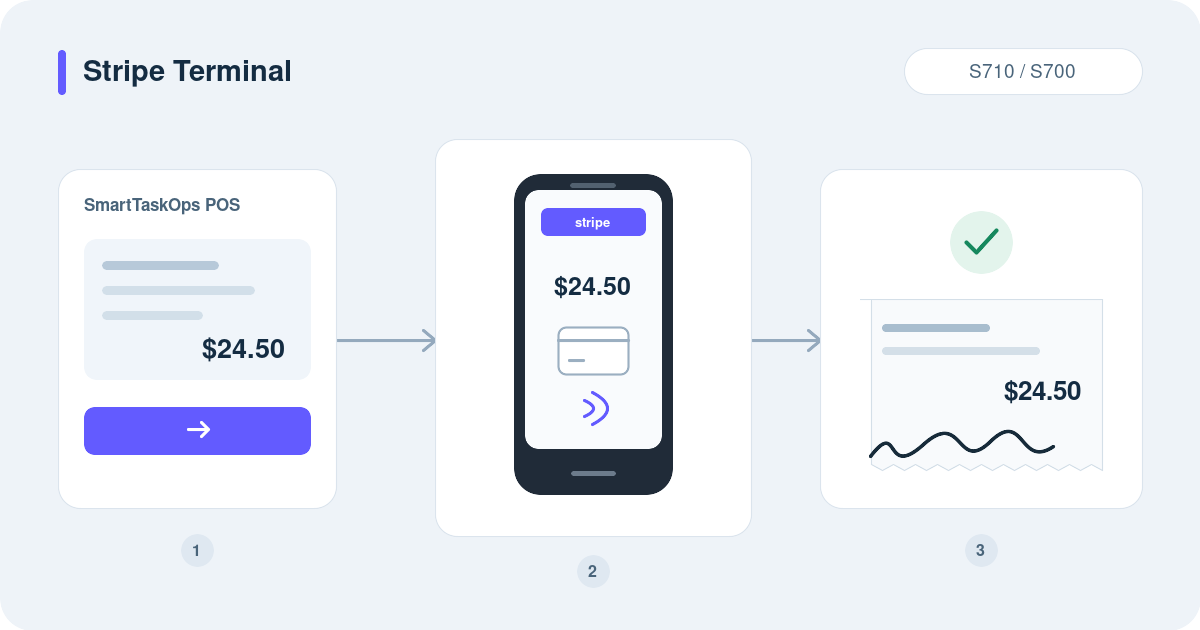
Connect a Stripe S710 or S700, send the checkout amount from the POS, collect an optional customer signature, and keep payment evidence with the order.
Step 1
Understand the payment flow
- Use a Stripe S710 or S700 with power, internet, and a Stripe account enabled for in-person payments in your country and currency. This integration requires an online reader.
- Stripe processes payments on the Stripe reader. Square Terminal uses its own device and account; configure both integrations if you want both payment methods in the POS.
Step 2
Connect your Stripe account
- As the owner, open Integrations → Stripe, connect with Stripe, and authorize the correct business account.
- Check that charges are enabled and verify the account, country, currency, and live/test mode. A connected account alone does not pair a reader or activate POS terminal payments.
Step 3
Add the store location
- Open Stripe → Terminal → Connect your reader → Store location. Enter the store name and business address, city, state/region, and postal code; save the location.
- The country comes from the connected Stripe account. Select the existing correct location if it has already been created.
Step 4
Pair the S710 or S700
- On the reader, open Settings → Generate pairing code. In SmartTaskOps, select the location, enter that code and a reader name, then press Connect reader.
- Stripe's code is generated on the reader and entered in SmartTaskOps. If the reader already appears under this Stripe account, select it instead of registering it again.
Step 5
Choose the reader and enable payments
- Under Reader for POS payments, select the device, enable Accept payments from the POS, and press Save changes.
- Use Refresh and confirm the correct reader is online and ready to charge. Pairing remains saved when a reader goes offline, but charging requires internet and the correct account mode.
Step 6
Enable customer signatures
- Optionally enable Request a customer signature, enter up to 100 characters of text for the customer, and save. The reader shows the amount and asks the customer to sign and confirm before payment.
- The signature is saved once per order. Later payments on that same order reuse it. A saved signature alone does not mean the card payment was approved; the receipt records the payment result separately.
Step 7
Charge from the POS
- Open the correct customer and order, review the total or partial payment, choose Stripe Reader, and confirm checkout. Complete the employee PIN verification if requested.
- The POS sends the amount to the selected terminal. If signatures are enabled, confirm the signature first; then the customer presents the card. Wait for Stripe approval and the POS payment confirmation.
Step 8
Review the order and print
- In Orders, open the order and review payment history, amount, date, collector, and card brand/last four digits when provided. A captured signature appears beside the order status and payment.
- Print the system's 80 mm receipt or PDF; the stored signature is included. Automatic receipt printing also requires your printer settings. The customer display on an iPad is a separate option from the card reader.
Step 9
Recover or cancel a pending payment
- If the connection drops or you choose Check later, select Stripe Reader again for the same order to recover its existing payment. Keep its original checkout amount and scope.
- Use Cancel payment to stop a pending request and wait for the confirmed result. Check the order and Stripe before retrying; an approved charge must be recovered, not collected again. A signature already saved stays with the order.
Step 10
Fix common setup issues
- No reader or pairing error? Verify the connected Stripe account, live/test mode, location, and a fresh pairing code. For an already registered reader, refresh and select it. A reader registered to another account must be managed in the owning Stripe account.
- Offline or busy? Check power and internet, finish or cancel the previous reader action, then refresh. If payment fails, read the message and verify the order before trying again. With integrated POS payments disabled, manually recording a payment does not send a charge to the reader.
Set up Square Terminal
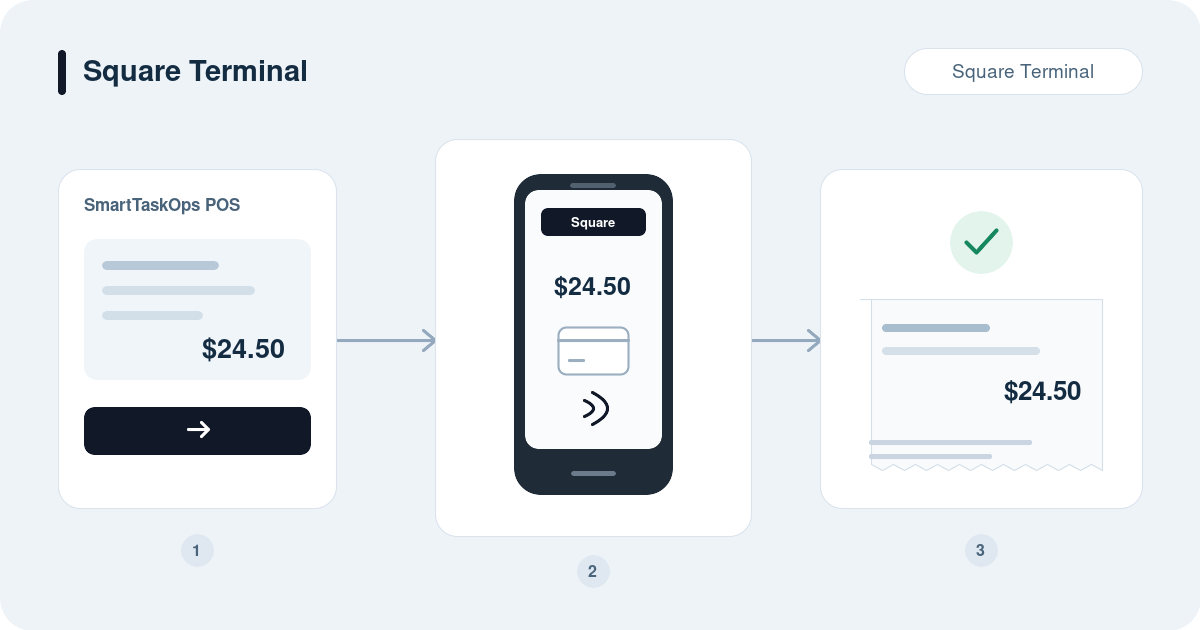
Pair your Square Terminal with SmartTaskOps, send payments from the POS, and verify the result before issuing the order receipt. Stripe Terminal and Square Terminal can both be configured as separate payment methods.
Step 1
Prepare the Square Terminal
- Use a Square Terminal, internet, power, and the correct Square business account and location. Keep the device software updated.
- This method sends payments to Square Terminal. A Stripe S710 uses Stripe Reader instead. Both integrations can remain configured; choose the matching payment method for each checkout.
Step 2
Connect Square and check the location
- As the owner, open Integrations → Square, connect with Square, and authorize the business account.
- Review the connected account and location before pairing. Use the production connection for the physical terminal; a test environment does not process a real customer payment.
Step 3
Generate the pairing code
- Open Square → Terminal and press Generate pairing code. Keep the displayed device code and its expiration in view.
- For Square, the code is generated in SmartTaskOps and entered on the terminal. Use this integration's code, not a code from Square Dashboard. Enter a new code within five minutes, or generate another if it expires.
Step 4
Enter the code on the terminal
- On the Square Terminal sign-in screen, choose Device Code and enter the code generated in SmartTaskOps. Complete the instructions on the terminal.
- Return to Integrations → Square → Terminal and press Refresh terminal. Confirm Paired, a device ID, and the expected terminal name. If it is already paired correctly, do not generate another code.
Step 5
Send the checkout amount
- Open the customer and order in the POS, review the total or partial payment, select Square Terminal, and confirm checkout. Complete any required employee PIN verification.
- The amount is sent to the paired Square Terminal. The customer presents the card and follows its prompts. Wait until Square reports the payment completed and the order reflects the approved payment.
Step 6
Verify and issue the receipt
- Open the order in Orders and check the payment method, amount, date, collector, and remaining balance. A pending checkout is not a completed payment.
- Use the system's 80 mm or PDF receipt. Configure automatic printing separately if needed. The Stripe signature option described in the other guide applies to Stripe Reader; it does not enable Square signature storage in SmartTaskOps.
Step 7
Handle pending or canceled payments
- If checkout remains pending, review the existing Square Terminal payment and its status in the POS before sending another charge. Use the checkout cancellation option when you need to stop it, and wait for confirmation.
- If the terminal reports approval but the browser loses the result, check the order and Square payment record before retrying. Preserve the existing transaction reference so the payment can be reconciled without charging twice.
Step 8
Troubleshoot and manage pairing
- Expired code? Generate a new code and enter it promptly. Still pending? Check internet, the Square account/location, device-code sign-in, and Refresh terminal. A powered-on device is not necessarily paired to this integration.
- Use Unpair terminal only when removing or replacing the configured device, after resolving pending payments. Reconnect OAuth if account authorization expired. For another checkout, select the correct configured provider: Square Terminal or Stripe Reader.
Set up a physical phone
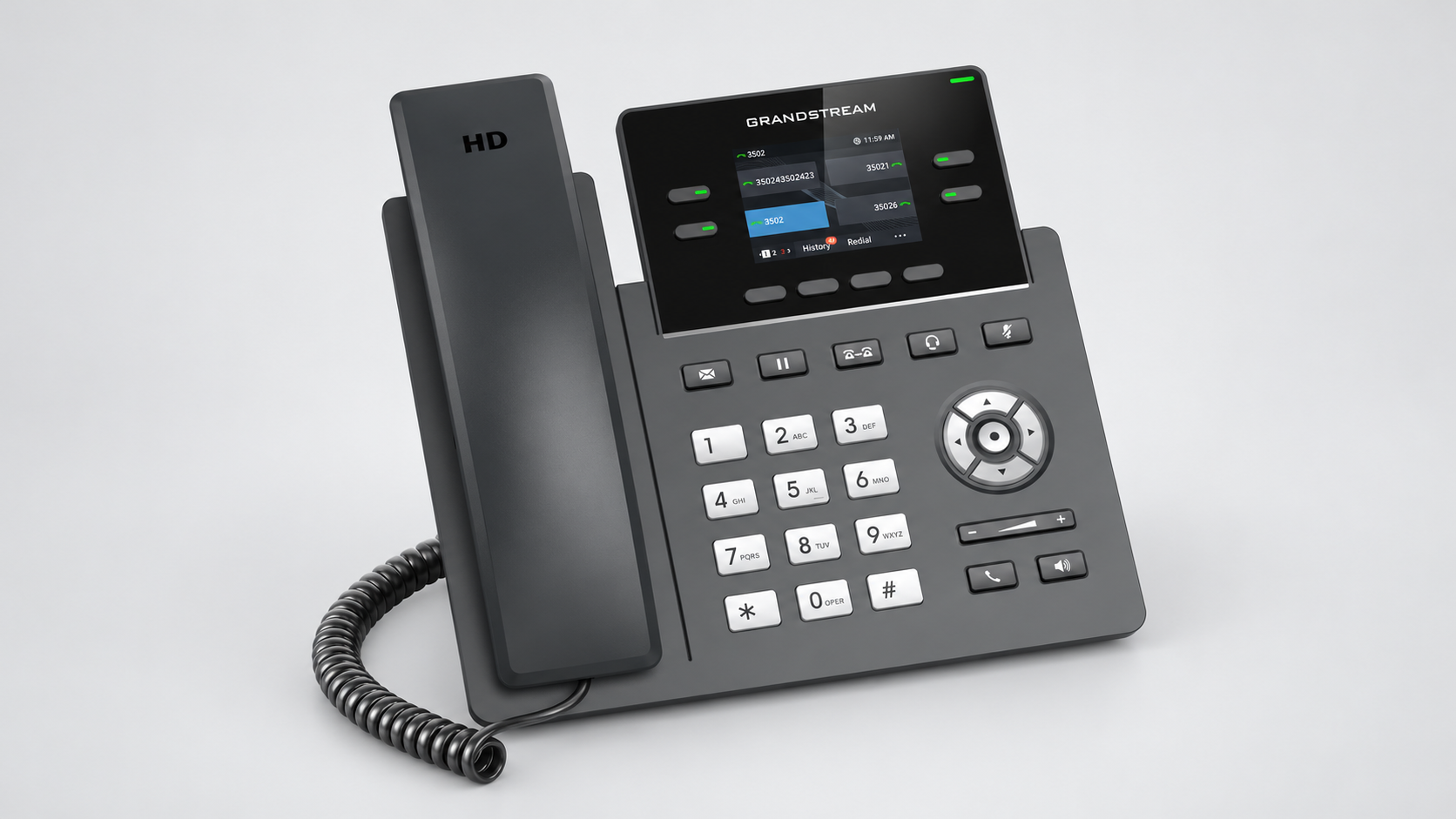
Connect the store phone to your dedicated SmartTaskOps number. Follow these steps for calls, HOLD music, location SMS, and customer information in the web portal.
Step 1
Before you start
- Sign in as the store owner. An active AI Agent Plan and an active dedicated number are required. The existing digital phone remains available.
- Have a GRP2612W, its compatible power supply or PoE connection, internet, and a computer on the same network. The phone supports Ethernet and Wi-Fi; no SIM is needed.
- Calls and configured HOLD controls work with the SmartTaskOps page closed while the phone has power and internet. Keep the website open for the red customer-and-ticket banner.
Step 2
Connect the phone and open its panel
- Connect the handset and power. For Ethernet, connect the phone’s LAN port to the router. For Wi-Fi, open the phone menu → System → Wi-Fi Settings, enable Wi-Fi, and join the store network.
- On the idle phone, hold ↑ for 3 seconds to see its IP. Open that IP in a browser on the same network; use the current address shown by the phone.
- Sign in with the phone’s administrator credentials, including the label password when applicable. Menu names can vary by firmware; use Save and Apply after changes.
Step 3
Prepare this store in SmartTaskOps
- Open Settings → AI Agent → Physical phone and select Set up my phone. Open View connection details and instructions; use Show or Copy for the phone password.
- Check the dedicated number and the store account before copying. Use the connection details generated for this store; keep its password and private action links out of shared screenshots.
- For the phone to ring first during business hours, choose Direct ring in dedicated-number AI routing. Outside business hours Sofia answers; unanswered calls follow the configured backup routing.
Step 4
Fill in Account 1
- In the Grandstream, open Accounts → Account 1 → General Settings. Enable Account Active and enter SmartTaskOps as Account Name.
- Copy SIP Server and Outbound Proxy from SmartTaskOps. Add :5061 to each host if it is not already present; do not add it twice.
- Copy SIP User ID into both SIP User ID and SIP Authentication ID. Paste the phone password into SIP Authentication Password. Set Tel URI → Disabled. Leave secondary servers empty unless provided.
- Press Save and Apply. Keep an Account 1 / Line key available for answering and resuming calls.
Step 5
Set transport and audio
- Open Account 1 → SIP Settings: SIP Transport = TLS/TCP; SIP URI Scheme When Using TLS = sip; Outbound Proxy Mode = Always send to.
- Enable SIP Registration, set REGISTER Expiration = 10 minutes, and enable TCP Keep-Alive. Press Save and Apply.
- In Codec Settings (Audio Settings on some versions), put PCMU first and set SRTP Mode = Enabled and Forced. Save and Apply. Keep Auto Answer and call forwarding off for normal manual answering.
Step 6
Verify registration and both call directions
- Open Status → Account Status: Account 1 must show Yes / Registered. In SmartTaskOps, press Test ring and answer. Refresh status shows the last test result, not continuous online monitoring.
- Make a real outgoing call and confirm the destination rings and both people can speak. US/Puerto Rico numbers accept 10 digits or 1 + 10 digits; press the green Send key.
- From another phone, call the dedicated number and answer on the Grandstream. Test ring alone does not verify outgoing calls. Emergency short codes and international dialing are not configured by this setup.
Step 7
Enable HOLD music
- In Settings → AI Agent → Physical phone, find Music with the HOLD button. Copy Hold Call and Unhold Call.
- In the Grandstream, open Maintenance → Outbound Notification → Action URL. Paste each complete link into its matching Hold Call or Unhold Call field. Keep the link and its $remote variable unchanged. Save and Apply.
- Test a new, answered incoming call and a new outgoing call. Press HOLD for 5 seconds: the other person should hear music. Press Resume or the blinking LINE key to speak again.
Step 8
Add location SMS to a phone key
- Copy the private link from Send location by SMS in the same SmartTaskOps settings. On the phone panel, open Application → XML Application, paste the full link into Server Path, set Softkey Label = Location, and Save and Apply.
- For use during a call, open Programmable Keys → Virtual Multi-Purpose Keys. Edit an unused key: Mode XML Application, Account 1, Label Location, Value = the same full link. Save the key and press Save VPK; preserve the Account 1 Line key.
- During an answered physical-phone call, press Location, check or select the correct customer, review the address, and press Send SMS. Opening the menu alone sends nothing. SMS uses Top Up; check delivery in Messages.
Step 9
See the customer and open tickets
- Keep SmartTaskOps open in an authorized account. The red incoming-call banner shows the caller number and the saved customer name when the number matches this store’s primary or secondary contact number.
- Open repairs appear with ticket references; More details opens the repair cards and full ticket. Unknown callers keep their number without another customer’s tickets. Collected, closed, canceled, and archived repairs are excluded; devices awaiting pickup remain visible.
- The banner remains while the Grandstream is answered or on HOLD, then closes when the call ends. Use this web banner for customer names even if the physical screen shows only the number. The phone continues working when the website is closed.
Step 10
Find call history and recordings
- Use Calls logs in SmartTaskOps for the complete store/AI call history and any available recordings and transcripts. The phone’s native Recents list is its local history; it does not import every previous SmartTaskOps call.
- In Settings → AI Agent → Direct ring, Automatic recording notice controls the spoken notice. Switching it off does not stop recording; use the notice or the store’s employee announcement procedure.
- If the phone’s Location app offers History, test its display on that firmware. If the screen is blank, use the web call log for the full history and recordings.
Step 11
Manage stores, disconnect, and renew
- Repeat setup from each store’s own account and dedicated number. Do not reuse another store’s SIP password or HOLD/location links. Adding a physical phone does not replace the digital phone.
- Use Disconnect phone in Settings when removing the device. Its phone credentials and private links are revoked; this action does not cancel the AI Agent Plan.
- Cancel renewal in AI Agent Plan to end at the paid period’s expiry. The dedicated number is released when the plan ends. Before expiry, Continue my plan restores renewal and retains the number.
Step 12
Troubleshoot and finish testing
- Not Registered: check internet, date/time, this store’s copied credentials, port :5061, and Tel URI Disabled. Save and Apply, then recheck Account Status.
- Registered but no outgoing call: check sip, TLS/TCP, Always send to, PCMU, SRTP, and the dialed number. A “check your plan” message requires checking the active plan, dedicated number, and available usage/Top Up in SmartTaskOps.
- No HOLD music: verify the two action URLs and test a new answered call. No location SMS: check the full XML link, the selected active physical call, the location/address, and Top Up.
- No web customer details: keep the portal visible, refresh with Ctrl + F5, check call-view permission, and verify the saved customer number. Finish by testing incoming/outgoing speech, HOLD/Resume, one location SMS, and the red ticket banner.
Set up PrintNode
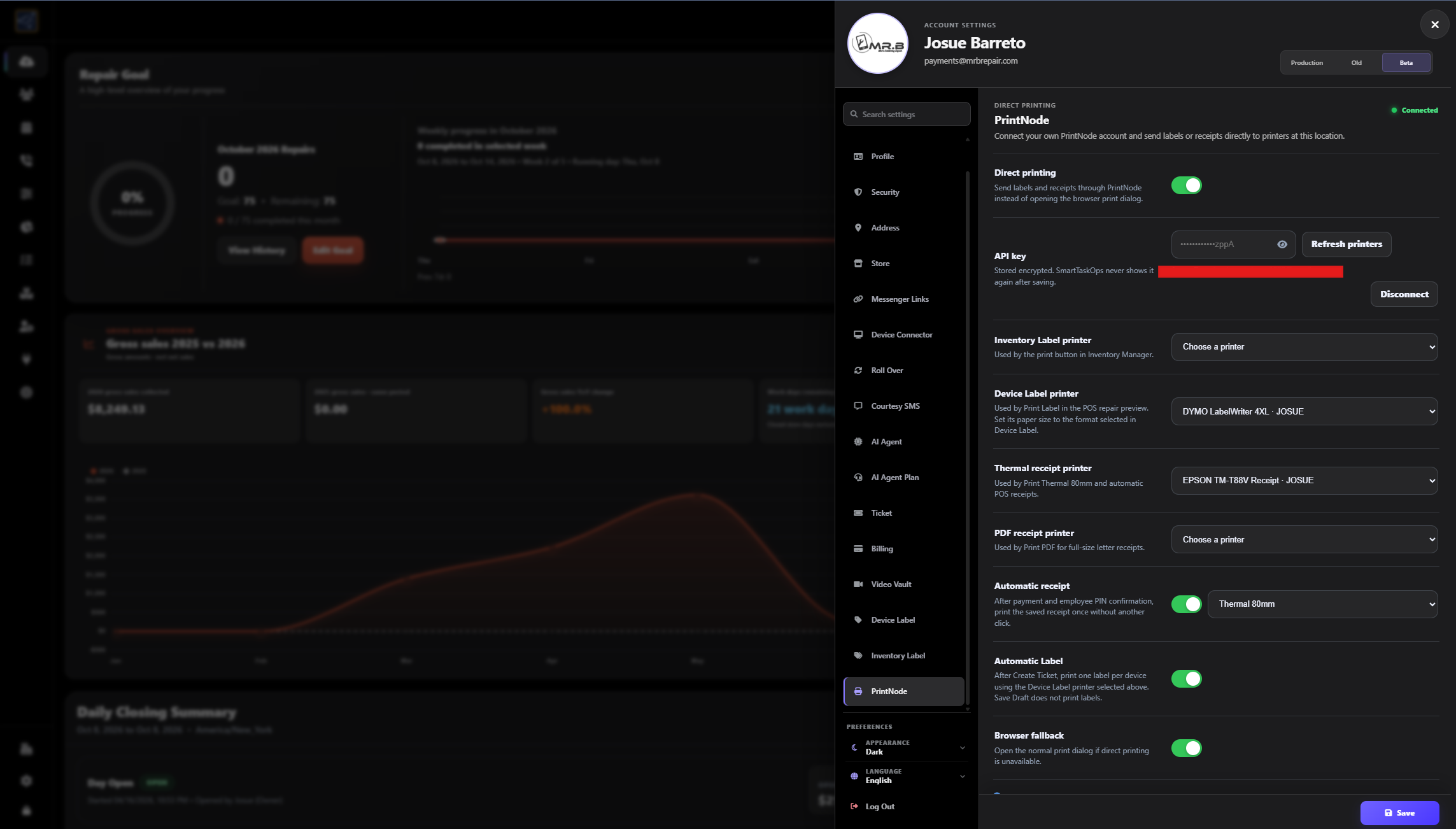
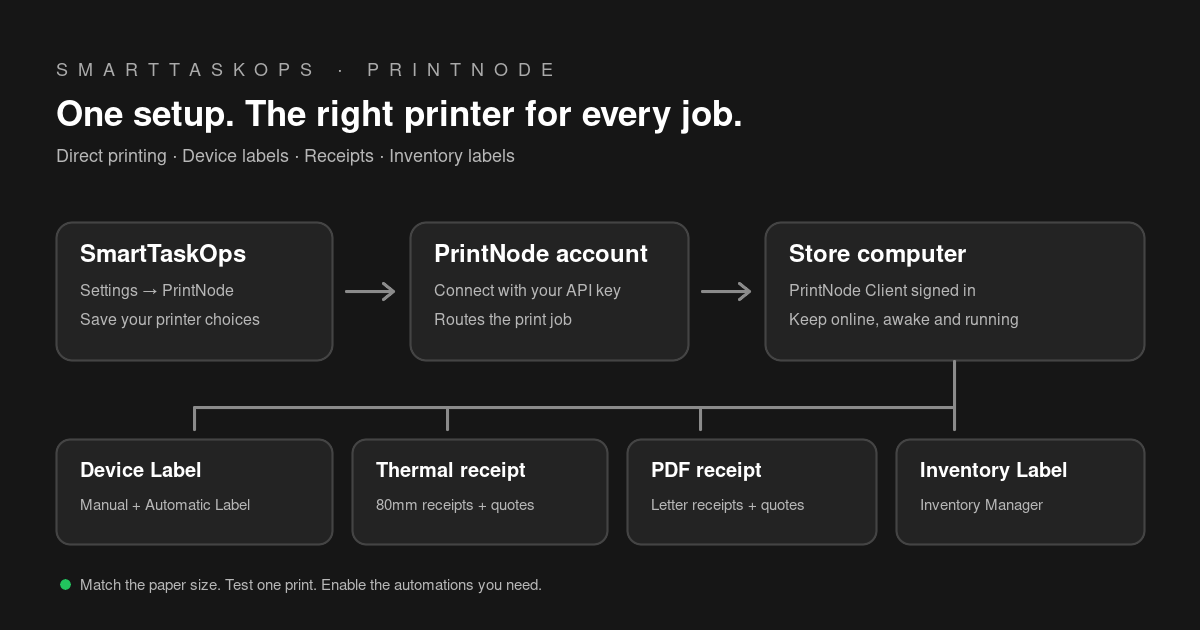
Connect once, choose the right printers, and print from SmartTaskOps with fewer clicks. This guide covers receipts, quotes, inventory labels, device labels, and both automatic printing options.
Step 1
Know the benefits and requirements
- Fewer clicks: send supported prints directly to the selected printer instead of choosing a printer in the browser each time.
- Organized workflow: use different printers for 80mm receipts, device labels, inventory labels, and full-size PDFs. Automate receipts after payment and labels after ticket creation.
- You need a PrintNode account, internet, a supported computer with PrintNode Client running, and printers installed in that computer. A phone or tablet can use SmartTaskOps, but the printer computer must stay online and awake.
- PrintNode is a separate service from SmartTaskOps Device Connector. Review PrintNode plans and print limits; do not assume its subscription is included in SmartTaskOps.
Step 2
Create the account and install the Client
- Create your PrintNode account, then download the official PrintNode Client for your computer.
- Install each printer and its manufacturer driver in the operating system. Print one test page before connecting SmartTaskOps.
- Install the Client on the computer that can access those printers. Sign in with the same PrintNode account you will connect to SmartTaskOps.
- Confirm the printers appear in the Client Printers tab. Keep the Client running while you print; it does not install on an iPhone or iPad.
Step 3
Create a private API key
- Open API Keys in the PrintNode dashboard and create a key for this integration, for example SmartTaskOps.
- Copy the complete key. SmartTaskOps needs the API key, not your PrintNode password.
- Treat the key like a password: do not publish it or include it in screenshots. SmartTaskOps stores it encrypted and shows only a masked reference after saving.
Step 4
Connect in SmartTaskOps Settings
- Sign in to SmartTaskOps as the store owner. Open Settings → PrintNode from the account menu or POS settings.
- Paste the key into API key and press Connect account. Check that the connected account is the one used by the Client.
- Turn on Direct printing. After connection, Refresh printers updates the list when printers or computers change.
- Connected confirms the account connection, not that every printer is online. Choose printers in the next step and press Save to keep the configuration.
Step 5
Choose a printer for each document
- Inventory Label printer: product labels from the print button in Inventory Manager.
- Device Label printer: labels attached to devices, printed from POS or Tickets, including Automatic Label.
- Thermal receipt printer: Print Thermal 80mm, Print Quote 80mm, and automatic thermal receipts.
- PDF receipt printer: full-size Letter receipts and quotes through Print PDF, Print Quote PDF, and automatic PDF receipts.
- Check the printer and computer names, not only the printer model. Assign only the formats you use, leave unused slots unselected, and press Save.
Step 6
Match the label and paper sizes
- In Settings → Device Label, choose the format that matches your stock: phone repair label 3.5 × 1.125 in (88.9 × 28.575 mm), or 57 × 32 mm DYMO QR/barcode formats.
- Set that same stock size in the label printer driver. Match Settings → Inventory Label to the stock used by the inventory printer.
- Use 80mm paper for thermal receipts and Letter for full-size PDFs. A wrong driver paper size can crop the name or QR code even when the preview looks correct.
- For rotated or cropped prints, review the Client Printers tab. PrintNode recommends Engine6 on Windows or Engine7 on macOS; see the official troubleshooting notes. Test one label before a batch.
Step 7
Try receipts, quotes, and labels
- In POS, open View Invoices, select an order or receipt, and press Print Thermal 80mm or Print PDF. The thermal print keeps the receipt design.
- For an unsaved order, open Print Quote and choose Print Quote 80mm or Print Quote PDF. Printing a quote does not require Save Draft.
- For a device, use the row print icon in POS or Tickets, review Print Repair Label, add an optional label note, and press Print Label. Internal comments are not printed.
- In Inventory Manager, use the item print button for inventory labels. Manual printing remains available when the automatic options are off. Press once and wait for confirmation.
Step 8
Enable Automatic receipt
- In Settings → PrintNode, turn on Automatic receipt and choose Thermal 80mm, PDF receipt, or Thermal + PDF.
- Configure the printer for every selected format; the combined mode needs both receipt printers. Keep Direct printing on and press Save.
- After POS saves the payment and completes any required employee PIN confirmation, it sends the saved receipt automatically without another print click. It does not print a receipt merely because you edit a draft.
- Turn this option off when you prefer manual receipt printing. Real print time still depends on internet, the computer, the queue, and the printer.
Step 9
Enable Automatic Label
- Select your Device Label printer, keep Direct printing on, enable Automatic Label, and press Save.
- When Create Ticket successfully saves a new service ticket in POS, SmartTaskOps sends the same device label automatically, one per device. Additional services on the same device do not need extra device labels.
- Add to Draft and Save Draft do not trigger automatic labels. The label is sent only after ticket creation succeeds.
- You can switch automatic labels off at any time and still use the manual Print Label button.
Step 10
Manage settings and fix common issues
- Browser fallback can open browser printing when a supported direct-print workflow is unavailable. Turn it off for direct-only POS printing. Ticket Center label errors stay visible without automatically opening browser print, to avoid duplicates.
- No printers or an offline printer? Check power, paper, driver, internet, Client sign-in, and the selected computer; keep the computer awake, then use Refresh printers and Save.
- Account connected but nothing prints? Check the actual printer queue, Client Logs, and PrintNode plan limits. A sent confirmation is not proof that paper has printed. Check the queue before retrying to avoid duplicates.
- Turn off Direct printing to use browser printing again. Disconnect removes the saved connection, printer assignments, and automatic options from SmartTaskOps; it does not delete your PrintNode account. Reconnect with a valid key and save new choices.
- Use the official installation guides and PrintNode troubleshooting for computer or driver issues. Never share your API key in a support screenshot.
How to manage business expenses
Track monthly operating costs, recurring commitments, payment status, and automatic SmartTaskOps charges from one finance workspace.
Step 1
Open Finance Reports and Expenses
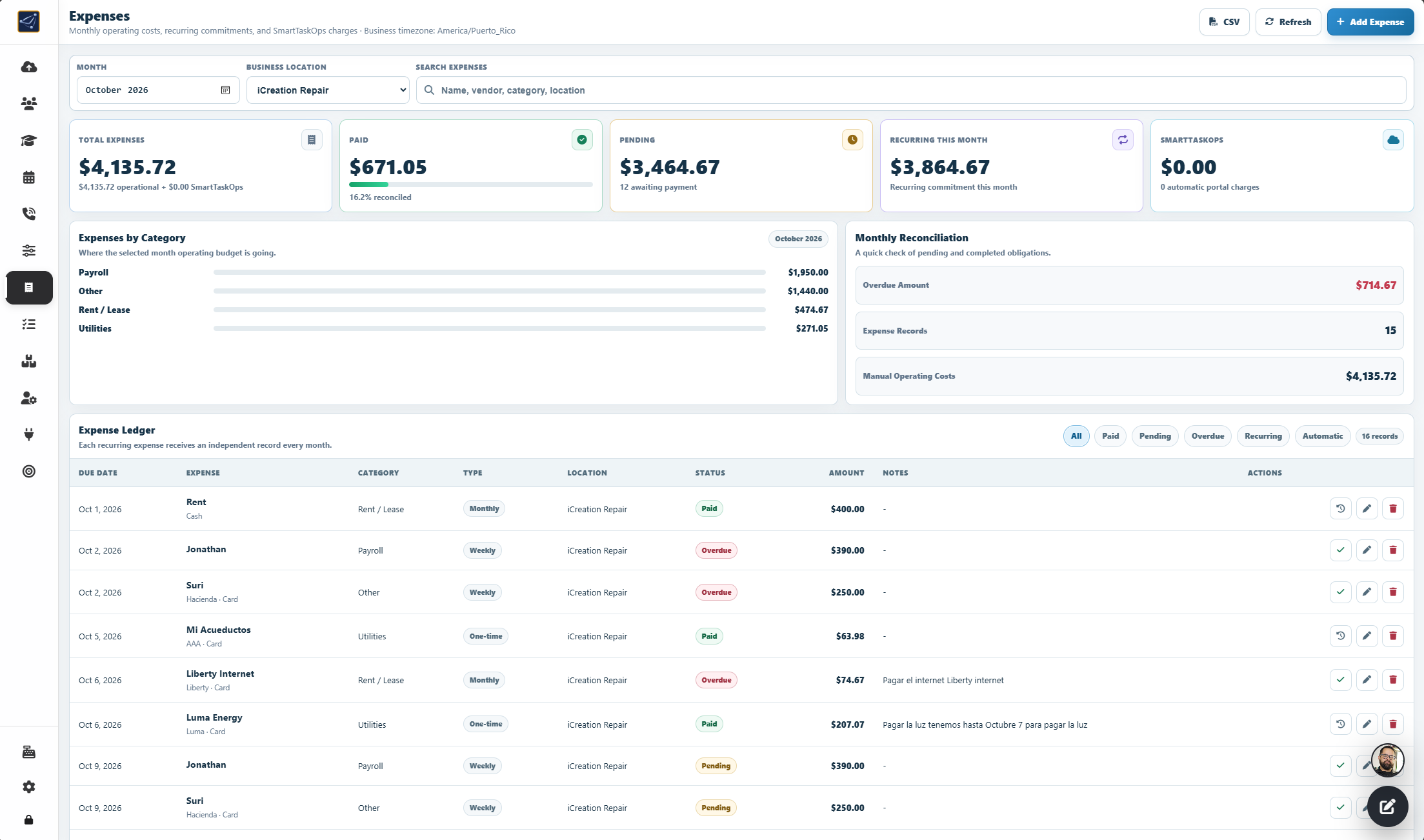
- Sign in with the store owner account; the Expenses workspace requires Admin mode.
- Open Finance Reports in the owner sidebar and select Expenses.
- The page uses the business timezone so due dates, monthly totals, and overdue status align with the store day.
Step 2
Choose a month and read the finance overview
- Select the Month and, when available, a Business Location; use search for a name, vendor, category, or location.
- Review Total Expenses, Paid, Pending, Recurring This Month, and synchronized SmartTaskOps charges.
- Use Expenses by Category and Monthly Reconciliation to see budget distribution, overdue amount, record count, and manual operating costs.
Step 3
Add a one-time or recurring expense
- Select Add Expense, then enter the name, vendor, category, amount, due date, business location, status, payment method, and optional notes.
- Choose One-time for a single cost, or Weekly, Monthly, Quarterly, or Yearly for a recurring commitment.
- For recurrence, optionally set an end date. Select Save Expense and confirm the new record appears in the selected month.
Step 4
Reconcile payments and manage recurrence
- In Expense Ledger, use the check action to change a manual expense between Pending and Paid, or select the pencil to edit that month.
- When editing a recurring expense, choose whether name, amount, category, vendor, and payment method changes should also apply to future months.
- The trash action deletes a one-time expense. For recurrence, it can skip only the selected month or stop the series from that month forward. Automatic SmartTaskOps rows remain read-only.
Step 5
Filter, refresh, and export the ledger
- Filter the ledger by All, Paid, Pending, Overdue, Recurring, or Automatic and combine the filter with search.
- Select Refresh to reload the month and synchronize available SmartTaskOps billing charges.
- Select CSV to download the currently visible filtered rows for bookkeeping or reconciliation.
POS Keyboard Shortcuts
Use these fast-input keyboard combinations to open the exact POS area the store needs without hunting through menus.
Step 1
Understand the fast input map
- Use Ctrl on Windows or ⌘ on Mac for the shortcuts shown as Ctrl/⌘.
- The shortcuts work from Cards View and from the POS iframe, so the team can move without extra clicks.
- Use Alt + W only for a counter customer who does not provide name or phone.
Step 2
Open POS instantly with Ctrl/⌘ K
- Press Ctrl/⌘ + K to open the POS workspace immediately.
- Use this when a customer reaches the counter and the sale needs to start right away.
- The current cards and widgets stay behind the POS, so the workspace remains fast to return to.
Step 3
Create a new customer with Ctrl/⌘ C
- Press Ctrl/⌘ + C to open POS directly in Create Customer.
- Enter the customer name, phone, and email when available, then press Create Customer.
- After saving, the customer is ready for a repair, order, or quick checkout flow.
Step 4
Select an existing customer with Ctrl/⌘ Z
- Press Ctrl/⌘ + Z to open POS directly in Select Customer.
- Search by name, email, or phone, then choose the correct customer row.
- Once selected, POS is ready to add repairs, miscellaneous items, or continue an order.
Step 5
Jump to pickups and settings
- Press Ctrl/⌘ + P to open Waiting Pickups inside POS.
- Use it when a customer arrives to pick up a ready device and the team needs the pickup list fast.
- Press Ctrl/⌘ + S to open account settings when the store needs to adjust configuration quickly.
Step 6
Use Alt W for Walk In customers
- Press Alt + W when the customer does not want to leave a name or phone number.
- If Walk In already exists, SmartTaskOps selects it. If it does not exist, SmartTaskOps creates it one time.
- POS stays ready to add a quick item, repair, or sale without forcing the team to invent customer details.
Start, monitor, and close your day in POS
From New Workspace, open POS anywhere by clicking POS or pressing Ctrl/⌘ + K. Start the day, record the opening cash float, follow sales, check out repairs, and close the shift from one place.
Step 1
Open POS from anywhere
- In New Workspace, click POS from any page, or press Ctrl/⌘ + K.
- POS opens over your current workspace so you can act quickly without losing your place.
Step 2
Select Start Day
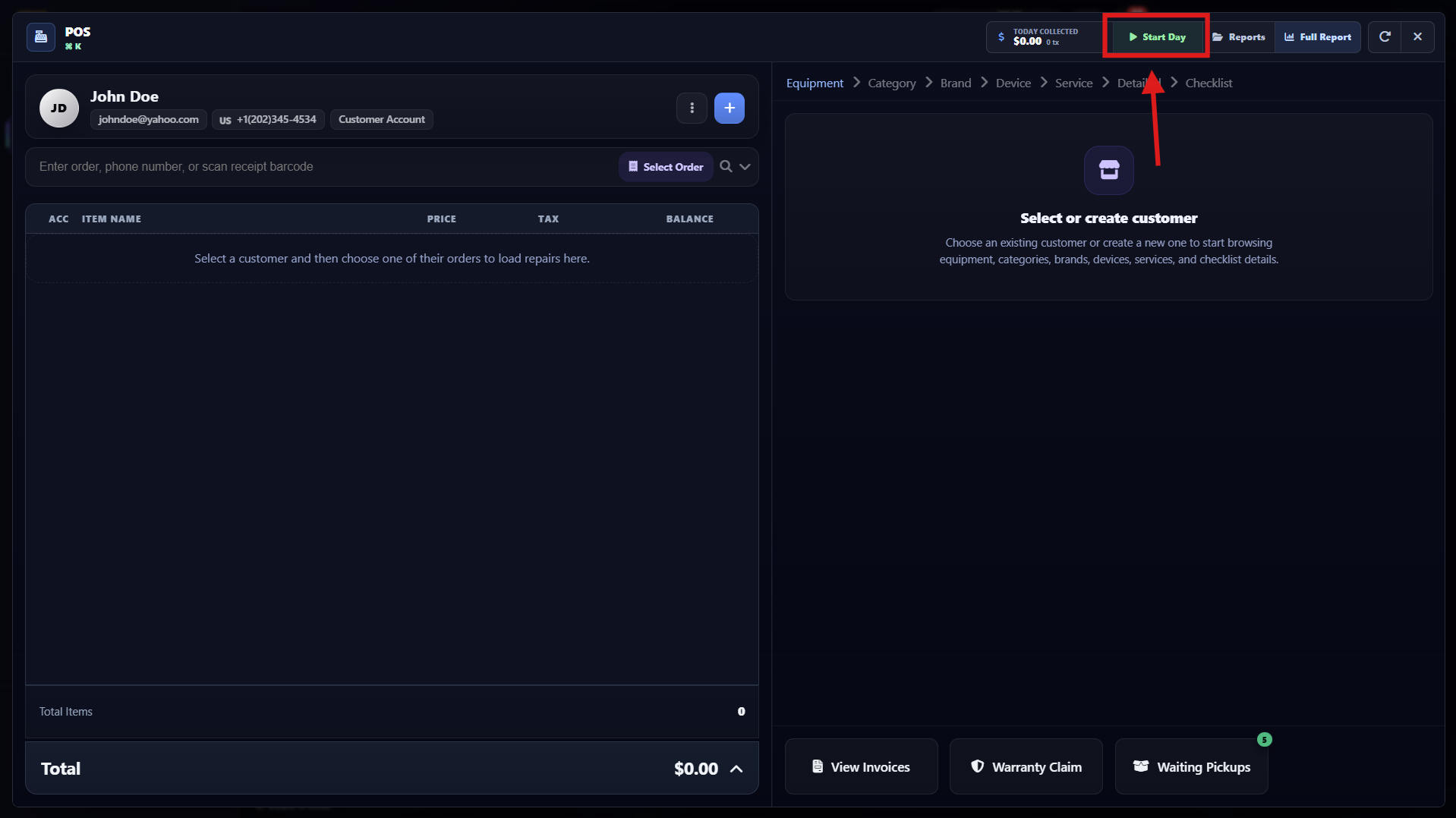
- In the POS header, select Start Day.
- This opens the cash drawer count used to record the register’s opening fund, also called petty cash or Cash In.
Step 3
Count the opening cash
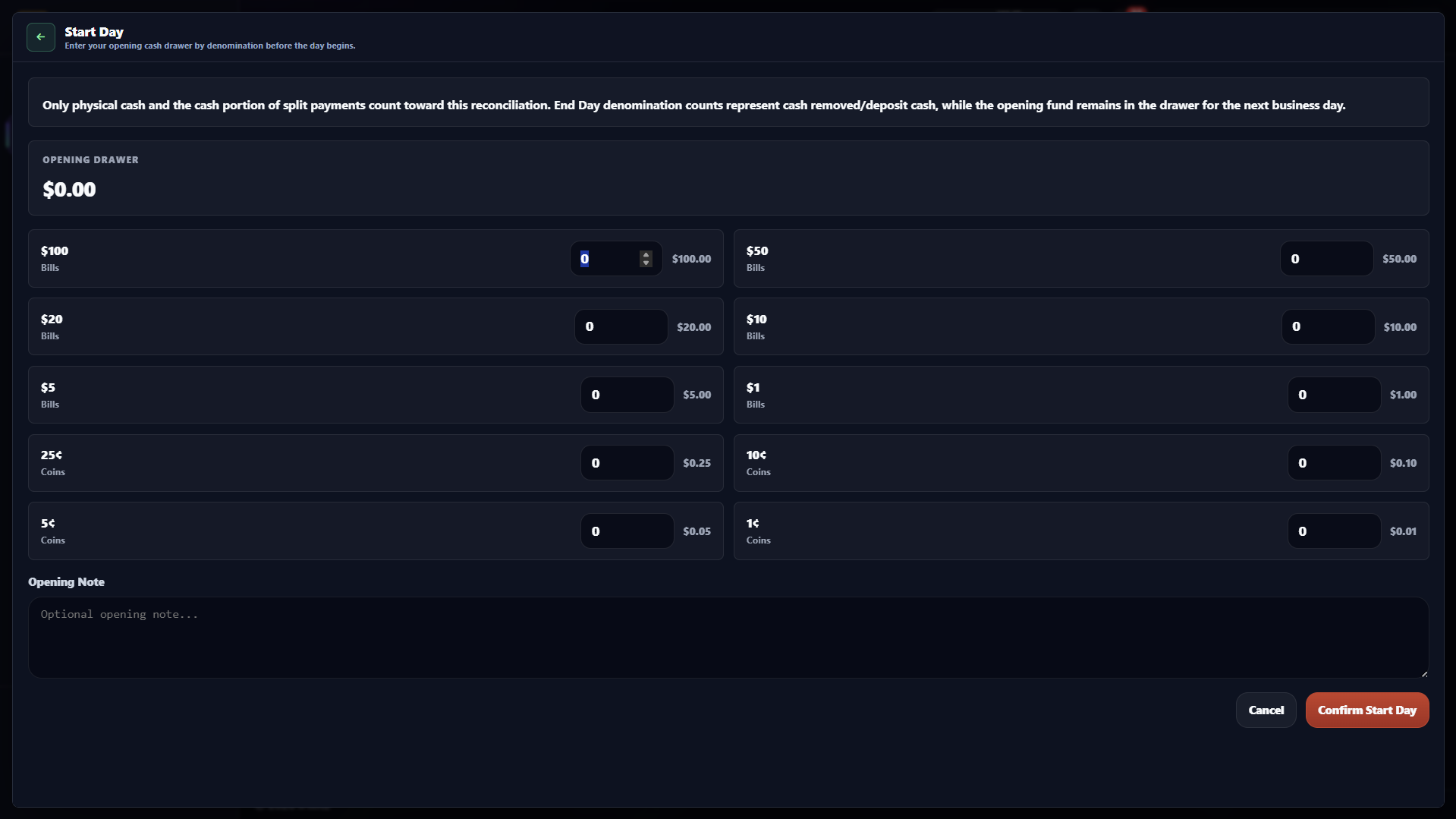
- Enter the quantity of each bill and coin that is physically in the drawer.
- Check the Opening Drawer total and add an optional note when needed.
- Select Confirm Start Day to record the opening balance and complete Cash In.
Step 4
Track sales and close the day
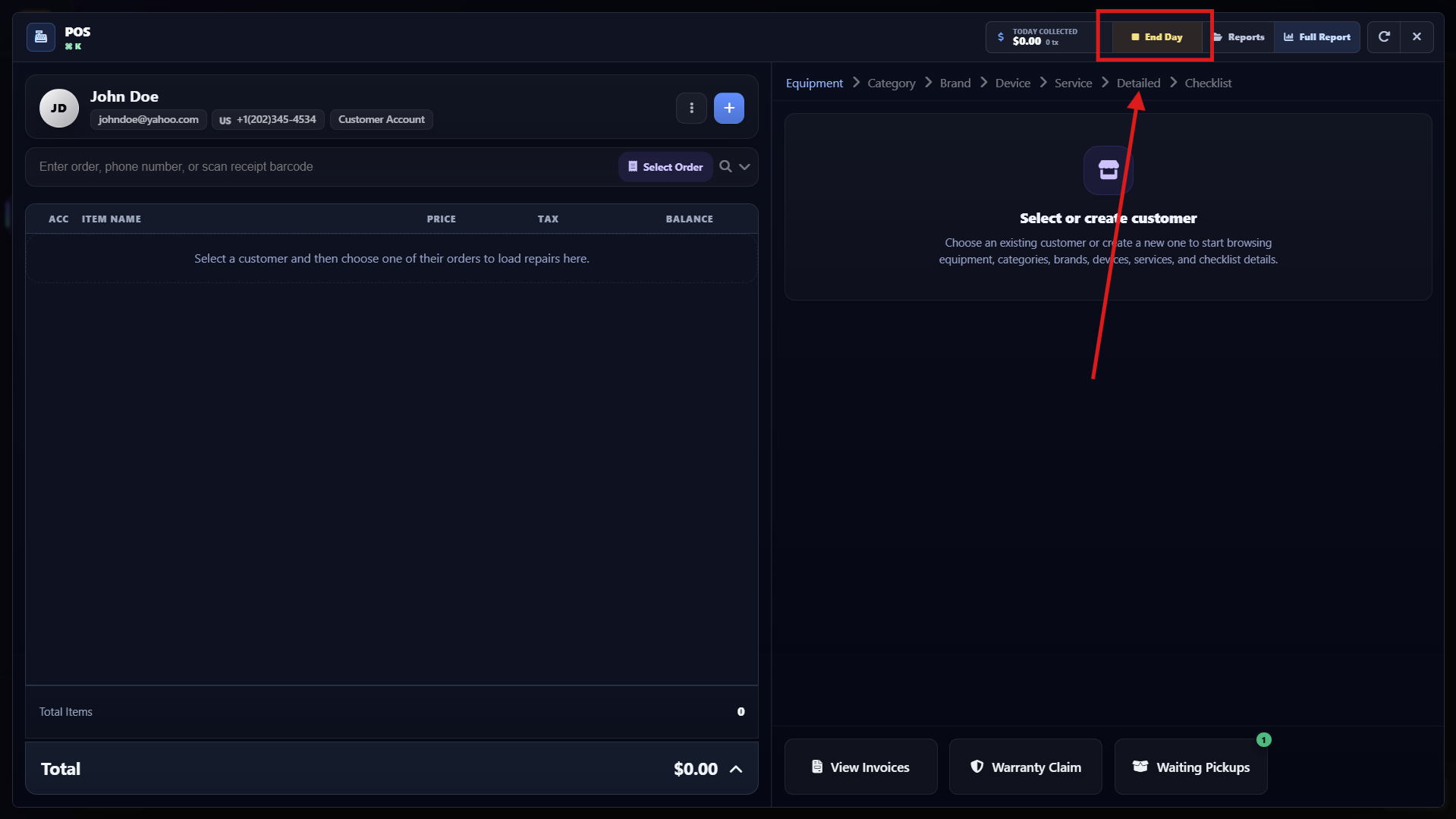
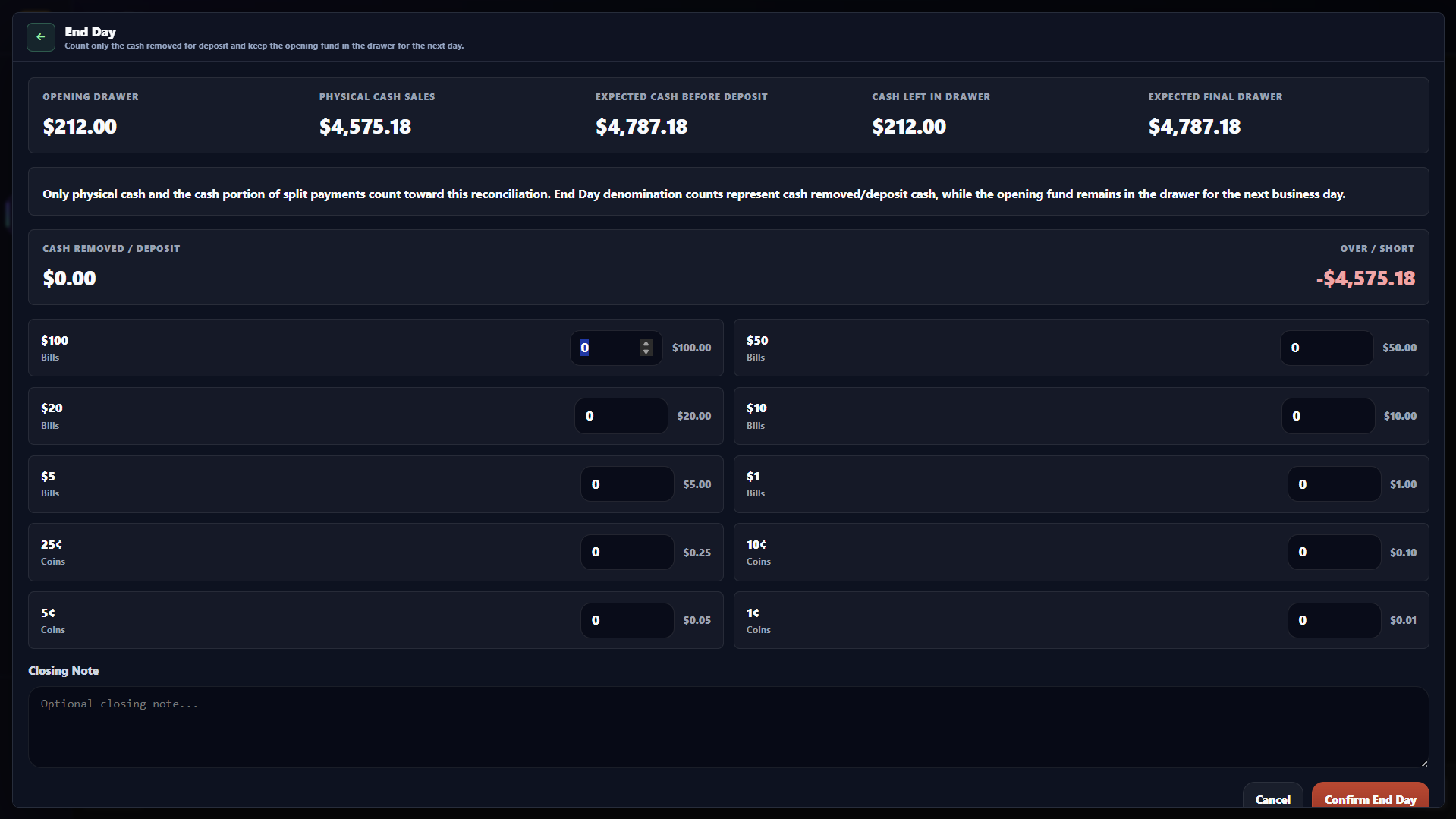
- Use Today’s Collected, Reports, and Full Report to follow the store’s sales during the day.
- Reopen POS from anywhere whenever you need to check out a completed repair quickly.
- When the shift is ready to close, select End Day. Count the cash removed for deposit, leave the opening fund in the drawer for the next business day, and select Confirm End Day to finish Cash Out.
SmartTaskOps Device Connector
Connect iPhone and iPad directly to SmartTaskOps from your Windows PC.

What it adds to SmartTaskOps
The Connector lets SmartTaskOps detect supported Apple devices, read available device details, and open the POS device panel when a trusted iPhone or iPad is connected.
- Reads device name, model, iOS version, serial, IMEI, and storage when the device reports them.
- Shows battery percentage, cycles, charging state, estimated capacity, and live battery diagnostics when available.
- Runs supported hardware scans and component identifier checks on models that expose that information.
- Helps POS open or update the connected device details without a separate lookup.
Step 1
Know what the Connector can read
- The Connector reads the authoritative device information that Windows and Apple device support make available.
- SmartTaskOps can show model, marketing name, storage, battery, supported hardware scans, component identifiers, and live battery diagnostics when those values exist.
- Hardware details are model-dependent. Missing hardware identifiers do not mean the device is damaged.
- POS can open or refresh the connected iPhone or iPad panel when the Connector is ONLINE.
Step 2
Prepare the Windows computer
- Use a Windows 10 or Windows 11 computer with 64-bit Windows.
- Install Apple device support first. SmartTaskOps recommends Apple Devices from Microsoft Store.
- Use Apple Devices or iTunes, not both on the same computer.
- Do not use 3uTools for this setup. Clean Windows may only show Photos or media access until Apple support and Trust are complete.
Step 3
Download from SmartTaskOps
- Sign in to SmartTaskOps and open Settings, then Device Connector, then Download for Windows.
- Only use the official SmartTaskOps site: smarttaskops.com.
- The public download name is SmartTaskOpsDeviceConnectorSetup.exe.
- The SHA-256 below is for IT or advanced verification. Normal employees do not need to check it manually.
Step 4
Understand the Microsoft Edge warning
SmartTaskOpsDeviceConnectorSetup.exe isn't commonly downloaded. Make sure you trust SmartTaskOpsDeviceConnectorSetup.exe before you open it.
- This can appear because the Connector is a new beta download and browsers build reputation over time.
- A reputation warning is not the same thing as a malware detection.
- Continue only when the file came from smarttaskops.com.
- If Windows Security or your antivirus reports actual malware, stop and contact SmartTaskOps support. Do not disable Defender or antivirus to bypass a detection.
Step 5
Keep the download in Edge when needed
- Open the Downloads panel in Edge.
- Find SmartTaskOpsDeviceConnectorSetup.exe, then open the menu next to the download.
- Choose Keep. If Edge asks again, review the source and confirm that it is smarttaskops.com.
- Button names can vary by Edge version. Do not turn off SmartScreen, Defender, or antivirus protection.
Step 6
Install and connect this computer
- Open SmartTaskOpsDeviceConnectorSetup.exe and complete the installer.
- The installer is made for the current Windows user and runs the Connector in the background.
- You do not need PowerShell, Visual Studio, or a manual .NET install for normal setup.
- Return to SmartTaskOps, open Settings, then Device Connector, and press Connect this computer.
- When the browser asks Open SmartTaskOps Device Connector, choose Open or Allow. The computer should appear ONLINE.
Step 7
Connect and trust the Apple device
- Use a USB data cable, not a charge-only cable.
- Unlock the iPhone or iPad and keep it unlocked while detection starts.
- When the device asks Trust This Computer, tap Trust and enter the passcode.
- Allow Photos or media access is not the same as full Trust. If only Photos appears and the device is not detected, open Apple Devices or iTunes, confirm the device appears there, and complete Trust.
- Do not factory reset the device for connector setup.
Step 8
Use POS and troubleshoot cleanly
- After the computer is ONLINE, connect an iPhone or iPad. POS can open or refresh the device panel automatically.
- The scan may show SCANNING first, then READY or PARTIAL. PARTIAL usually means some identifiers were not returned by that model or trust state, not that the device is broken.
- ONLINE but no device: check Apple Devices or iTunes, use a USB data cable, try another USB port, unlock the device, and complete Trust.
- Only Allow Photos: that is media access only. Open Apple Devices or iTunes and establish Apple device support and Trust.
- Computer OFFLINE: the Connector normally runs in the background. Restart Windows or reopen SmartTaskOps Device Connector, then connect again.
- Security warning: go back to the Edge warning step and verify the file came from smarttaskops.com.
SmartTaskOps Device Connector 1.0 Beta
This beta is tested with selected stores. Compatibility and diagnostics can vary by iPhone or iPad model and by the information Apple exposes to Windows.
What's New in SmartTaskOps Device Connector
See what's new, improved, and fixed in every Device Connector release.
Current Beta
Version 1.0.3
Released:
SmartTaskOps Device Connector is currently in Beta.
Beta releases may include frequent improvements based on real repair-shop testing.
Release timeline
SmartTaskOps Device Connector
Version 1.0.3 Beta
New
Cellular / Modem Diagnostics
Device Details now shows Baseband Version, Baseband Serial Number, Baseband Status, Baseband Region, Telephony Capability, SIM Status, SIM Tray Status, and MEID when available.
Improved
Expanded iPhone Cellular Details
Supported iPhones now provide expanded cellular diagnostic information.
Clearer Repair Troubleshooting
Clearer modem and baseband details help technicians troubleshoot supported repairs.
Model-Aware Device Handling
Devices without cellular hardware are handled normally without treating missing modem information as a failure.
SmartTaskOps Device Connector
Version 1.0.2 Beta
Fixed
Reliable Reconnection
The Connector now recovers more reliably if its Windows background connection stops.
Clearer Connector Status
SmartTaskOps now more clearly distinguishes an offline computer from one whose access has been revoked.
No Unnecessary Duplicate Computers
Reconnecting a paired computer no longer creates an unnecessary duplicate entry.
Improved
Reconnect from SmartTaskOps
A clear Open Connector action makes it easier to reconnect a paired computer.
Secure Pairing Preserved
An existing paired computer keeps its secure SmartTaskOps connection when reconnecting.
Automatic Startup Repair
The Connector automatically repairs its Windows startup setup if it is missing or out of date.
One Connector at a Time
Reopening the app now handles the existing Connector more smoothly without starting another copy.
Faster Return Online
SmartTaskOps shows the computer online sooner after the Connector reopens.
SmartTaskOps Device Connector
Version 1.0.1 Beta
New
Wi-Fi Hardware Address
SmartTaskOps can now read and display the Apple device's Wi-Fi hardware address when available.
Bluetooth Address
Bluetooth hardware address is now available in Device Details.
Ethernet Address
Ethernet hardware address is now available when reported by the Apple device.
Battery First Use
Supported devices can now report the battery's First Use date directly from Apple battery diagnostics.
Battery Age
SmartTaskOps calculates battery age using the verified First Use date.
Average Cycles per Month
Battery usage can now be interpreted using cycle count and battery age.
Expanded Battery Diagnostics
Device Details now includes additional battery information such as temperature, voltage, battery current, design capacity, nominal capacity, and maximum reported capacity.
Live Battery Monitor
Technicians can monitor live voltage, battery current, temperature, and charging state. Current is displayed in both Amps and milliamps.
Improved
More Accurate Estimated Battery Capacity
Battery capacity calculations were improved to better align the SmartTaskOps estimate with the capacity information reported by iOS, while still clearly identifying it as a SmartTaskOps estimated value.
Battery Current Display
Current now displays in technician-friendly Amps with the original mA value available as supporting detail.
Apple Model Identification
Improved commercial model identification for supported iPhone and iPad models.
Device Details
More diagnostic information is available in one organized view.
Network Information
A dedicated Network section now groups Wi-Fi, Bluetooth, and Ethernet hardware addresses.
Fixed
Improved Device Payload Compatibility
Corrected compatibility between Windows Connector device data and the SmartTaskOps Web ingestion contract.
Improved Battery Metadata Handling
Optional battery metadata now fails safely without breaking a normal READY or PARTIAL device scan.
Network Identifier Transport
Improved how network identifiers are transported and rendered from the Windows Connector to SmartTaskOps.
SmartTaskOps Device Connector
Version 1.0.0 Beta
Initial Beta
Windows Device Connector
First SmartTaskOps Windows Connector release for direct iPhone and iPad communication.
Automatic Apple Device Detection
Detect supported iPhone and iPad devices connected through USB.
SmartTaskOps POS Integration
Connecting a supported Apple device can automatically open or update the SmartTaskOps POS device panel.
Device Information
Read available device information including model, ProductType, iOS version, serial, IMEI when available, ECID, UDID, and storage.
Battery Diagnostics
Initial support for charge percentage, cycle count, Estimated Battery Capacity, and charging state.
Hardware Scan
Model-aware hardware and component scanning.
Component Identity Detection
Detect available hardware component identities on supported models.
Device Details
Detailed technical device view inside the POS.
Trusted USB Workflow
Support for Apple's Trust This Computer process.
SmartTaskOps Cloud Connector
Secure Connector pairing with a short-lived claim, DPAPI encrypted local credentials, persistent heartbeat, and ONLINE/OFFLINE status.
Automatic Startup
Connector runs automatically with Windows after installation.
Background Runtime
Normal Connector operation runs without a persistent console window.
Single Instance
Prevents multiple Device Connector runtimes from running simultaneously.
Upgrade Support
Connector upgrades preserve SmartTaskOps pairing and encrypted local credentials.
How to Use Automation Center and Aurion AI
Configure the complete SmartTaskOps automation system: the monthly AI Agent Plan, a dedicated local number, AI and human calls, quality recordings, transcripts, summaries, callback notes, quote workflows, post-sale follow-up, and review requests.
Step 1
Open AI Phone Assistant settings
- Sign in with the owner account, then open the profile/settings panel and go to the Store settings.
- Find AI Phone Assistant. Aurion is already configured for the stores, so you only need to activate it and choose the features.
- Press the Profile icon or account settings area to open the configuration panel where Aurion AI Phone Assistant is managed.
- After the profile panel opens, press the Store tab to reach the Aurion AI Phone Assistant settings.
Step 2
Forward and verify the store phone
- Enter the Store public phone and forward that number to the SmartTaskOps voice number shown in the panel.
- Use Check forwarding until the status is verified. This confirms inbound customer calls can reach Aurion.
- This number is critical: Aurion uses the Store public phone to find the store's unique account and recognize where inbound calls are coming from.
- The SmartTaskOps voice number is the Aurion virtual assistant number. From the phone service that owns your store number, set call forwarding to this SmartTaskOps number.
Step 3
Turn on Inbound AI Assistant
- Switch Inbound AI Assistant on. The toggle should show Assistant On.
- Set Primary language to Auto for bilingual mode. Aurion detects whether the caller speaks English or Spanish and switches automatically during the conversation.
- To keep calls in one language, select English or Spanish. Aurion will use only the option selected by the store.
- Choose the After-hours action, such as Answer and capture, for calls received outside business hours.
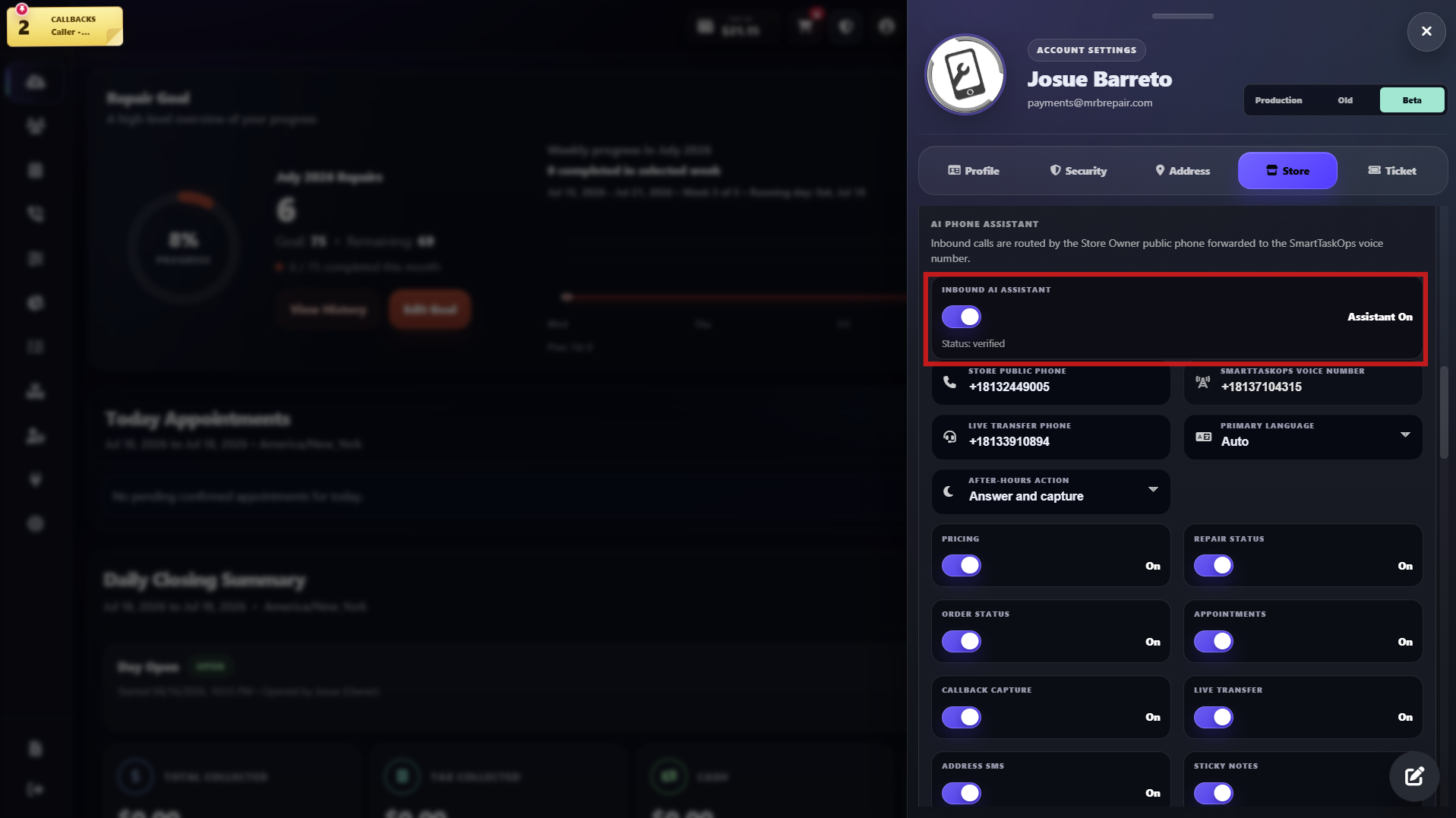
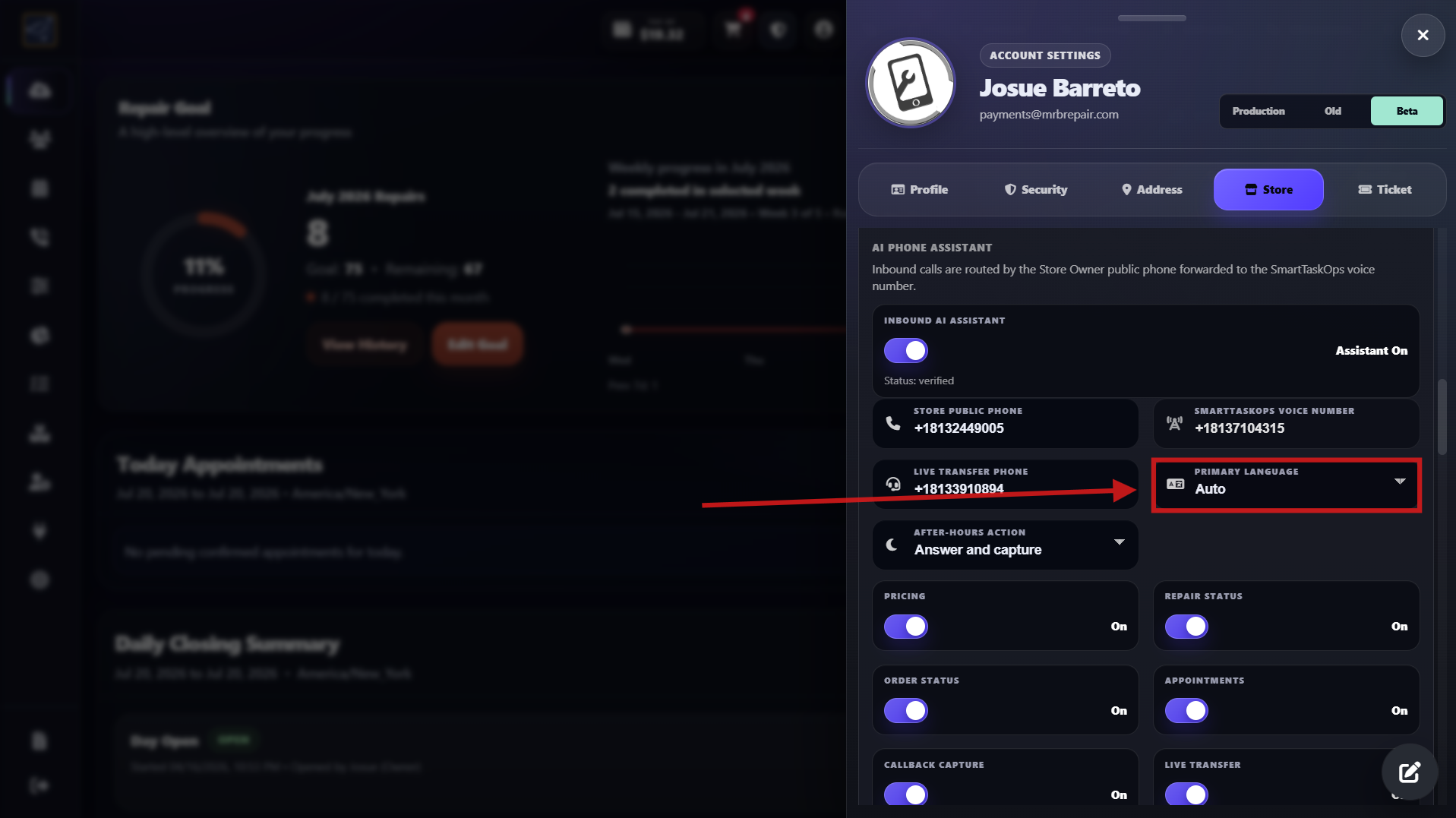
Step 4
Enable customer answer tools
- Turn on Pricing, Repair status, Order status, Appointments, and Address SMS.
- With these on, Aurion can give repair prices, check ticket/order status, help with appointments, and text the store address.
- Turn on Send PDF Quote. After Aurion gives a repair or service price during the call, it can create a draft order for that customer.
- The draft includes the quoted price and the sales tax configured for the store. Aurion generates a PDF quote and sends it to the customer by SMS so staff can review the draft before completing the sale.
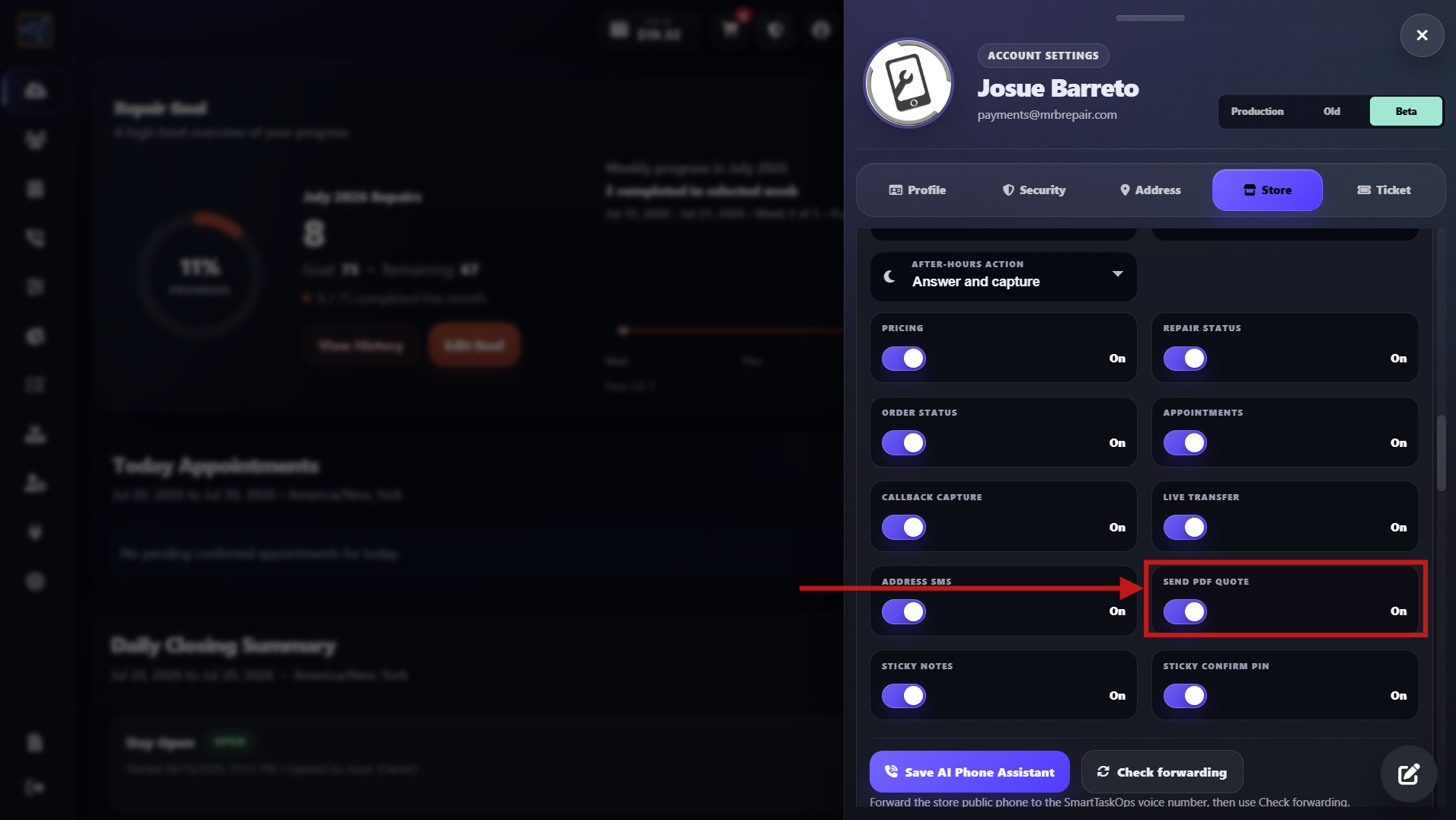
Step 5
Enable transfer, callbacks, and notes
- Turn on Callback capture, Live transfer, Sticky notes, and Sticky confirm PIN.
- Add up to four different direct Live transfer phone numbers for the people or teams who can answer customer transfers.
- When a caller asks to speak with the store, Aurion tries the numbers one by one in the configured order until someone answers. Use only direct representative or team numbers. Never use the store public phone forwarded to SmartTaskOps, because it can create a call loop.
- If none of the four numbers answers, Aurion captures the caller information and attaches a sticky note that stays pending until the callback is resolved. With Sticky confirm PIN on, the employee enters a PIN when completing the callback so the record identifies exactly who handled it. SmartTaskOps keeps the call details and recordings, including the transferred conversation between the store and customer, as part of the complete call history.
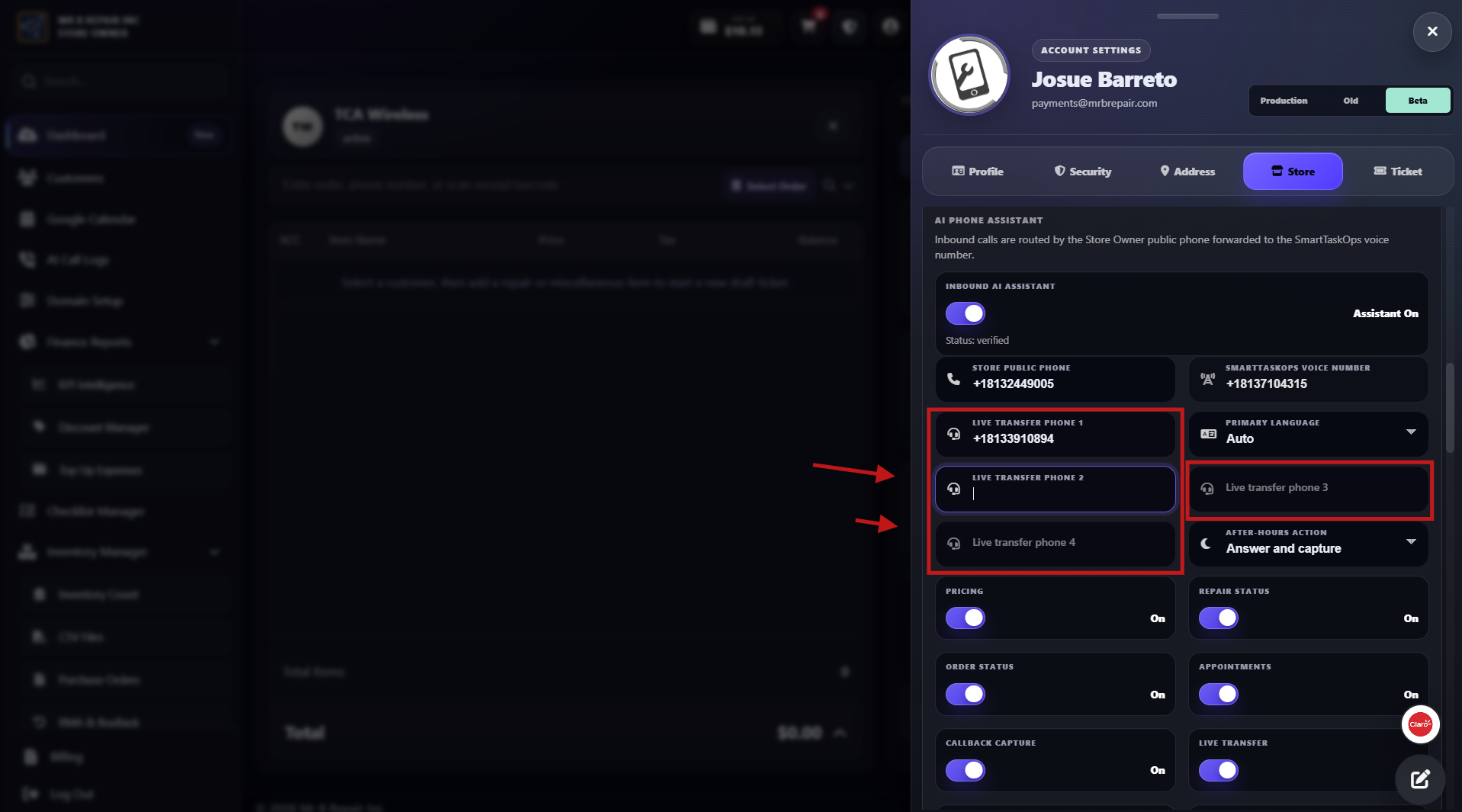
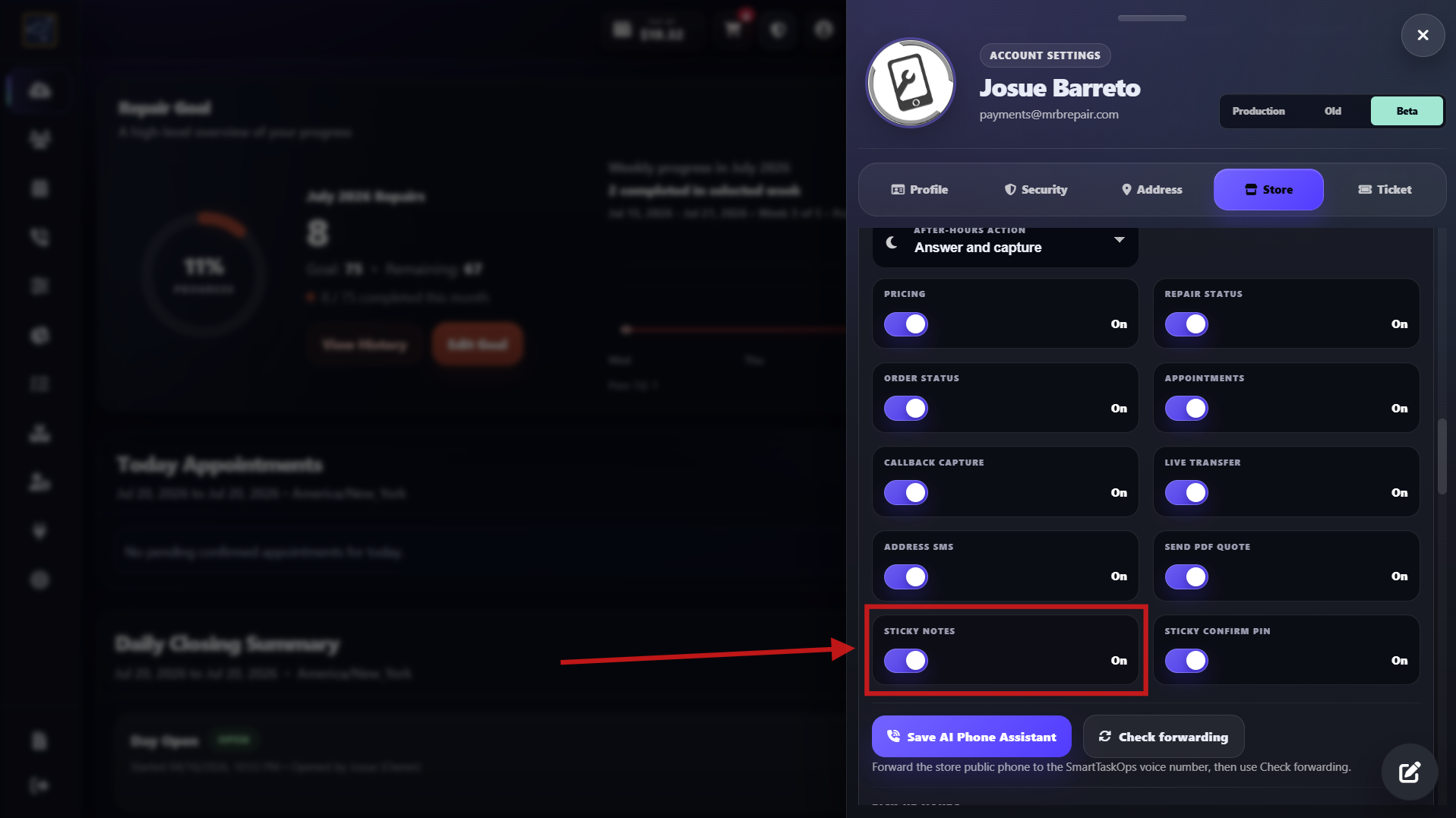
Step 6
Turn on repair-ready calls
- In Ticket settings, turn on Call Customer When Completed and Daily Ready Pickup Reminder Calls, then save. Aurion can call when a repair is completed and remind customers whose ready devices are still waiting for pickup.
- The daily reminder is not triggered by the clock alone. Staff must complete the morning Cash In / Start Day from Daily Closing Summary. If nobody opens the day, no reminder calls are queued, preventing customers from arriving while the store is unattended.
- That morning action loads eligible ready repairs into Voice AI Live. Aurion dispatches the calls from the queue, and staff can follow Queue, Calling, Active, and each result in real time. If a customer does not answer, Aurion can leave a voicemail.
- One action can contact 20 ready-repair customers while an employee continues helping the front desk, reducing time spent making calls and keeping devices waiting for pickup to a minimum. SmartTaskOps also sends webhook events for external workflows such as HighLevel.
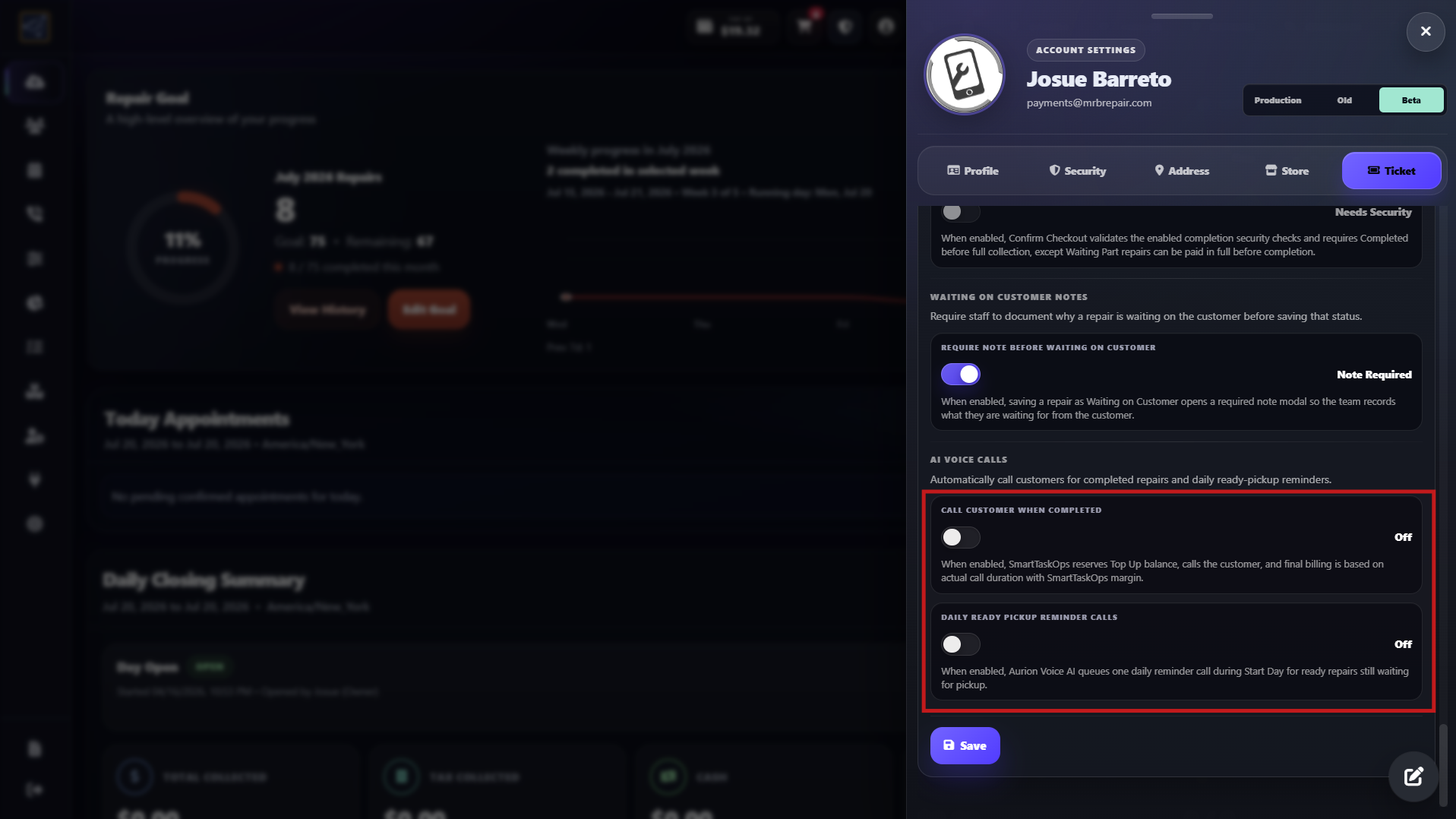
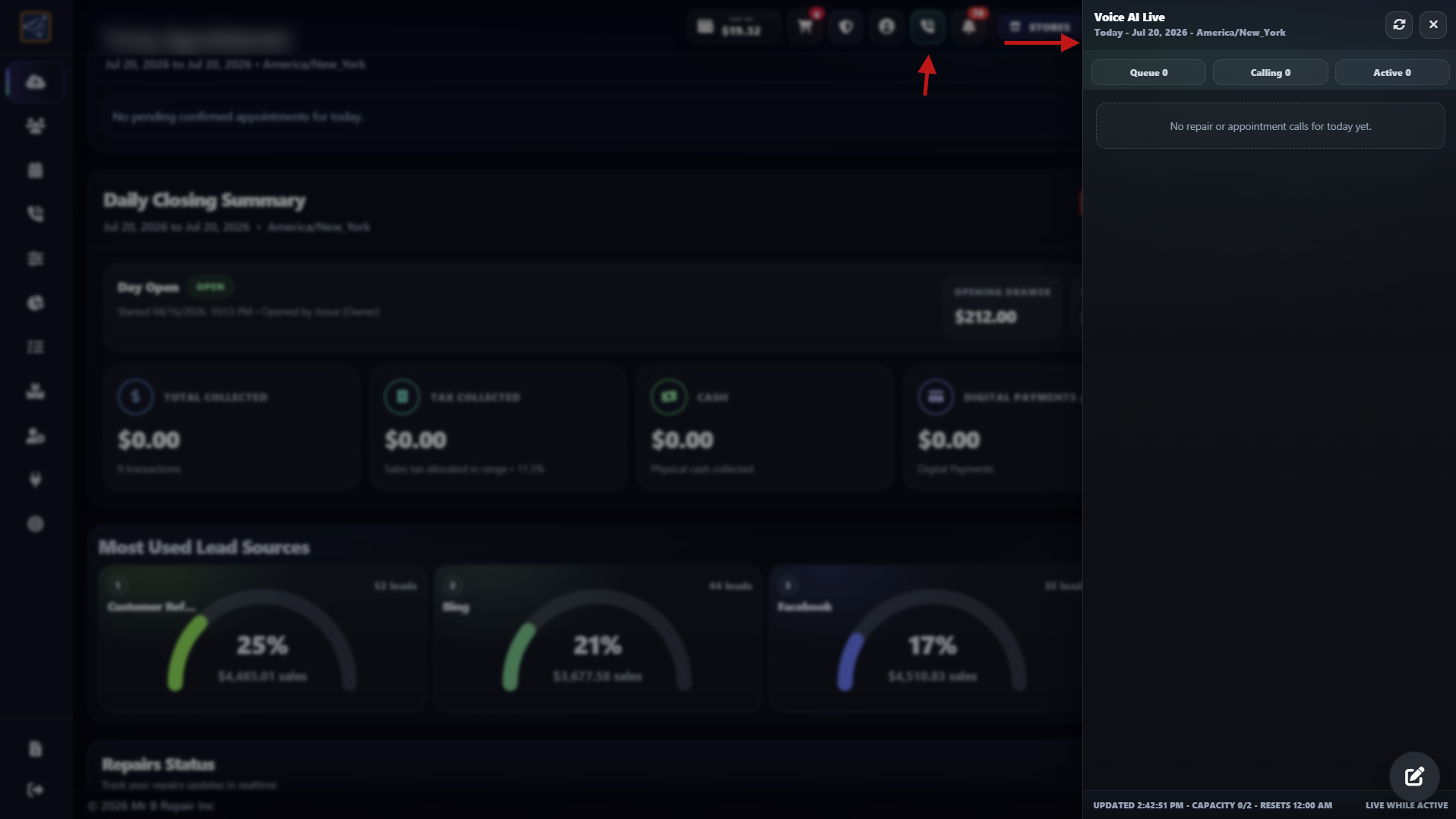
Step 7
Turn on appointment reminder calls
- Open the left sidebar, select Integrations, find Google Calendar, and connect it or confirm it shows Connected.
- Press Manage, select the calendar that contains the store appointments, press Load Appointments, and confirm the appointments are synchronized.
- Turn on 24H CALL so Aurion calls the customer 24 hours (one day) before the appointment.
- Turn on 1H CALL so Aurion calls again one hour before the appointment, then press Save Settings.
- Keep both toggles on. Aurion uses the customer phone saved with the appointment; if the customer does not answer, it can leave a voicemail according to the store settings.
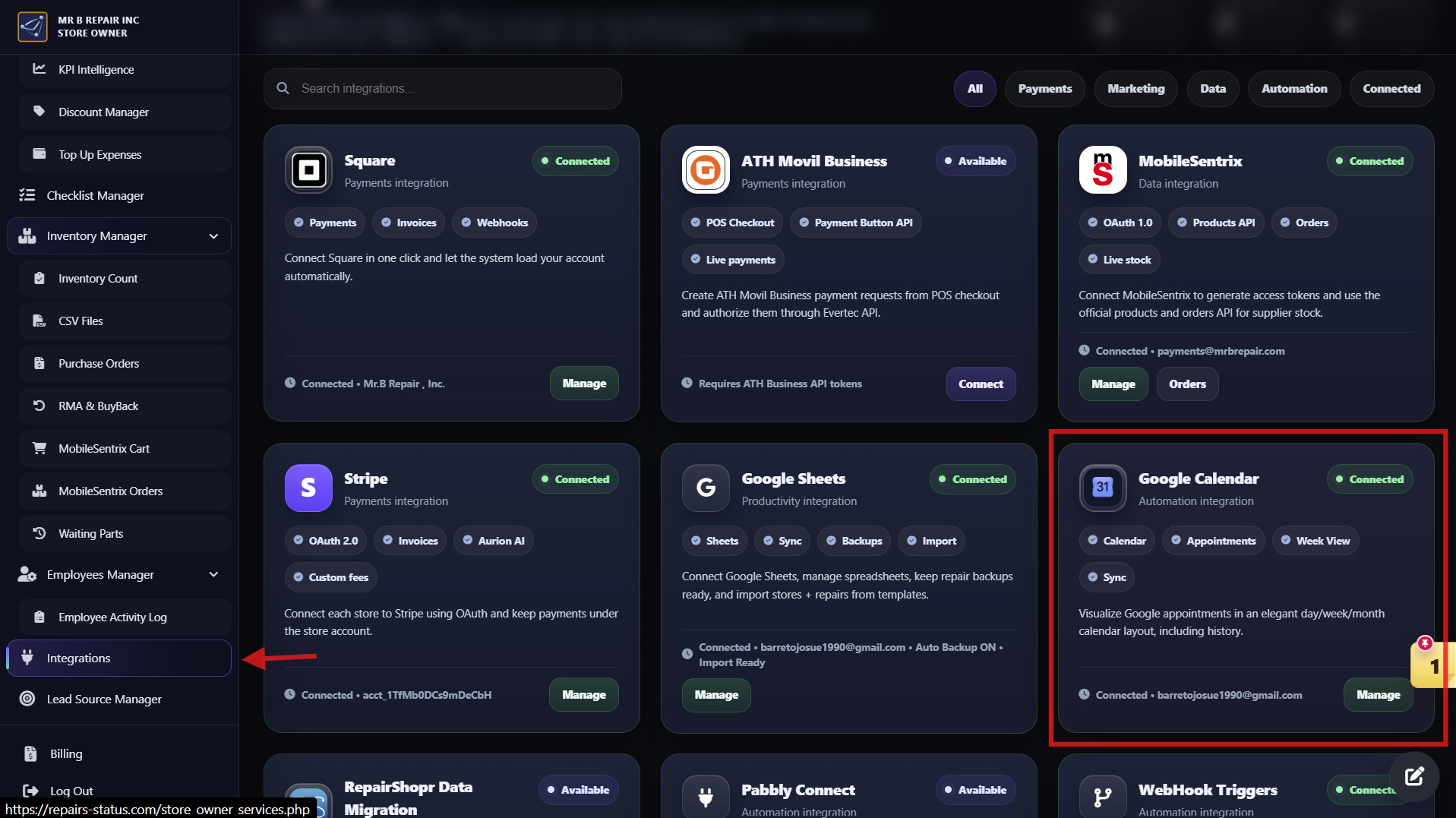
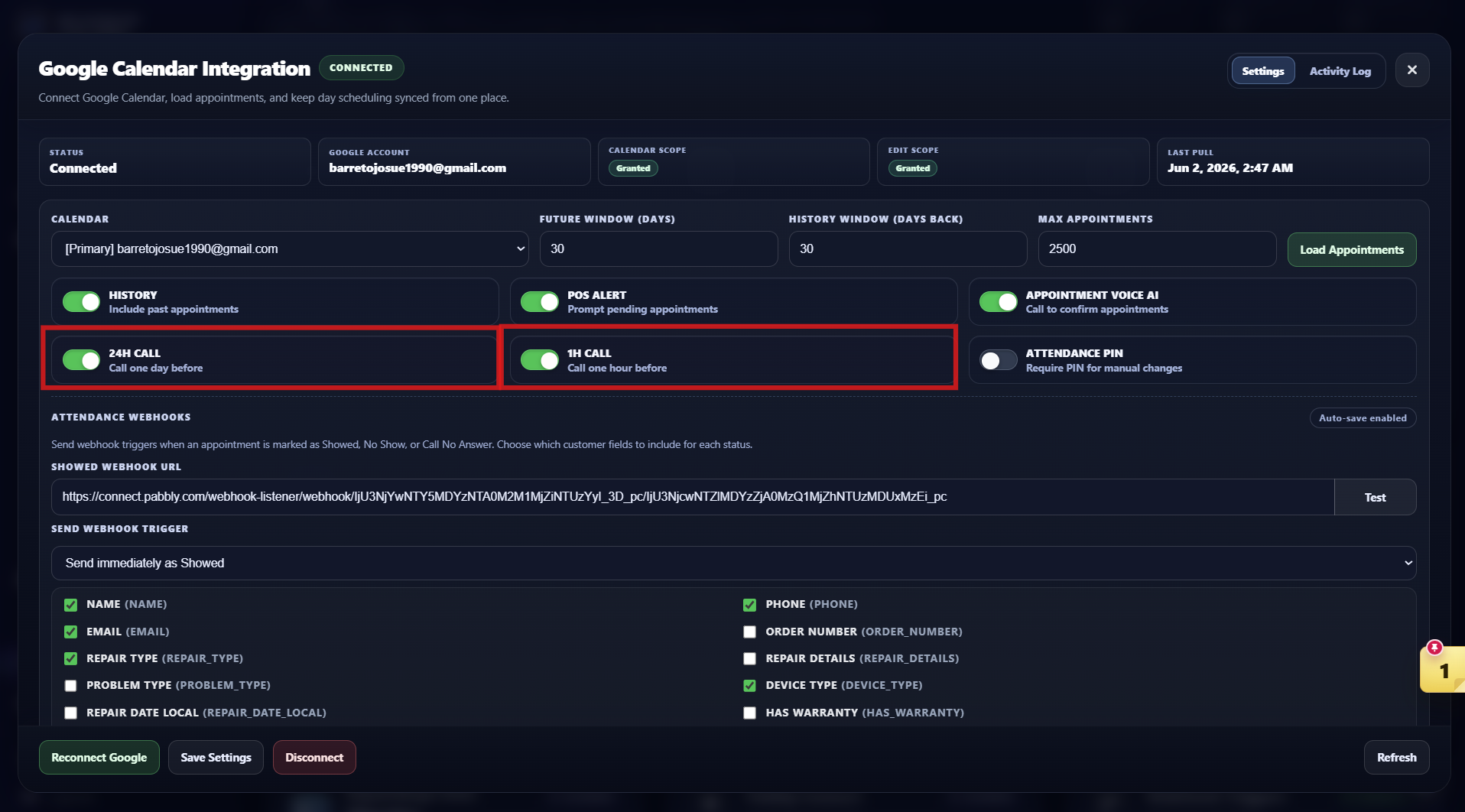
Step 8
Save and test Aurion
- Press Save AI Phone Assistant, wait for the success message, and confirm the assistant still shows On.
- Place a test call to the store public phone, ask for pricing, address, repair status, or an appointment, then review the result in AI Call Logs.
Step 9
Review AI Call Logs
- Open AI Call Logs from the phone icon and select a call. The list shows the date, caller, reason, forwarded and SmartTaskOps numbers, status, duration, and callback result.
- Open the conversation to review the complete transcript from Aurion, the customer, and the store representative when a call is transferred.
- Use Summary, Overview, Client data, Analysis, Store Call, and Workflow to review the AI summary, customer details, actions, and store conversation.
- Use the player at the bottom to listen to the complete recording, verify exactly what was said, and keep a reliable record of the customer call.
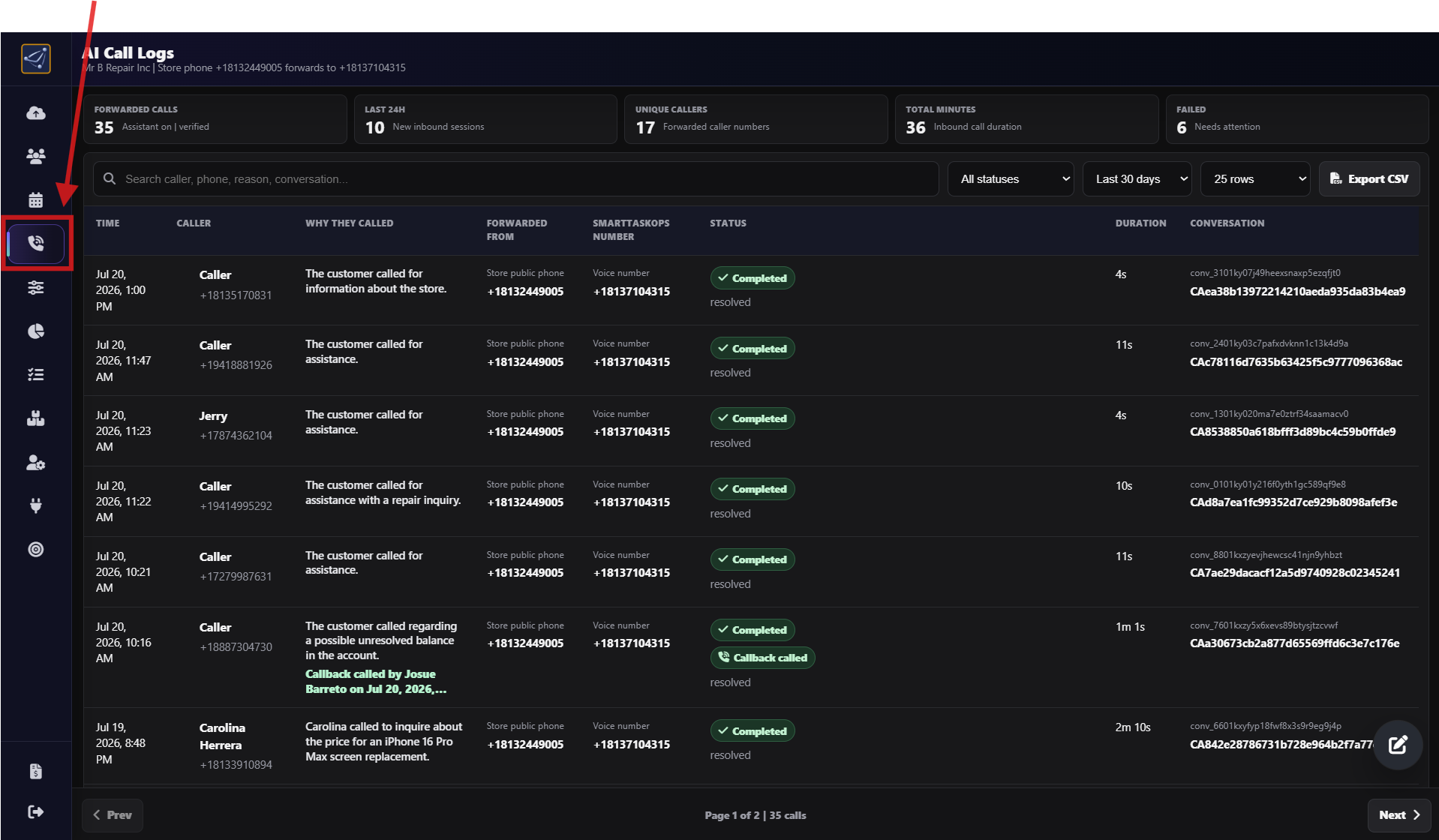
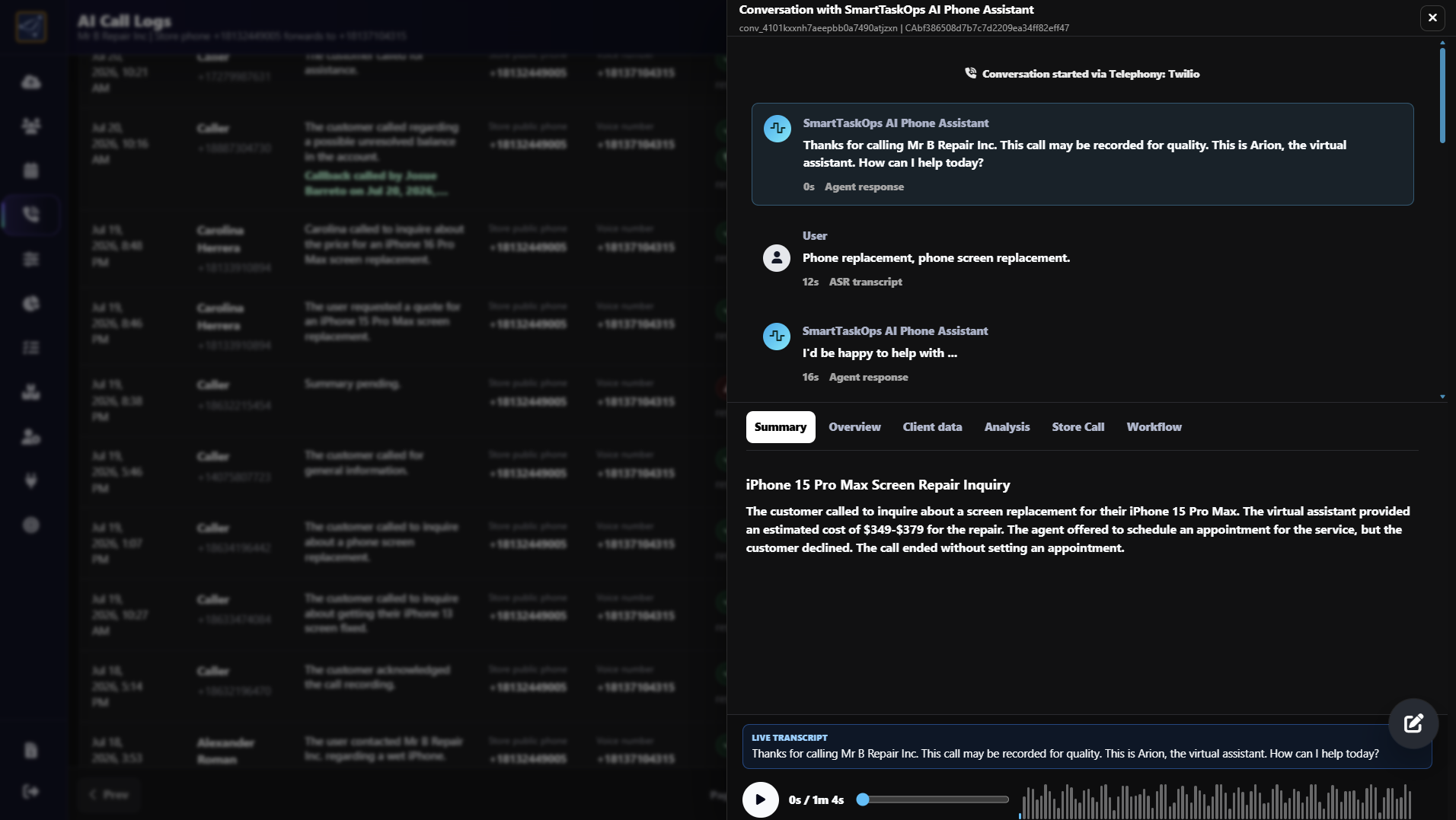
Step 10
Watch Aurion price a repair
- This real call shows a customer asking Aurion for the price of an iPhone 15 Pro Max screen replacement.
- Aurion understands the repair request, finds the price configured by the store, and gives the quote during the conversation.
Step 11
Connect Aurion webhooks
- Open the left sidebar, select Integrations, find Webhook Triggers, then press Manage.
- AI Call Transcript: sends the call transcript and customer information to your connected workflow.
- Repair Sales Lead: fires when a customer asks Aurion for a repair price and sends the customer information, transcript, device, problem, and quoted price.
- Use this data for immediate sales follow-up and help convert the quote into a booked repair.
- Open each trigger, paste the receiver URL from HighLevel, Pabbly Connect, Zapier, Make, n8n, or another compatible platform, then enable and save it.
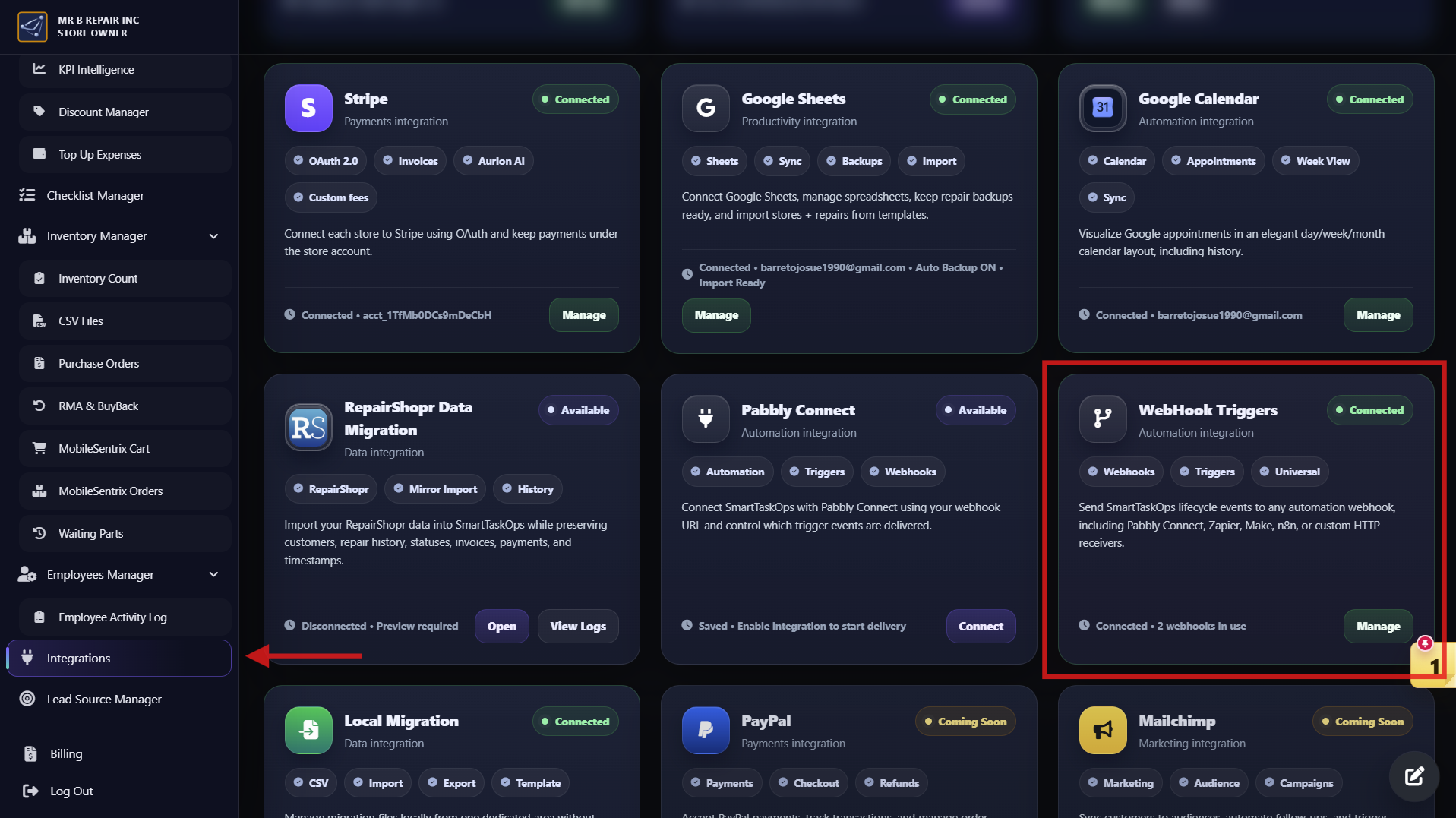
Step 12
Open Automation Center and understand the three modes
- Open Integrations, find WordPress Workflows, and press Manage to enter Automation Center.
- Use Leads to build the public quote iframe, Workflows to automate actions, and Reviews to customize feedback collection.
- The three modes share the same store profile, service catalog, customers, orders, calendar, messaging channels, and workflow history.
- Complete the store profile, catalog, email, SMS, calendar, and top-up setup before publishing so every automation has valid data and a delivery route.
- Keep the system in draft while configuring it. Autosave protects changes, and the live previews let you verify the customer experience before launch.
Step 13
Build and publish the customer lead iframe
- In Leads > Publish, turn on the public iframe, choose draft retention, and copy either the public URL or the iframe code for WordPress.
- Use Design for the logo, store name, colors, and visual style; use Services to control categories, devices, models, and repairs. Newer models appear first.
- Use Calendar to make appointments off, optional, or required. Appointment controls are available only when the store calendar is connected and enabled.
- Use Text to customize step names, labels, placeholders, and customer-facing messages without changing the workflow logic.
- Configure lead alerts for the profile or alternate email and phone, then use Open Preview to submit a complete test. Test mode creates a real draft, so remove test records afterward.
Step 14
Design independent workflows for each customer journey
- Open Workflows and select Quote Intake & Sales for new opportunities or Post-Sale Follow-up for completed repairs and purchases.
- Connect only the sources that should enter each workflow, such as WordPress Lead, Aurion AI Calls, paid repairs, or miscellaneous checkout.
- Turn the workflow and each source on or off independently. This lets you pause one automation without interrupting the others.
- Build the sequence with action cards, then drag to reorder, expand to configure, set a delay, or disable/delete an action that is not needed.
- Use source-aware actions: the same workflow can follow one delivery rule for WordPress customers and a different rule for Aurion callers.
Step 15
Configure quote intake, delivery, and store pricing rules
- A reliable quote workflow normally creates the draft, notifies the store team, confirms the request, syncs an appointment when present, and then prices or sends the quote.
- For WordPress leads, choose the customer's configured delivery channel: SMS, email, or both. For Aurion calls, use the caller's captured phone number and SMS only; email is never attempted.
- Set message language to English, Spanish, or Auto detect by call. Auto keeps the quote message in the language used by the caller.
- Aurion selects the exact device and service from the store catalog. The generated PDF must apply the store's tax, diagnostic fee, warranty, discount, and pricing rules.
- If the service cannot be matched with confidence, route it to team review or a live transfer instead of sending an inaccurate automatic price.
Step 16
Use manual price by SMS or Aurion automatic pricing
- With Manual price by SMS, select whether the price request goes to the owner's profile phone or an alternate authorized phone.
- The owner replies with the lead code and amount, for example L-49 150. When only one quote is waiting, the owner can reply with only 150.
- SmartTaskOps updates the existing draft and sends the professional quote SMS and PDF to the customer, never back to the owner's reply number.
- With Aurion AI · Send priced quote, Aurion reads the verified catalog price and sends the PDF to the same phone number used during the call.
- Open workflow history to verify the destination, exact message, PDF evidence, totals, taxes, diagnostic charges, language, and delivery status.
Step 17
Let the AI inspector qualify calls before automation
- Aurion captures the caller once, asks for the name once, and identifies the device, model, requested service, symptoms, language, and contact phone.
- The OpenAI inspector reviews the Aurion transcript and, after a transfer, the recorded store conversation before approving the sales lead.
- It can correct the device or service, preserve the issue summary, price options, diagnostic fee, tax, employee response, and conditional discounts discussed during the call.
- If Aurion cannot find a reliable catalog match, it should offer a transfer to a store associate so the request can be confirmed before pricing.
- Calls from the same phone for the same repair are skipped when an active workflow already exists. The accepted lead shows a concise call summary and customer phone under Lead received.
Step 18
Automate post-sale follow-up and customer reviews
- Use Post-Sale Follow-up to thank the customer and request a review after a paid repair or miscellaneous checkout. Each source can have its own delay and actions.
- The review request automatically uses the store's public review URL. Every customer link is unique to the ticket or order, so the form already knows the customer and transaction.
- In Reviews, customize Publish, Form, Design, Google, and Emails.
- The form can show the completed repair or purchased items, use interactive stars, prefill known customer data, save private feedback, and then continue to Google when enabled.
- A repair review is also added to the repair activity log as customer evidence, while Review History tracks delivery, waiting, completed, and failed actions.
Step 19
Customize emails, test the full journey, and launch
- Maintain separate review emails for completed repairs and miscellaneous purchases. Customize the subject, headline, body, logo, store name, logo size, slogan, address, and call-to-action.
- Repair emails identify the completed service. Miscellaneous emails can show an elegant digital receipt with purchased items and available product images.
- Send test emails to the profile email or an alternate address and verify the mobile layout, customer variables, review link, store identity, and receipt details.
- Before going live, submit one test from every enabled source and confirm the lead, draft, destination, language, PDF, tax, diagnostic fee, appointment behavior, review link, and activity history.
- After launch, review workflow and review histories, AI Call Logs, queued/failed actions, message evidence, calendar status, and top-up balance. Keep call reminders off when their required calendar or balance is unavailable.
Step 20
See what the monthly AI Agent Plan includes
- AI Agent Basic costs $119.99 per month, renews automatically, and includes 800 combined voice minutes in each billing cycle.
- The same allowance covers inbound and outbound AI Agent calls, live-transfer call legs, and human incoming or outbound store calls made through the dedicated number.
- The plan includes one dedicated local number for a United States or Puerto Rico store. SmartTaskOps searches live Twilio inventory near the saved store address; a preview is not reserved until the purchase completes.
- Call processing with GPT-4o mini, recordings, transcripts, summaries, outcomes, and next-action analysis turn conversations into usable store records instead of isolated phone calls.
- Minutes beyond 800 use Top Up. SMS, MMS, images, and PDF delivery are separate usage-based Top Up charges.
Step 21
Prepare the account and activate the dedicated number
- Sign in as the owner. In Settings > Address, save the store city, state, and ZIP code. Local-number provisioning currently requires a United States or Puerto Rico store address.
- Confirm that Billing has a valid saved card, then open Settings > AI Agent Plan.
- Review the live local-number preview and its location. Availability changes continuously, so the number shown can change before it is purchased.
- Select Activate plan, confirm the $119.99 monthly charge, and wait for provisioning. If the plan shows Finish phone setup, select it until the dedicated number reports Active.
- Use this panel to monitor calls, used and remaining minutes, overage, Top Up charges, renewal date, invoices, and receipts. Canceling renewal keeps the plan active only until the current paid period ends.
Step 22
Customize the agent and choose the call route
- Open Settings > AI Agent. In Voice identity, enter the custom Assistant name the store wants callers to hear and choose Male voice or Female voice. Aurion and Sofia are only default presets; greetings and conversations use the saved custom name and voice.
- Turn on Inbound AI Assistant, then save the public store phone, language, business hours, and after-hours action. Under Dedicated number AI routing, the option labeled Sofia first means the store's configured custom agent answers first; it does not force the agent to be named Sofia.
- Use Direct ring when employees should have the first chance to answer: forwarded public-number calls and dedicated-number calls ring active SmartTaskOps browser phones and configured direct numbers for 45 seconds.
- Add up to four different direct Live transfer phone numbers. Do not reuse the public store number, dedicated number, or SmartTaskOps forwarding number, because that can create a call loop.
- Keep Inbound AI Assistant enabled to give Direct ring a Sofia backup. If nobody answers within 45 seconds, the same call continues with the customized agent, which can help the caller and capture a name, phone, reason, or callback note. Use Sofia first only when the agent should answer immediately before store devices.
- When the saved business hours show that the store is closed, Sofia answers immediately; Direct ring does not ring employee devices first.
Step 23
Answer and place calls from the dedicated number
- On every authorized device that should ring, sign in to SmartTaskOps, allow microphone and browser-audio access, and interact with the page once so the native browser phone can stay ready.
- In Direct ring mode, an incoming call rings the active SmartTaskOps devices and configured direct phones simultaneously. The screen identifies a known customer when the caller number matches the directory; once one employee answers, the call is claimed for that employee.
- To call out, open the phone icon, switch to Keypad, search the customer directory by name, phone, or ticket, or enter a valid United States/Puerto Rico number, then select Call. The customer sees the store's dedicated number as caller ID.
- A callback sticky note or repair ticket can open the phone with the customer and reason already selected. During the call, use mute, supported hold controls, keypad tones, and the movable call panel while continuing to work in SmartTaskOps.
- AI Agent Plan minutes are used first; any usage beyond the combined allowance is charged through Top Up.
Step 24
Review recordings, transcripts, summaries, and callbacks
- With call recording enabled, callers hear the quality-recording notice and SmartTaskOps stores the answered AI, transferred, human incoming, and human outbound conversations in the call history.
- Open the phone icon and Call Log or AI Call Logs. Filter by direction or status, select a call, and review the parties, employee, date, duration, result, workflow, and recording player.
- After processing, the conversation includes a speaker-aware transcript plus a concise AI summary, outcome, commitments, unresolved needs, and recommended next action. This gives owners a practical quality record for customer service and employee coaching.
- For an AI-captured callback, the sticky note preserves the caller name, phone, reason, original call, transcript, and summary. An employee can call back from the note; the result and recording are added to the same history, and the confirmation PIN records who completed it.
- Review access should stay limited to authorized staff and follow the recording and privacy rules that apply to the store. Use the AI Call Transcript webhook when a completed inbound AI call must also reach an external workflow.
How to Migrate from MyRepairApp
Use the MyRepairApp Migration integration to transfer customers, tickets, repairs, invoices, payments, notes, activities, and line items into SmartTaskOps with a simple API key flow.
Step 1
Create or copy the MyRepairApp API key
- Sign in to MyRepairApp with the owner or admin account that has access to the store data.
- Open the account/settings area for API, Developer, or API Keys.
- Create or copy an active API key for the migration, then keep it in a secure place.
- If MyRepairApp shows the key only one time, copy it before closing the window.
Step 2
Open SmartTaskOps Integrations
- Sign in to SmartTaskOps as the store owner.
- Open the left sidebar and select Integrations.
- Find the MyRepairApp Migration card.
- Press Connect or Manage to open the migration workspace.
Step 3
Paste the key, save it, and press Test
- In the Connect step, paste the MyRepairApp API key into the API key field.
- Press Save so SmartTaskOps stores the key for this owner account.
- Press Test and wait for the connection success message.
- If the test fails, create a fresh key in MyRepairApp and test again.
Step 4
Load Preview to verify source data
- Open the Preview step and press Load Preview or Preview.
- SmartTaskOps downloads and archives MyRepairApp source records in protected batches.
- Review the preview counts for customers, tickets, invoices, payments, notes, and line items.
- Wait for the source sync to finish before starting the import.
Step 5
Press Import to start the transfer
- Open the Import step and press Start Import or Import.
- Confirm the prompt so SmartTaskOps can run the ordered migration in the background.
- Customers run first, followed by tickets/repairs, invoices, payments, notes, activities, and line items.
- You can pause safely and resume later if the migration needs to continue in another session.
Step 6
Review the migrated SmartTaskOps data
- Open the Review step to check connection state, preview counts, import totals, and logs.
- Confirm that customers and repairs appear in SmartTaskOps with their payments, notes, and history.
- After the import, use Fix Dates if it is available to repair imported chronology from the source archive.
- Disabling the MyRepairApp integration later does not delete records already imported into SmartTaskOps.
How to Migrate from RepairShopr
Connect RepairShopr directly and move customers, devices, repairs, comments, invoices, payments, products, and attachments into SmartTaskOps. The owner can preview, start, pause, resume, review, and retry the migration without waiting for SmartTaskOps staff.
Step 1
Prepare the RepairShopr subdomain and API token
- Sign in to RepairShopr with an owner or administrator user that can read all store records included in the migration.
- Open that user profile and its API Tokens area. Some accounts expose the same controls under Admin Center → API.
- Create a dedicated token for SmartTaskOps with read access to customers, assets, tickets and comments, invoices, payments, products, and attachments. Copy the full token before leaving the page.
- Write down only the store subdomain. For https://your-store.repairshopr.com, the subdomain is your-store. The official RepairShopr API documentation confirms that the API key belongs to the user profile.
Step 2
Open RepairShopr Data Migration in SmartTaskOps
- Sign in to SmartTaskOps with the store owner account that should receive the migrated records.
- Open the left sidebar, select Integrations, and search for RepairShopr or open the data category.
- Find the RepairShopr Data Migration card. It lists customers, repairs, and invoices as supported data.
- Press Connect. If credentials were already saved, press Manage to return to the migration workspace.
Step 3
Save the credentials and test the connection
- In 1. Connect, enter only the RepairShopr subdomain—without https:// or .repairshopr.com.
- Paste the API token. SmartTaskOps stores it encrypted and shows only a masked value after saving.
- Press Save, then press Test. Continue only after the connection shows Connected or a successful test message.
- If the test fails, verify the subdomain, token, user access, and required read permissions. Credentials cannot be changed or tested while an import is active.
Step 4
Load Preview and verify the source counts
- Open 2. Preview and press Load Preview. SmartTaskOps reads the available RepairShopr records without importing them yet.
- Review the totals for customers, devices, repairs, invoices, payments, and products. Comments and attachments follow their related repairs during the import.
- Confirm that the counts look reasonable for the source store. Use Refresh Preview when RepairShopr data changes before the migration begins.
- If you change the subdomain or API token after previewing, load a new preview. SmartTaskOps blocks an import based on stale credentials.
Step 5
Start the background import and monitor progress
- Open 3. Import, press Start Import, and confirm. The migration continues autonomously in the background, so you may leave the page and return later.
- SmartTaskOps preserves dependencies by importing customers, devices, repairs, comments, invoices, payments, products, and attachments in that order.
- Follow the overall percentage and each phase's processed, imported, updated, skipped, and failed totals. Use Refresh if you want an immediate status update.
- Press Pause Safely when needed; the current page finishes before stopping. Then use Resume Import to continue from the last confirmed page without starting over.
Step 6
Review the results and retry only failed records
- Open 4. Review to compare SmartTaskOps totals for customers, repairs, orders, payments, products, and comments with the migration activity.
- Review each phase and the recent audit log. Confirm imported, updated, skipped, and failed counts, then spot-check customer profiles, repair history, invoices, payments, products, timestamps, and mapped statuses.
- If failures remain after the run stops, press Retry Failed. SmartTaskOps retries the protected failed records without rerunning successful records.
- Disabling RepairShopr later only removes the active connection; records already imported into SmartTaskOps remain available. Keep the integration connected until the review and any retries are complete.
How to Migrate from RepairDesk
Use RepairDesk Migration to move customers, tickets, orders, payments, notes, devices, and status history into SmartTaskOps. The store owner can connect with an API key, preview the source totals, launch the transfer, and review results without waiting on the SmartTaskOps team.
Step 1
Create or copy the RepairDesk API key
- Sign in to RepairDesk with an owner or administrator account that can read the store data being migrated.
- Go to Store → General Settings, then find API KEY under Other Information.
- Copy the generated API key. If you need a new one, press Reset, confirm Yes, then press Save Changes.
- For screenshots and the latest RepairDesk instructions, open RepairDesk's official API key guide.
- Keep the full key private. You can rotate or revoke it in RepairDesk after the migration is fully reviewed.
Step 2
Open RepairDesk Migration in SmartTaskOps
- Sign in to SmartTaskOps with the store owner account that should receive the transferred data.
- Open the left sidebar and select Integrations.
- Find the RepairDesk Migration card inside the data transfer/POS migration area.
- Press Connect. If the API key was saved before, press Manage to reopen the migration workspace.
Step 3
Save the API key and test access
- In 1. Connect, paste the RepairDesk API key into the API key field.
- Press Save so SmartTaskOps stores the key securely for this owner account.
- Press Test and wait until the connection shows Connected or a successful test message.
- If the test fails, verify the key, owner permissions, and RepairDesk account access before continuing.
Step 4
Load Preview and confirm the source totals
- Open 2. Preview and press Load Preview.
- SmartTaskOps reads the available RepairDesk customers and tickets without importing them yet.
- Review the totals and page counts. Ticket details carry related orders, payments, notes, devices, and status history into the migration.
- If RepairDesk data changes before importing, run Refresh Preview so the transfer starts from a fresh source snapshot.
Step 5
Start the automatic import and monitor progress
- Open 3. Import, press Start Import, and confirm the action.
- The migration runs in the background, so the store can leave the page and return later.
- SmartTaskOps imports customers first, then tickets with the linked repair/order history, payments, notes, devices, and status events.
- Use the progress totals, Pause Safely, and Resume when a large transfer needs to continue across sessions.
Step 6
Review results and retry attention items
- Open 4. Review to compare SmartTaskOps totals with the RepairDesk migration activity.
- Check recent activity, imported totals, skipped records, failed records, and any attention list items.
- If RepairDesk rotated the API key during a migration, run a fresh Preview and use the safe bind option only when SmartTaskOps confirms the source account matches.
- Disabling RepairDesk later removes only the saved connection; imported customers, orders, payments, notes, devices, and history stay in SmartTaskOps.